iPhone で Content Blocks を使う
iPhone では、Content Blocks を使って画像、テキストファイル、コード、CSV テーブルを文書へ手軽に挿入できます。
ファイルに要素を統合できるだけでなく、この機能は目次や、Favourite、Smart Folders、Hashtags といった ライブラリ の機能と並んで、優れた文書管理の方法にもなります。
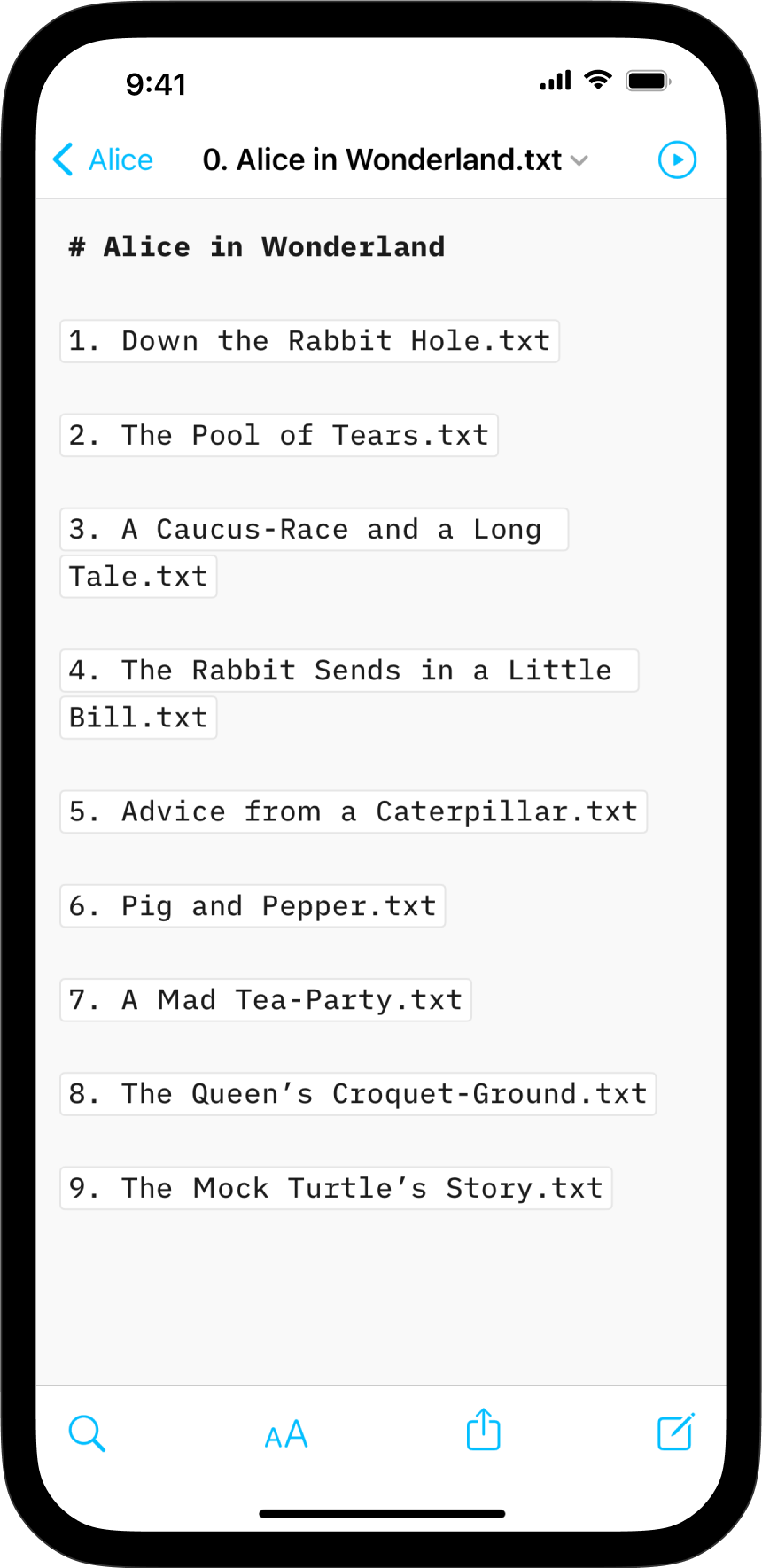
さまざまな使い方の中でも、Content Blocks は本の複数の章をひとつの文書にまとめたい書き手に特に人気があります。
Content Blocks の起源
Markdown 記法の考案者のひとりである John Gruber は、この投稿で、画像構文こそ Markdown 最大の失敗だったと述べ、代案として次のように書いています。
My best idea for good Markdown img syntax would be to just paste in a URL ending in .jpg/.png/.gif etc.
私たちはファイルのトランスクルージョンをどう支援するか模索する中で、後に Content Blocks と呼ぶ構文にたどり着きました。
Content Blocks 機能が Writer に追加されたのは数年前です。この歩みについて詳しく知りたい方は、その当時のブログ記事 iA Writer 4 をご覧ください。
Content Blocks を追加する
文書に Content Blocks としてファイルを埋め込む方法は 2 つあります。どちらの場合も、次の原則を守る必要があります。
- Content Block は空行の行頭から始める必要があります
- 埋め込むファイルは iA Writer のライブラリ内で参照されている必要があります
- 引用符または丸括弧でキャプションを追加できます(
.txtファイルでは無視されます) - Content Blocks は現時点では “From Other Apps” では処理されません
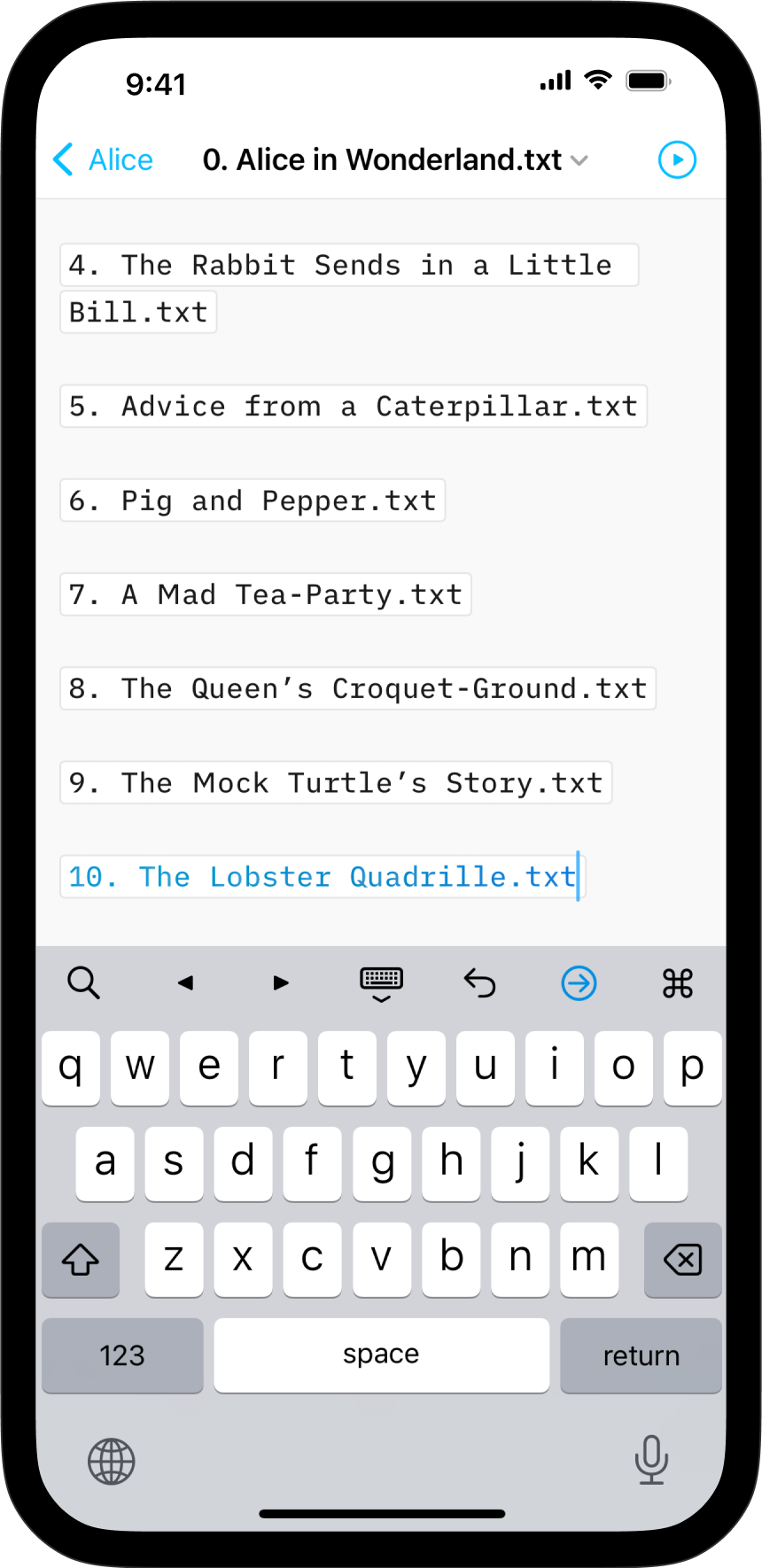
1. Command Palette から追加する
Command Palette の Add Content Block ボタンをタップすると、ライブラリのファイルを現在の文書に埋め込めます。
小さなポップアップウィンドウにファイル一覧が表示されるので、追加したいものをタップしてください。


2. パスを入力する
埋め込みたいファイルのパスを、対象の文書へ手入力することもできます。次のように、正しい構文を守ってください。
Section.txt "Section"
Balance Sheet.csv 'Finances'
images/Structure.jpg (Data Flow)
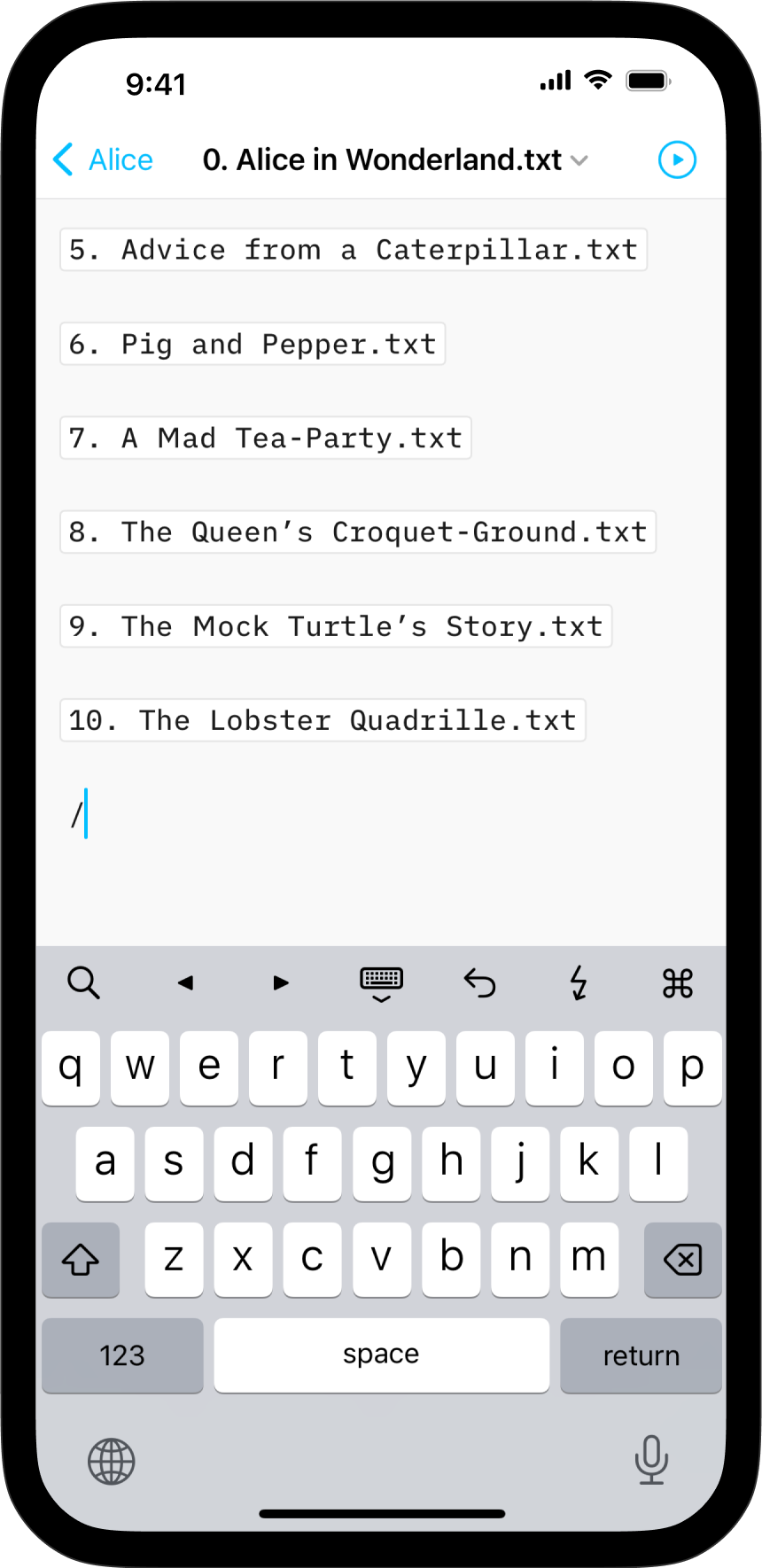
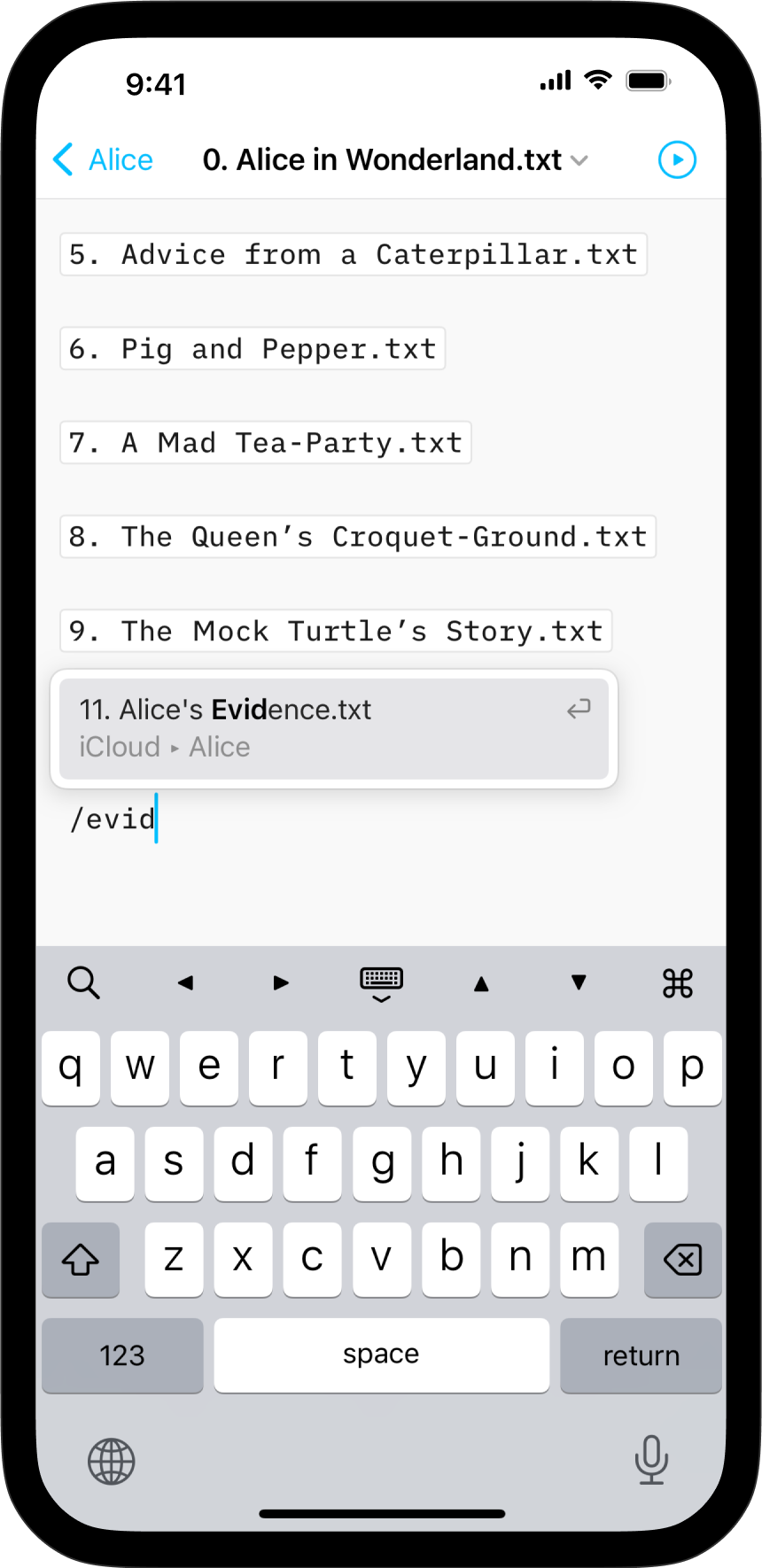
💡 オートコンプリートが Content Blocks の検索と追加を手伝ってくれます。起動するには:
- スラッシュ
/を入力する - 追加したいファイル名の数文字を入力する
- 一致するファイルの一覧がポップアップ表示されるので、目的のファイルをタップする
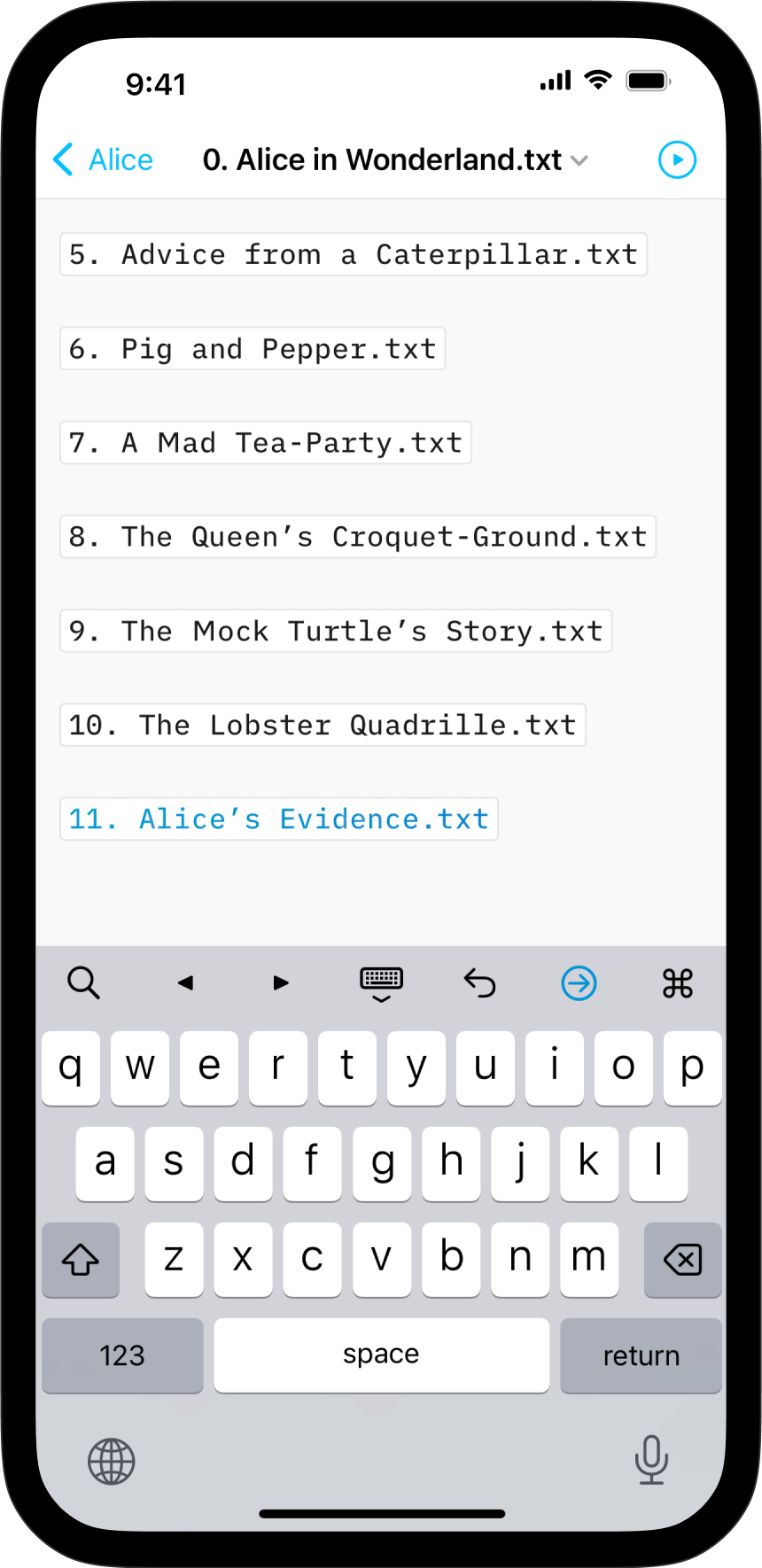
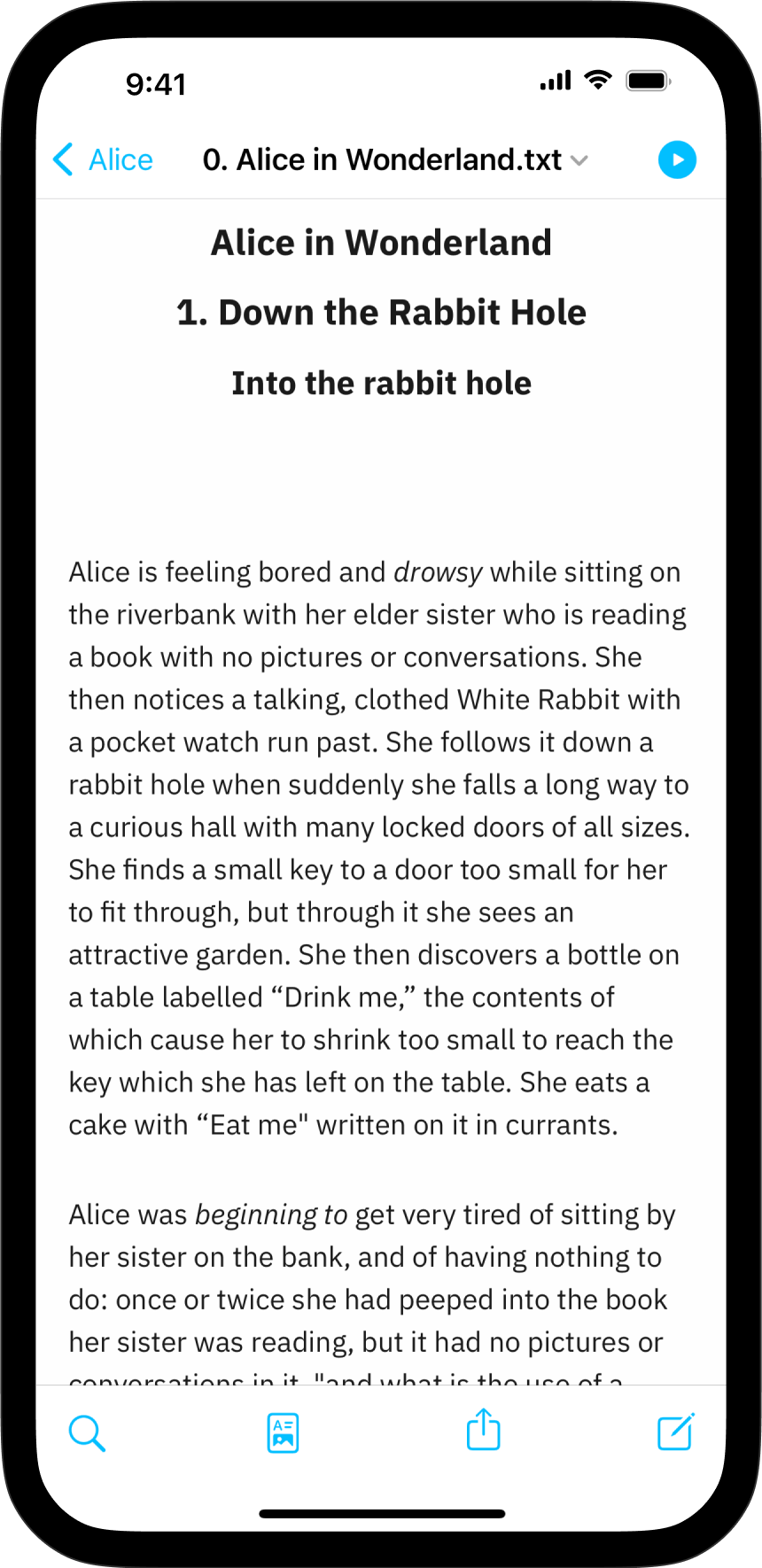
埋め込まれたファイルは Preview で表示され、HTML、PDF、Markdown、Microsoft Word に書き出す文書にも含まれます。
Content Blocks のメタデータ
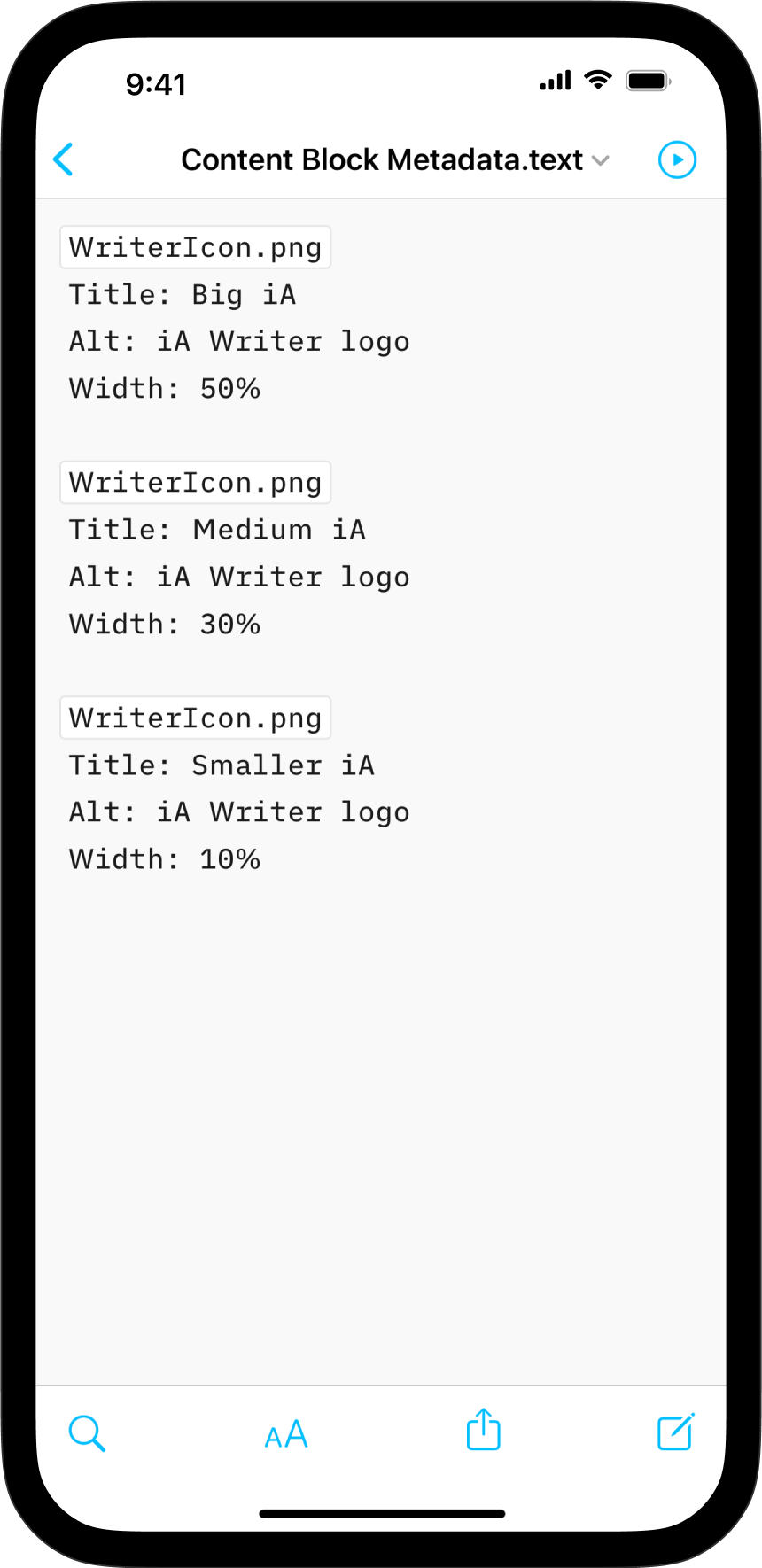
Content Blocks にメタデータを追加できます。特に画像では、独自の幅を設定したり alt テキストを追加したりしたいときに便利です。詳しくは メタデータ をご覧ください。