Troubleshooting iPad
We’re working hard to make iA Presenter reliable and stable. But when things go wrong, there’s usually a way to fix it.
Can’t install Presenter? Make sure your iPad is running iPadOS 16 or a more recent release. Otherwise try these troubleshooting steps:
Restarting Your iPad
Many issues can be resolved by closing the app, restarting your iPad, then running Presenter again. Do this before you start troubleshooting any issue.
Common Fixes
- Make a new presentation and see if the problem persists
- Restart your device (hold down the Power button for a few seconds, slide to power down, then repeat to start)
- Try reinstalling Presenter
- Make sure you’ve backed up locally stored documents, and that your cloud-based documents are synced
- Tap and hold the Presenter icon, then tap Remove App
- Reinstall iA Presenter from the email you received when purchasing it, containing the download link and license key, or from the App Store (Purchases section)
Send a Bug Report
If reinstalling doesn’t work, please send us a bug report.
The more details it contains the faster it will be processed.
Try to include:
- iPadOS and build number
- iA Presenter version and build number
- Steps you already took to resolve the issue
- Error messaging or codes (if any)
- A crash report (if any—see below)
- A sample file
- A screen recording or screenshots, if possible
Sharing Crash Reports
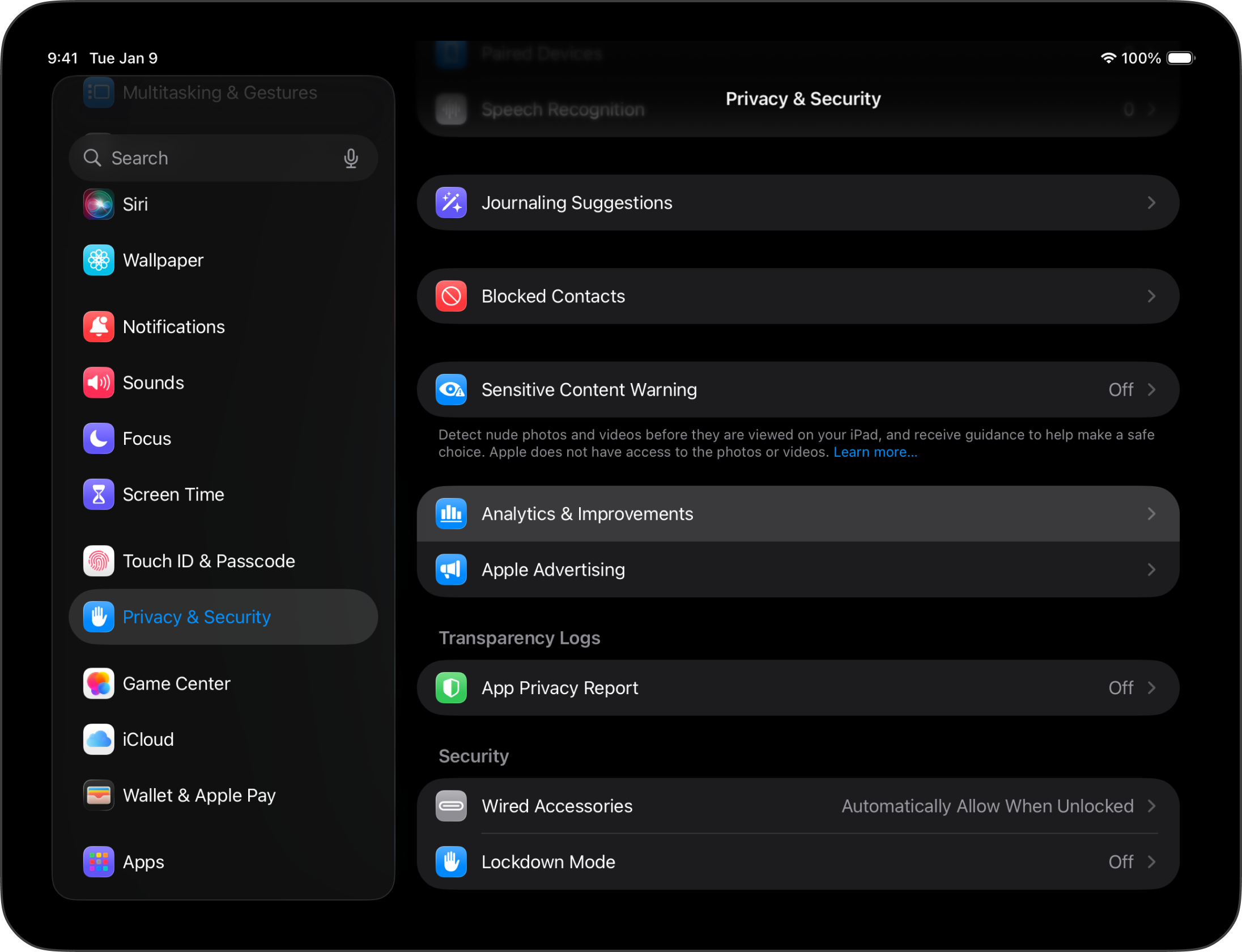
Apple gives you the option to share your data with app developers, including crash reports. To enable data sharing with developers, go to:
- System Settings → Privacy & Security → Analytics & Improvements
- Turn on Share iPad Analytics
- Turn on Share With App Developers

7-Day Free Trial
Download now.
No credit card required.

Mac
No credit card required