Templates Windows
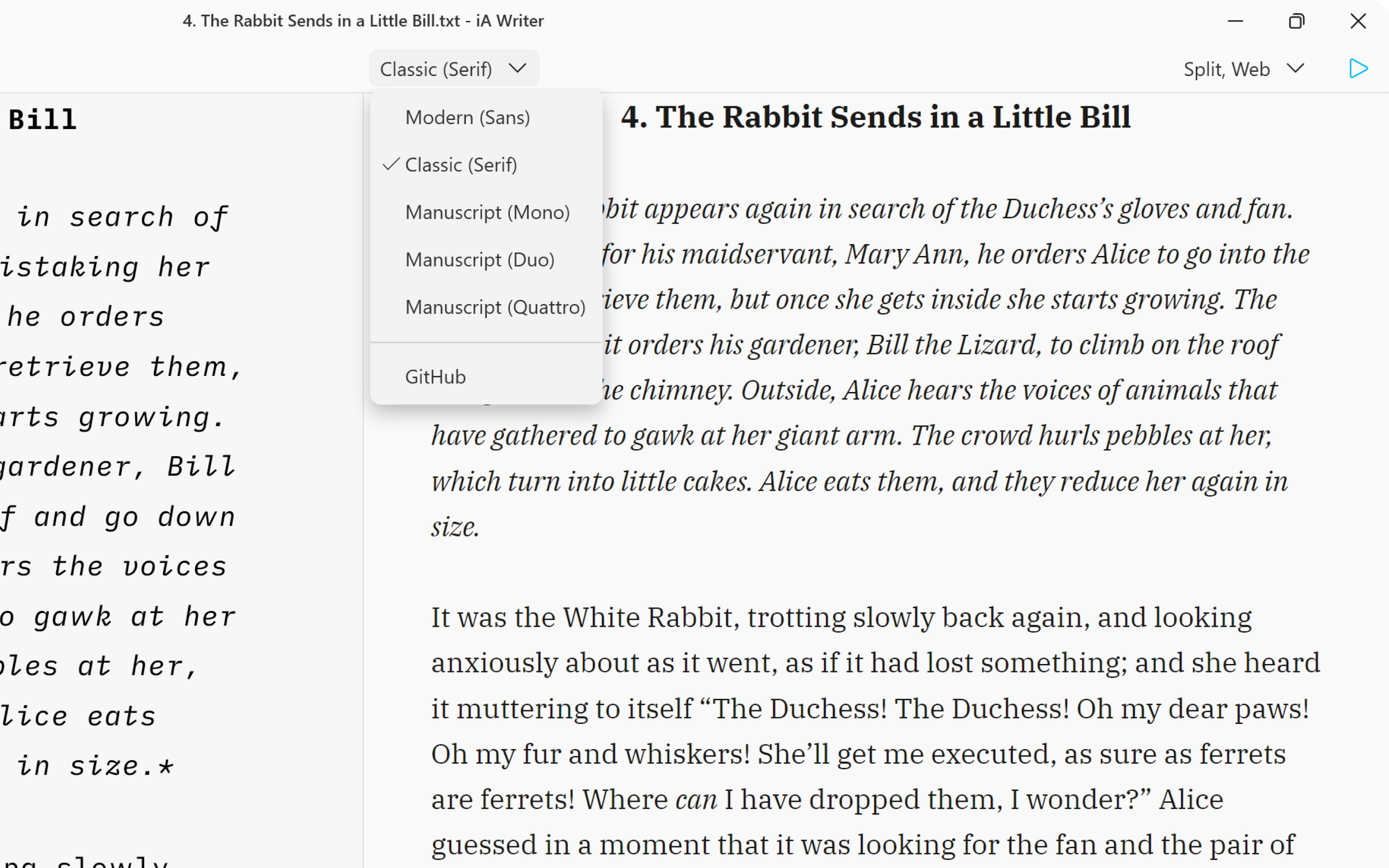
Preview, create PDFs, and print documents in your own style with templates in iA Writer for Windows.
The templates determine the style of your text in Preview and Print with elements such as the fonts, the margins, the line height, etc…
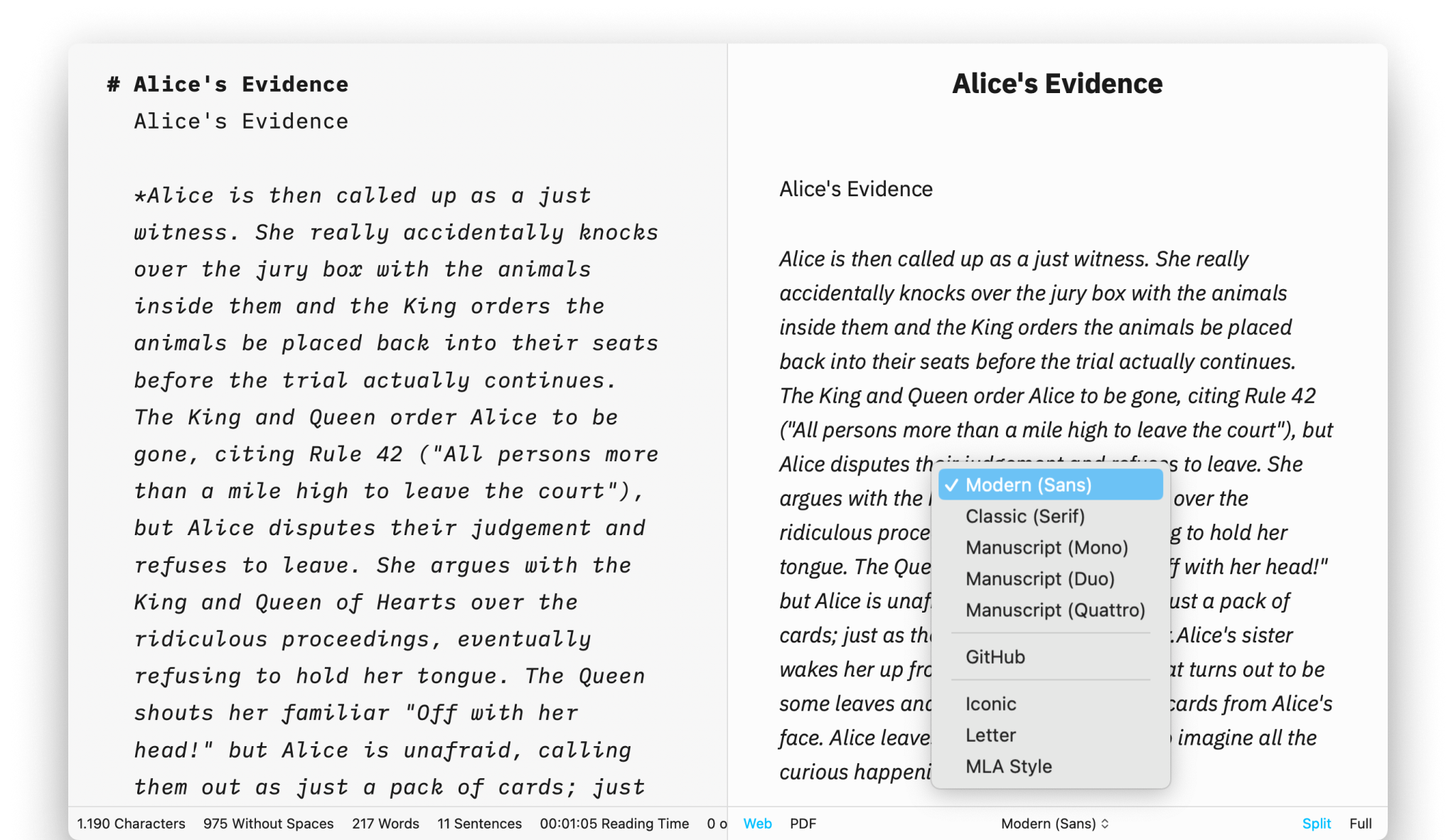
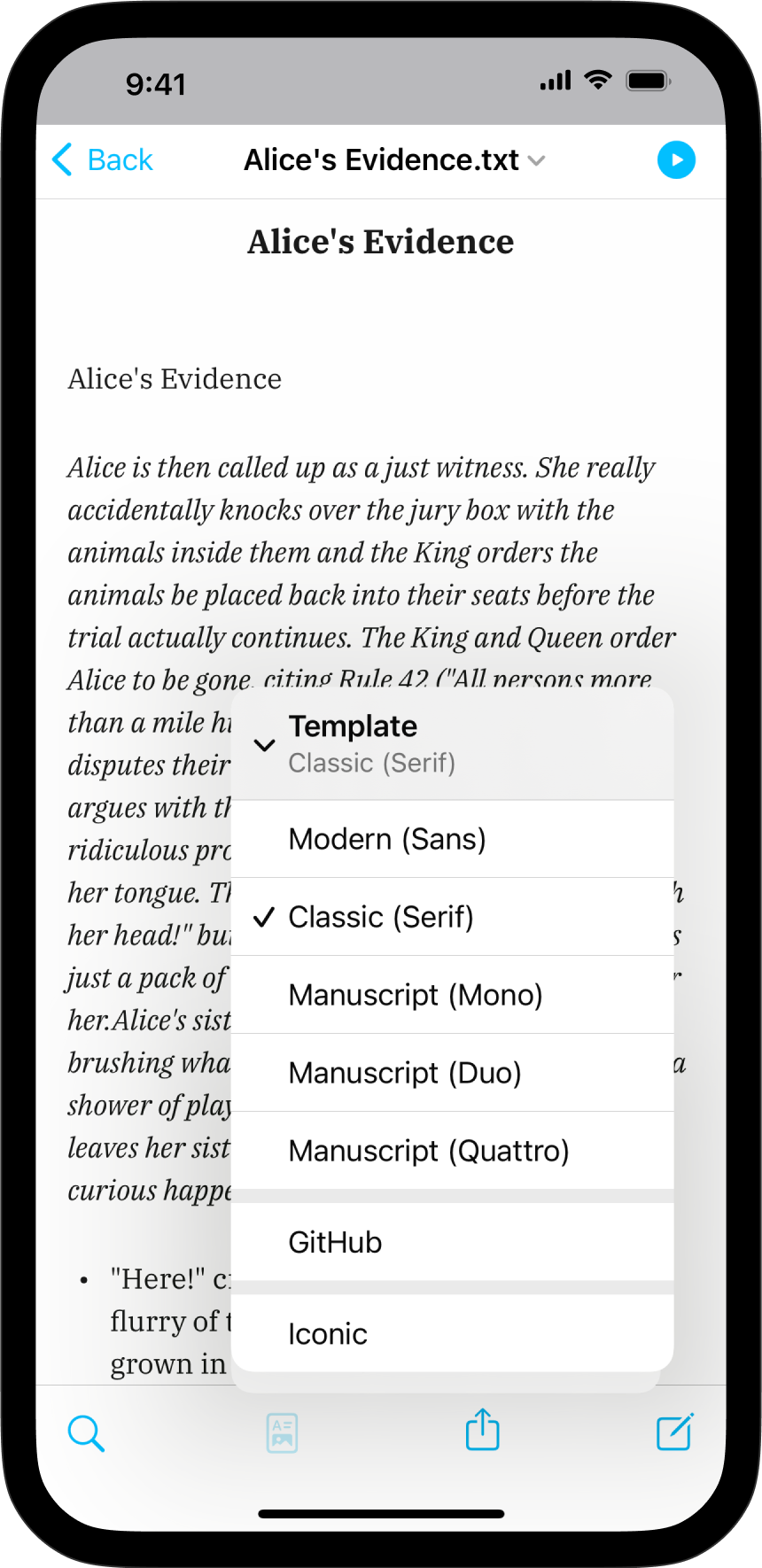
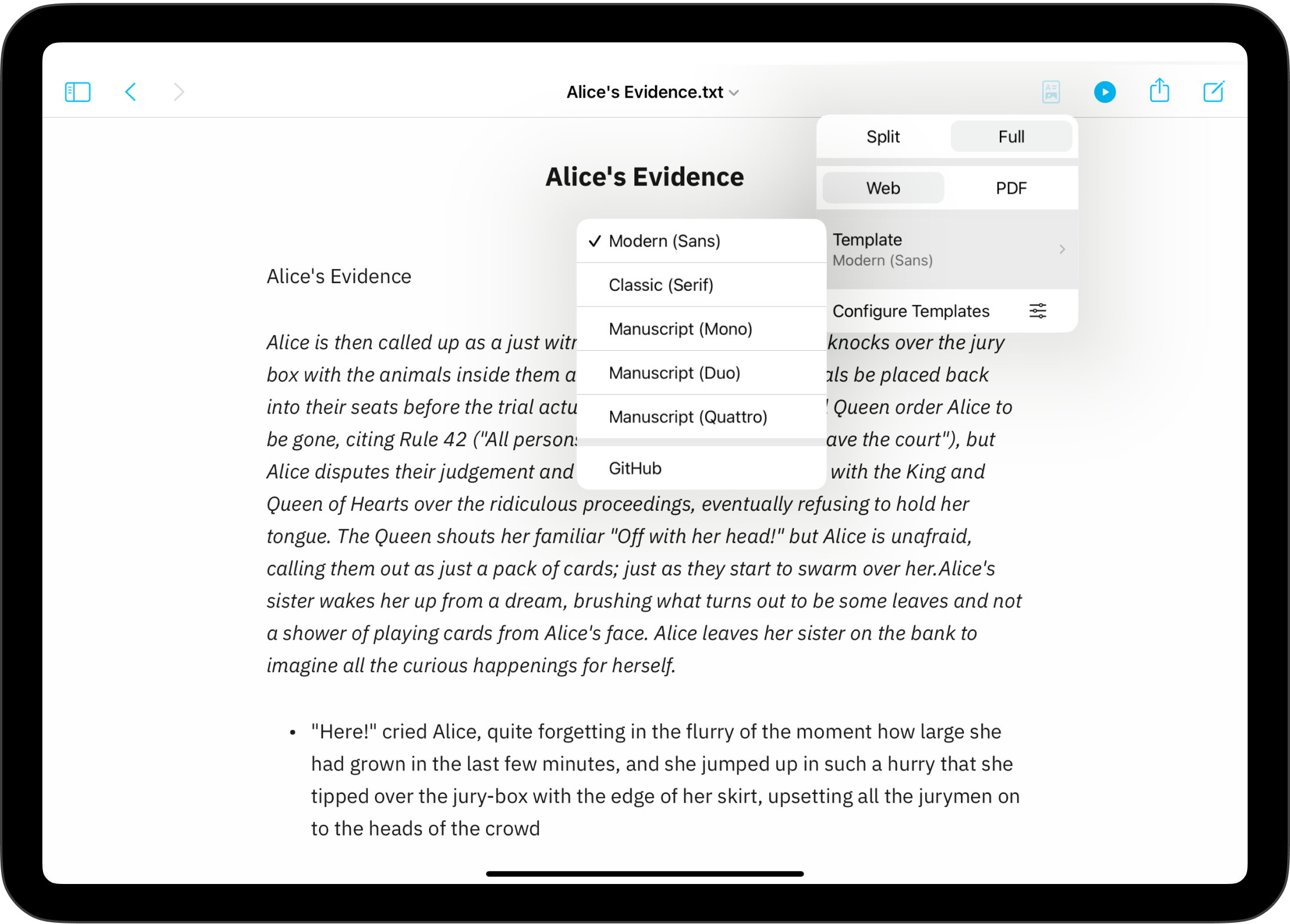
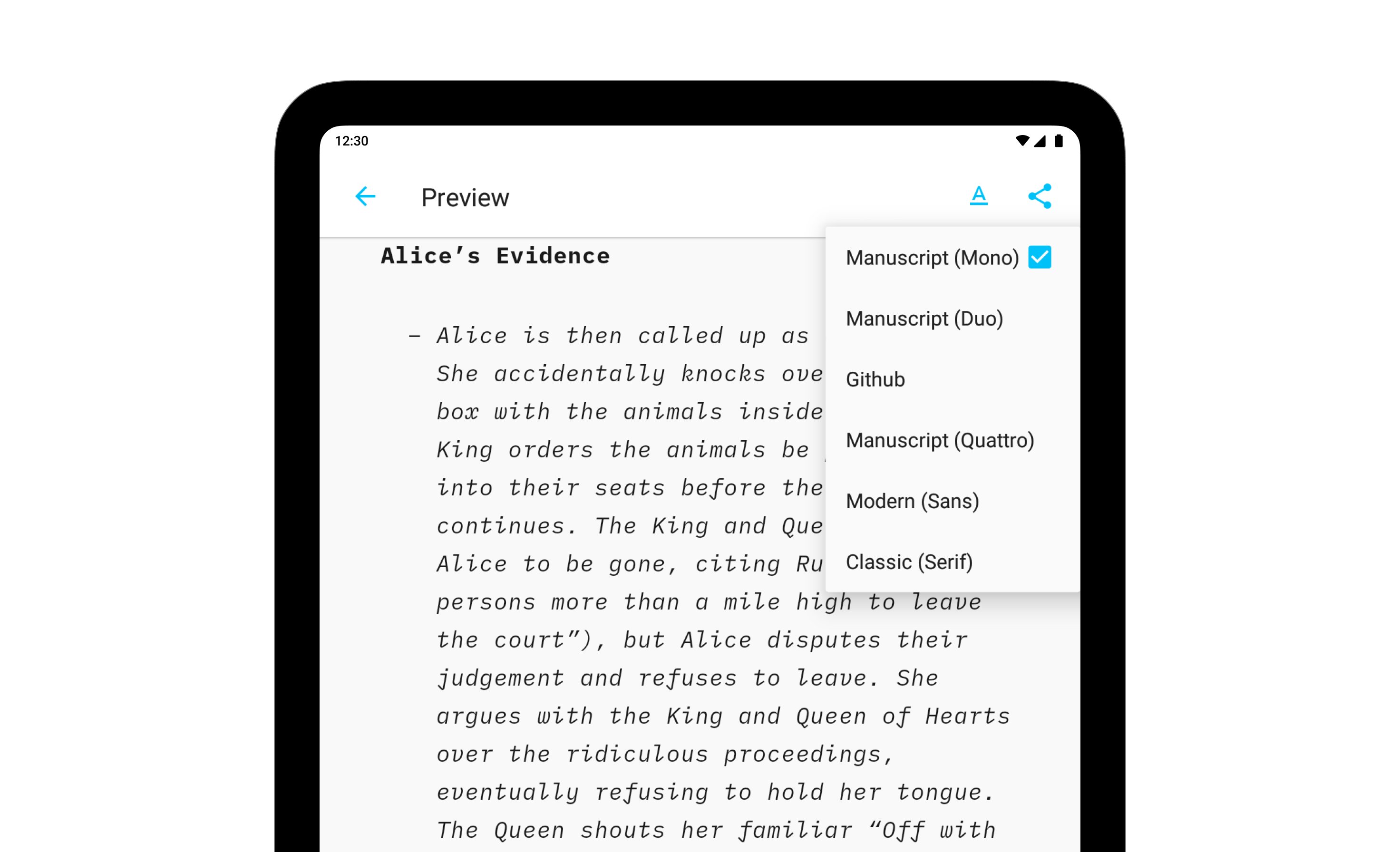
You can switch templates from:
- the Toolbar on Preview
- the Menu → View → Template

Built-in Templates
iA Writer comes with 6 built-in templates:
- Modern (Sans)
- Classic (Serif)
- Manuscript (Mono)
- Manuscript (Duo)
- Manuscript (Quattro)
- Github
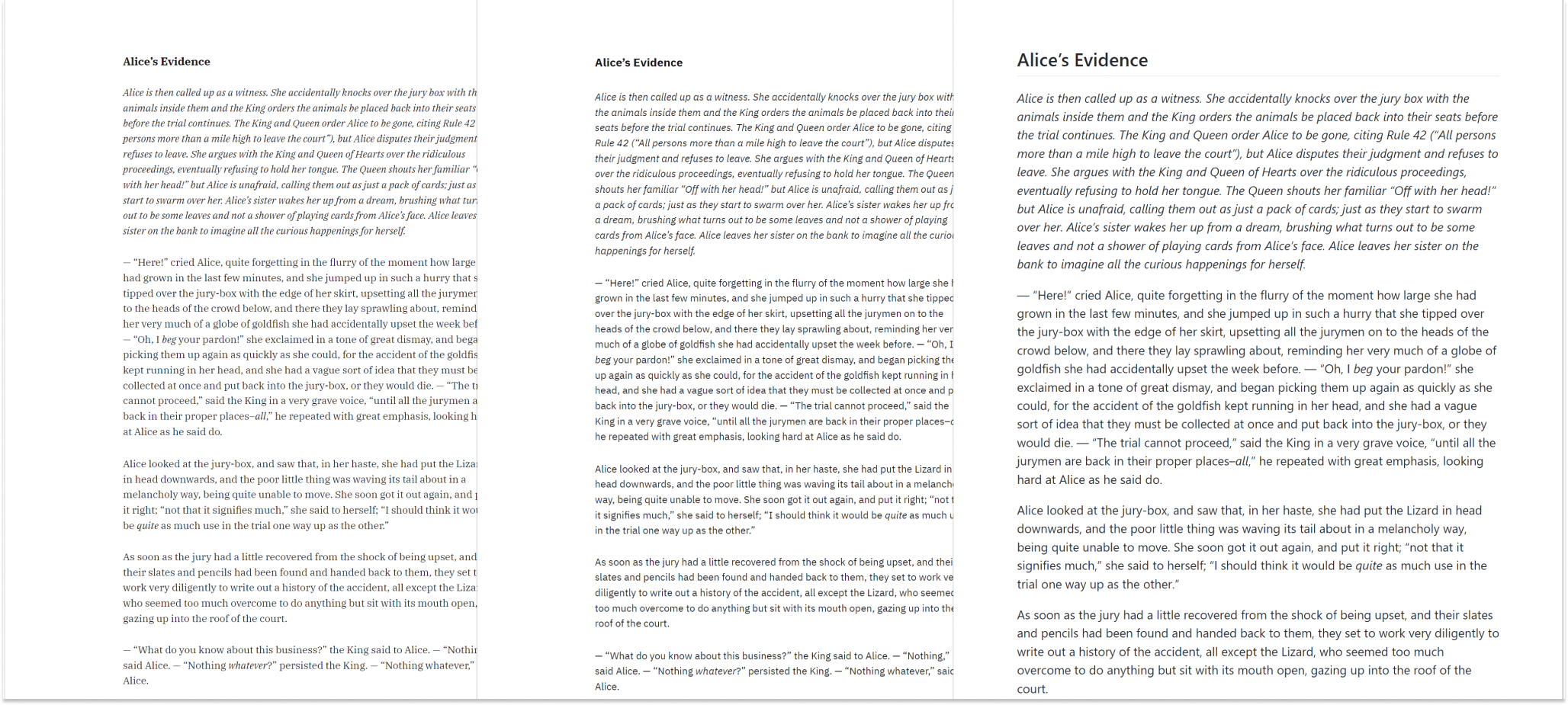
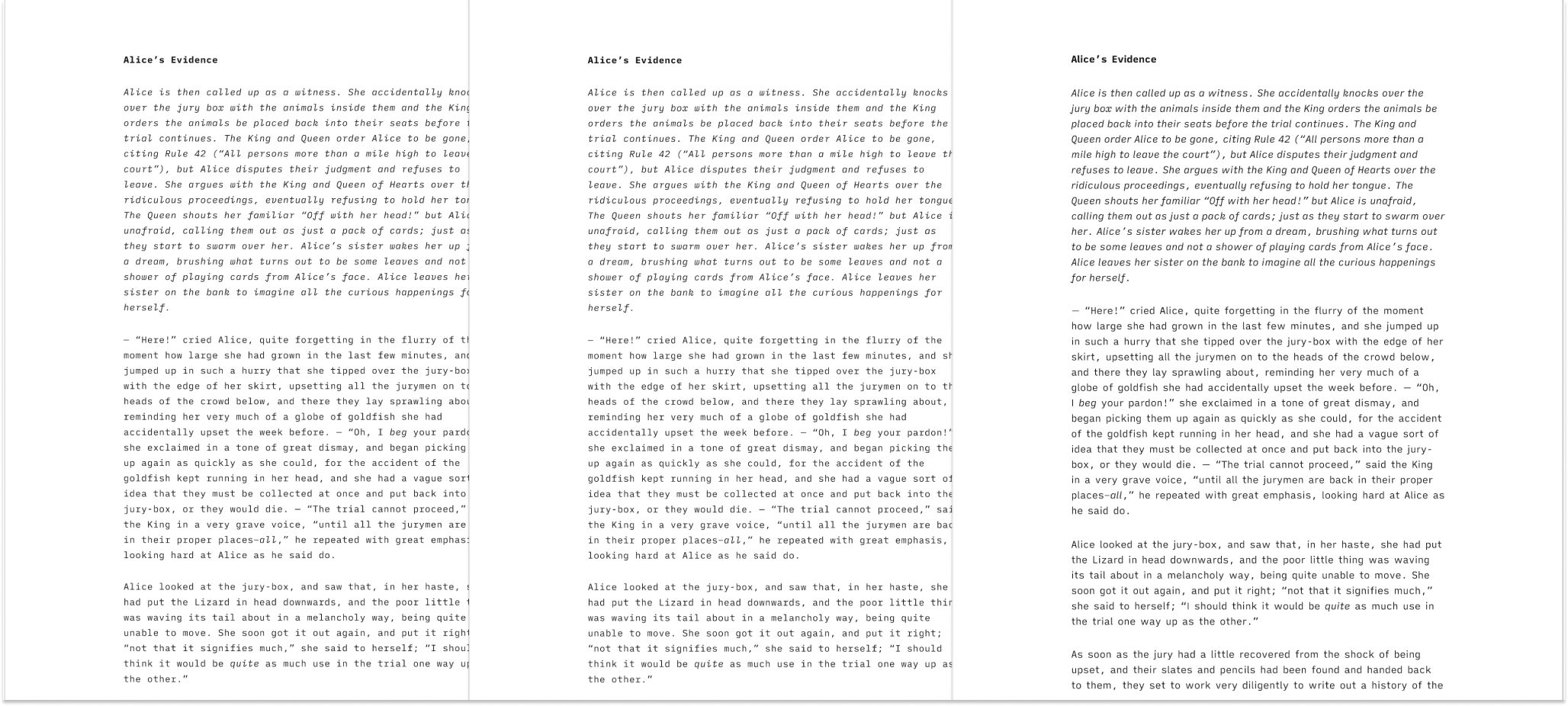
You can display them in Web mode or PDF mode. Here is a quick peek at each of them side by side in PDF mode:
Classic | Modern | GitHub
Mono | Duo | Quattro
GitHub
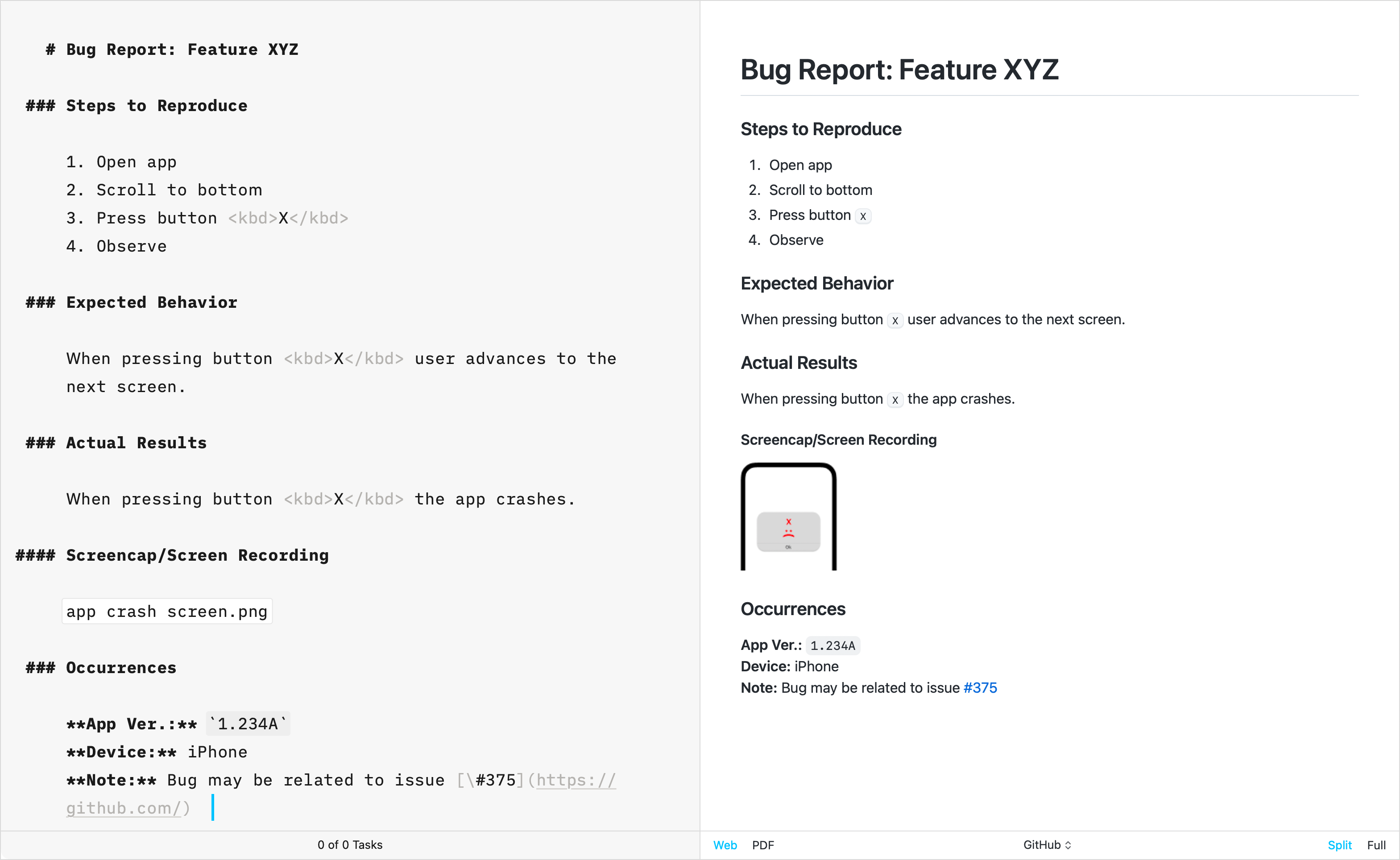
The GitHub template stands apart from other built-in templates due to its primary focus on technical writing. Crafted by directly replicating GitHub’s CSS, this template does not support the Default Template Settings (such as Number heading, footer…) typically used for creative writing.
Additional Templates
Over the years, the iA Writer team has developed extra templates. You can individually download and install each of them in iA Writer.
Helvetica
Simple, Clean | Download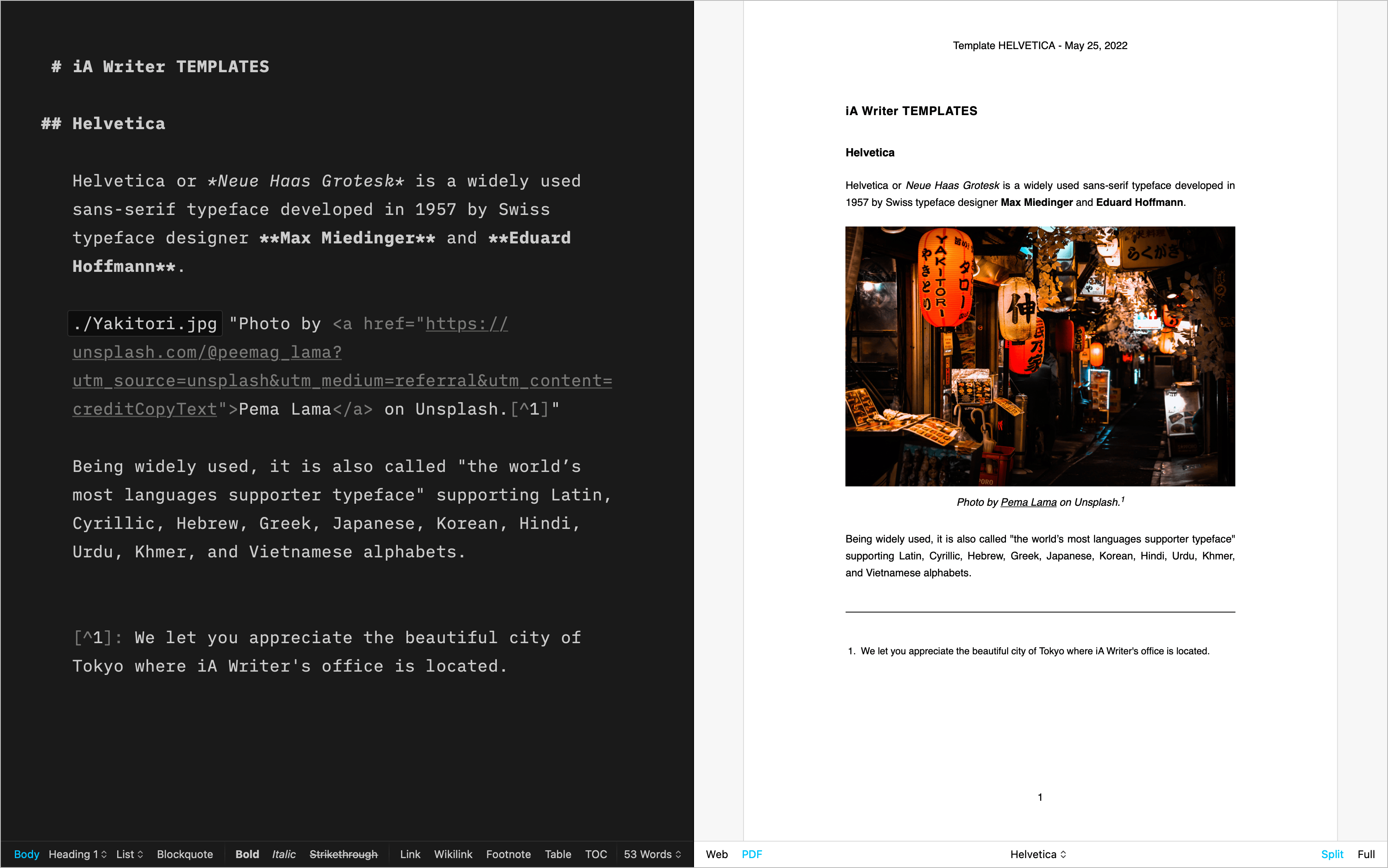
Palatino
A classic for prose | Download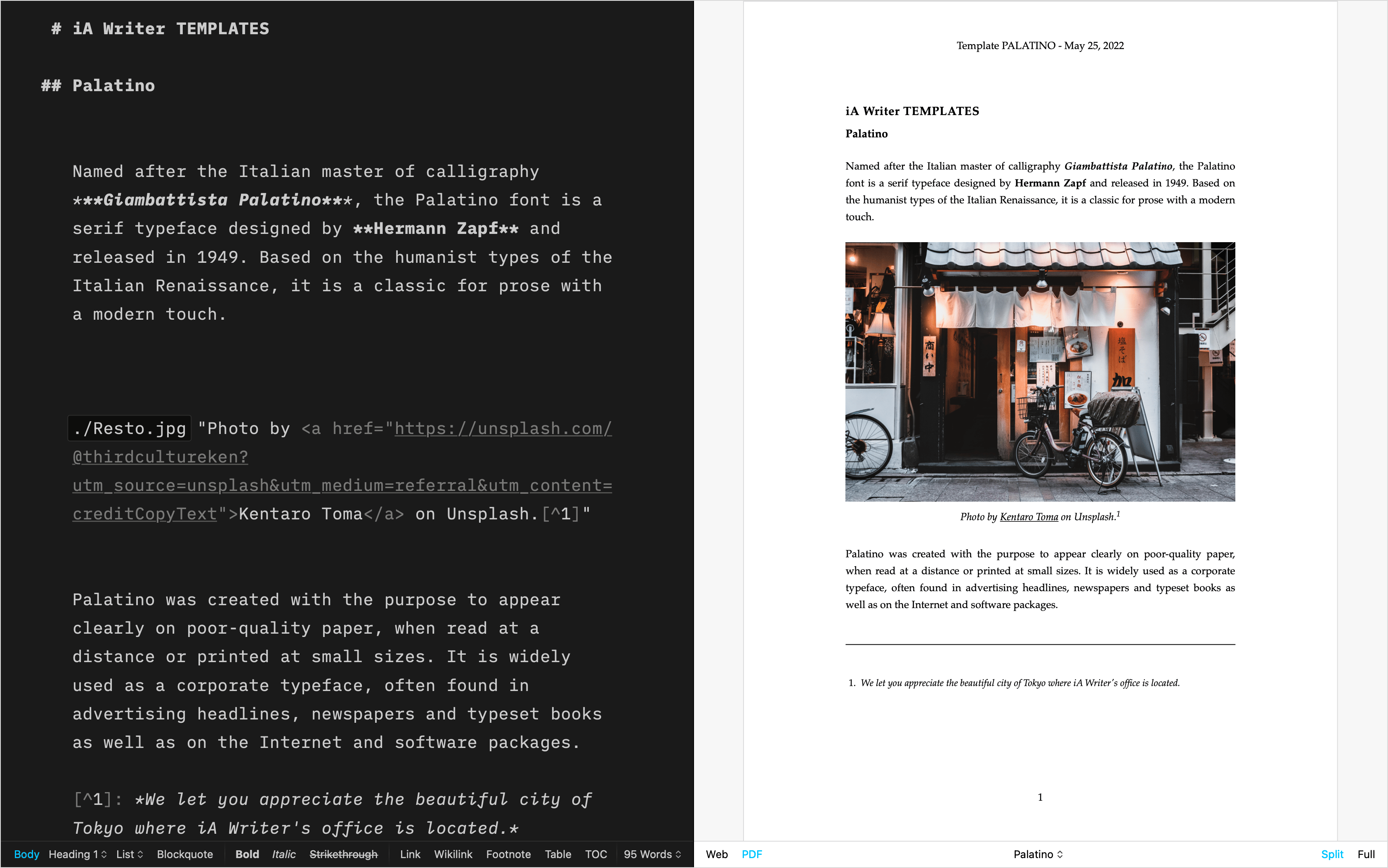
Letter
For beautiful correspondence | Download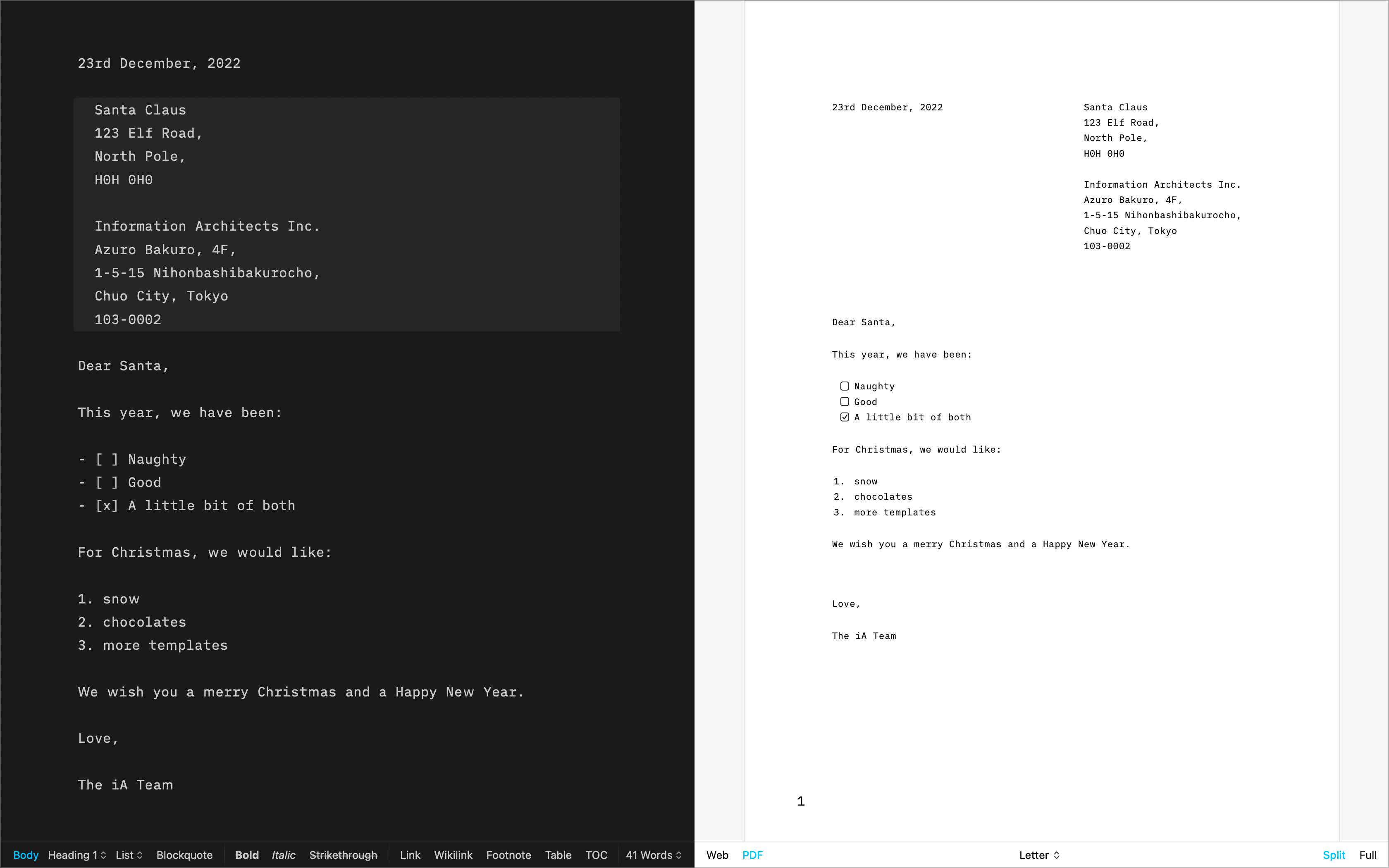
Fountain
The template for screenwriting | Download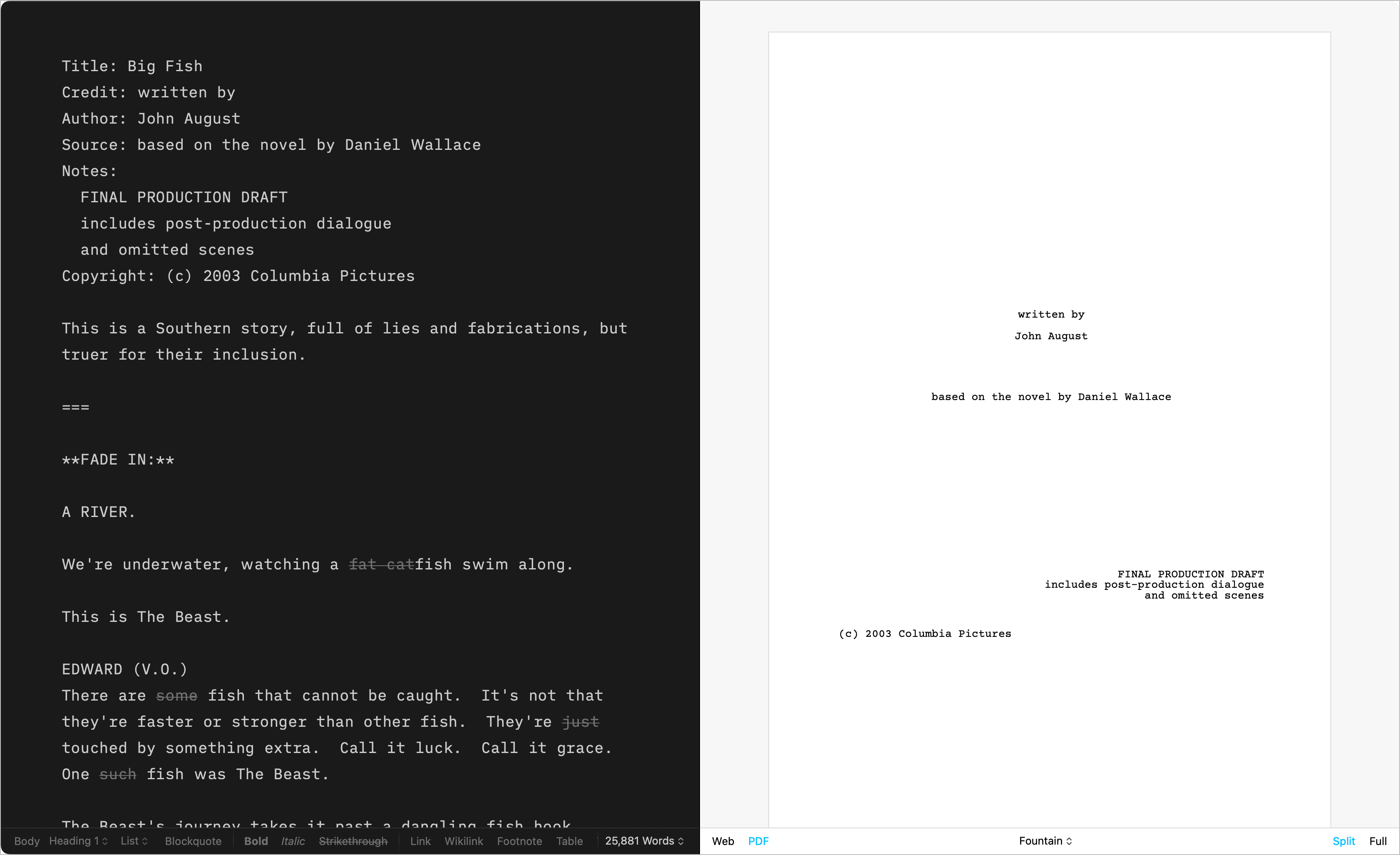
Chess
Log your chess games | Download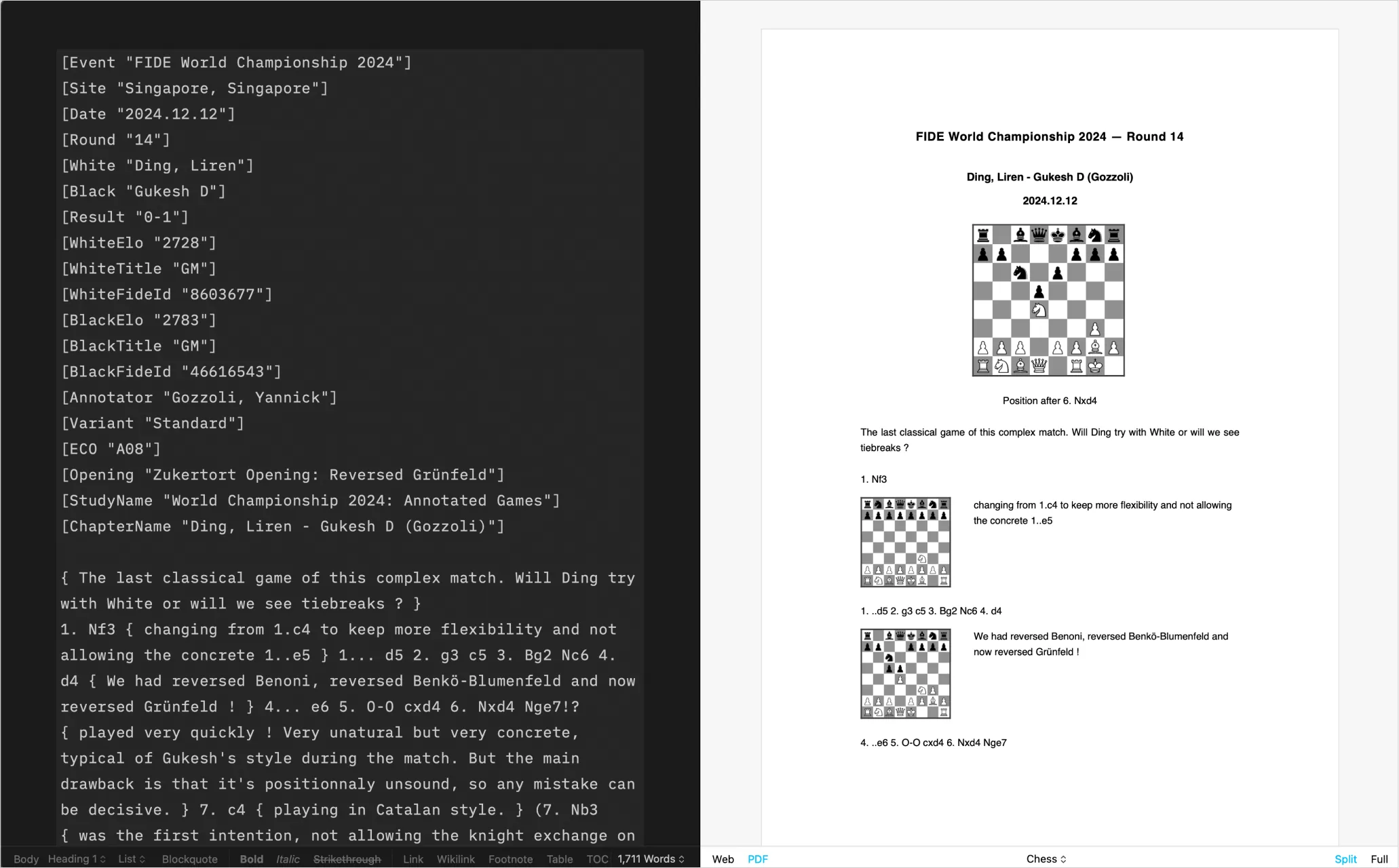
Create Your Own
CSS and HTML DIY | Learn more
Installing Templates
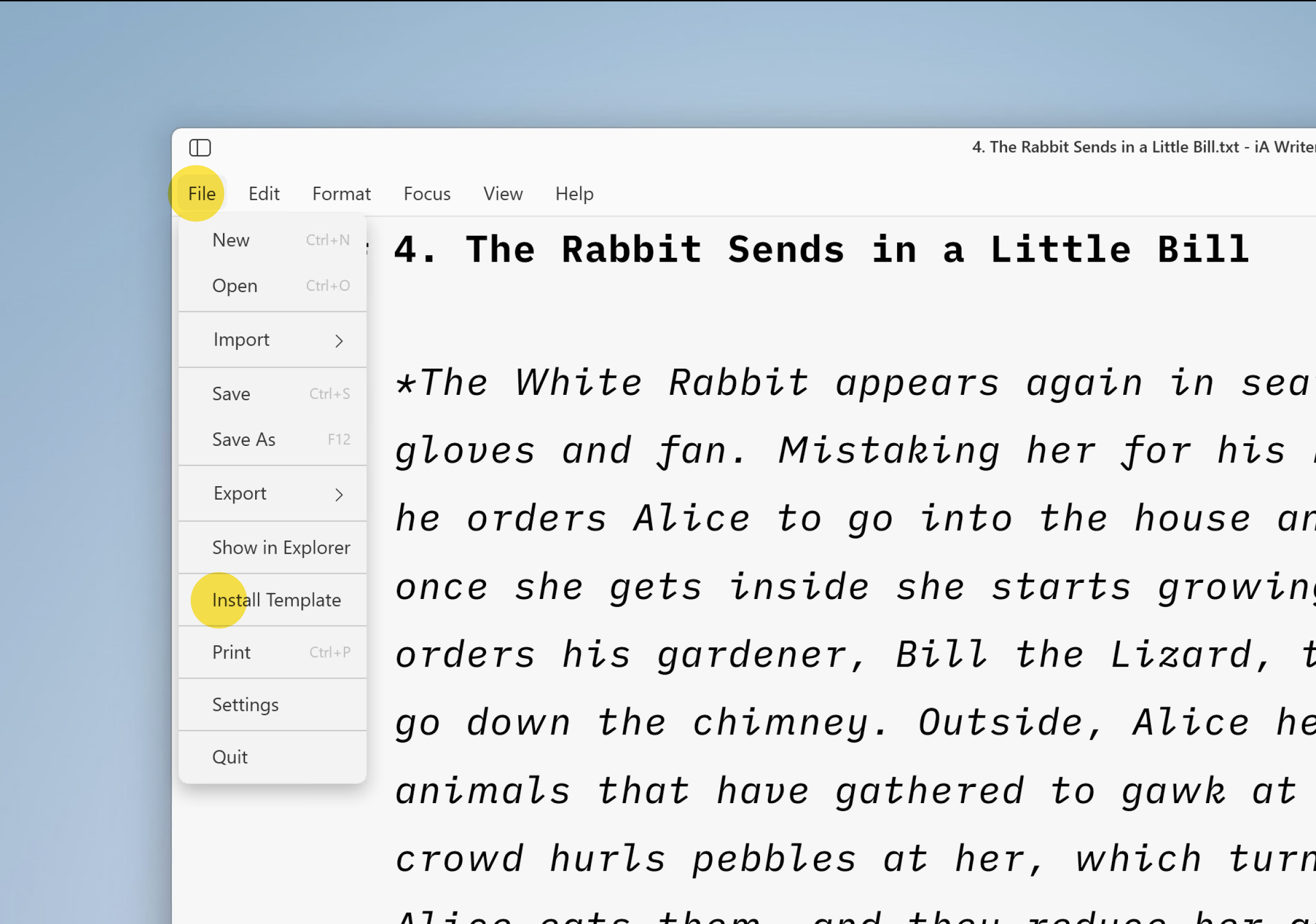
Please follow these steps to install those additional templates on Windows (v1.2+):
- download the template
- compress
.iatemplatefile toiatemplate.zip(if necessary) - in iA Writer, go to File → Install Template → Select ‘TemplateName.iatemplate.zip’ file
Custom Templates
Users comfortable with code (CSS, HTML, and JS) can create custom templates tailored to their own tastes.
For more on this please see our dedicated page: Custom Templates.
It is also possible to override some of the CSS for a selected template by adding an HTML style block in your document. This solution is great for users who aren’t comfortable with code or those who just want to add a few changes (font size or font color for example), without creating a template.
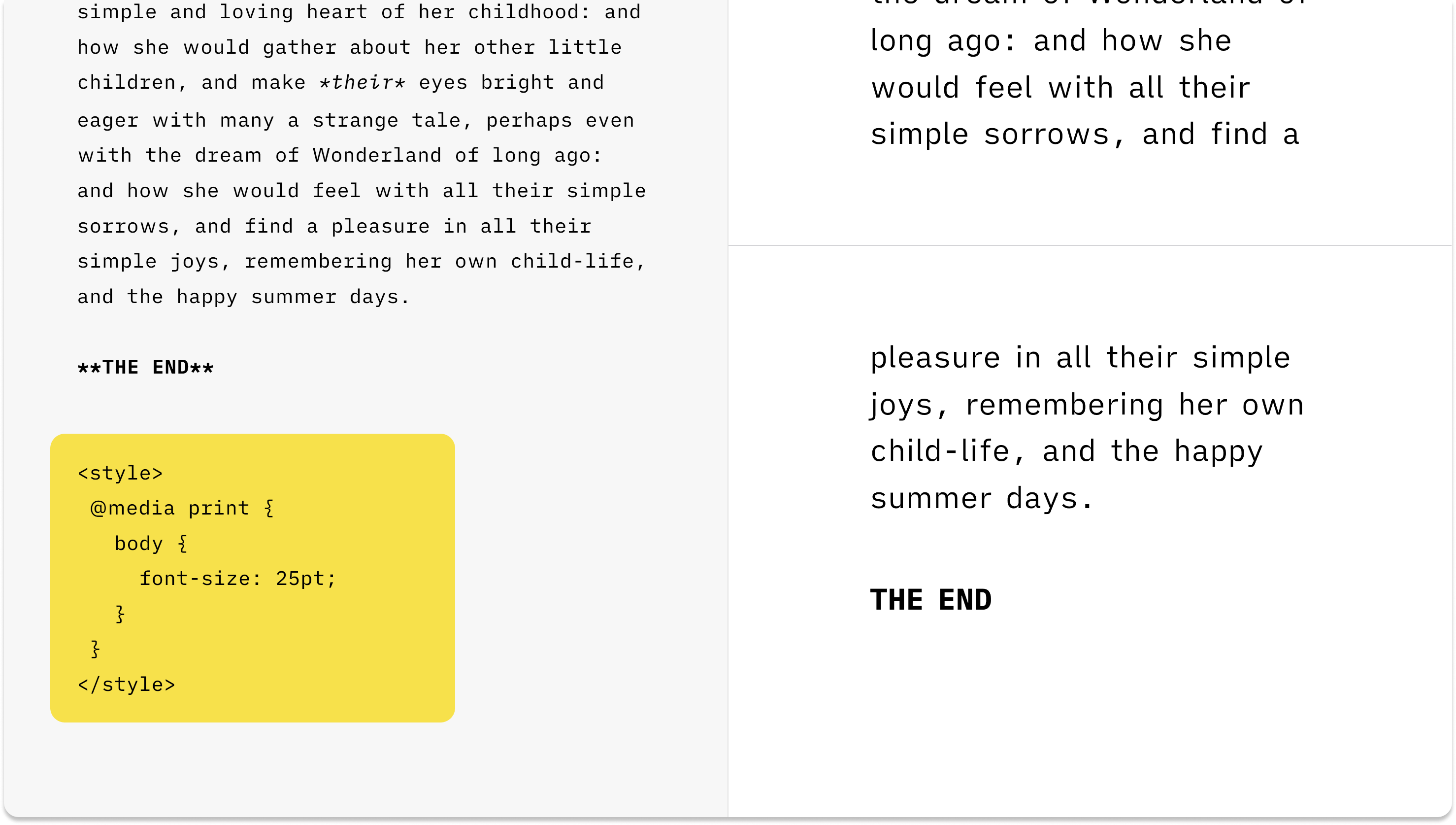
You can see the code and CSS classes to target by enabling the Web Inspector in Preview.
 Templates