Presenting Onsite iPad
If you’re going to present on a setup that belongs to the host, be sure to find out in advance what software and hardware options are available at the venue. If you’re not sure, you should probably bring your own device along.

Wired Connections

Adapters and Cables
Many projectors require that you physically connect them to your device, usually via a VGA, USB or HDMI cable.
Bring along an adapter that’s compatible with your iPad (more about that on Apple’s Support site). Test it at home before the big day.

Once you connect your iPad to the projector, it should automatically detect the device. An HDMI connection carries both video and audio. VGA carries video only, so you’ll need a separate audio connection if your presentation has sound.
Connection Issues
Order Matters
To help your iPad detect any external peripherals, try to follow this sequence:
- Shut down your iPad and the projector
- Connect the video cable
- Once connected, switch on the projector and allow it to boot up
- Set the projector’s input mode to search for device data (check the projector’s documentation if needed)
- Switch on your iPad
Audio Issues
The audio signal should be sent directly via your HDMI cable. As a first step, turn up the volume on the projector. If you’re not getting any sound from the projector, check the audio settings on your iPad.
Troubleshooting Apple hardware or operating system (iPadOS) issues falls outside our support scope, but you can learn more on Apple’s Support site.
For troubleshooting third-party hardware, please refer to the projector or external display’s documentation.
Wireless Connection
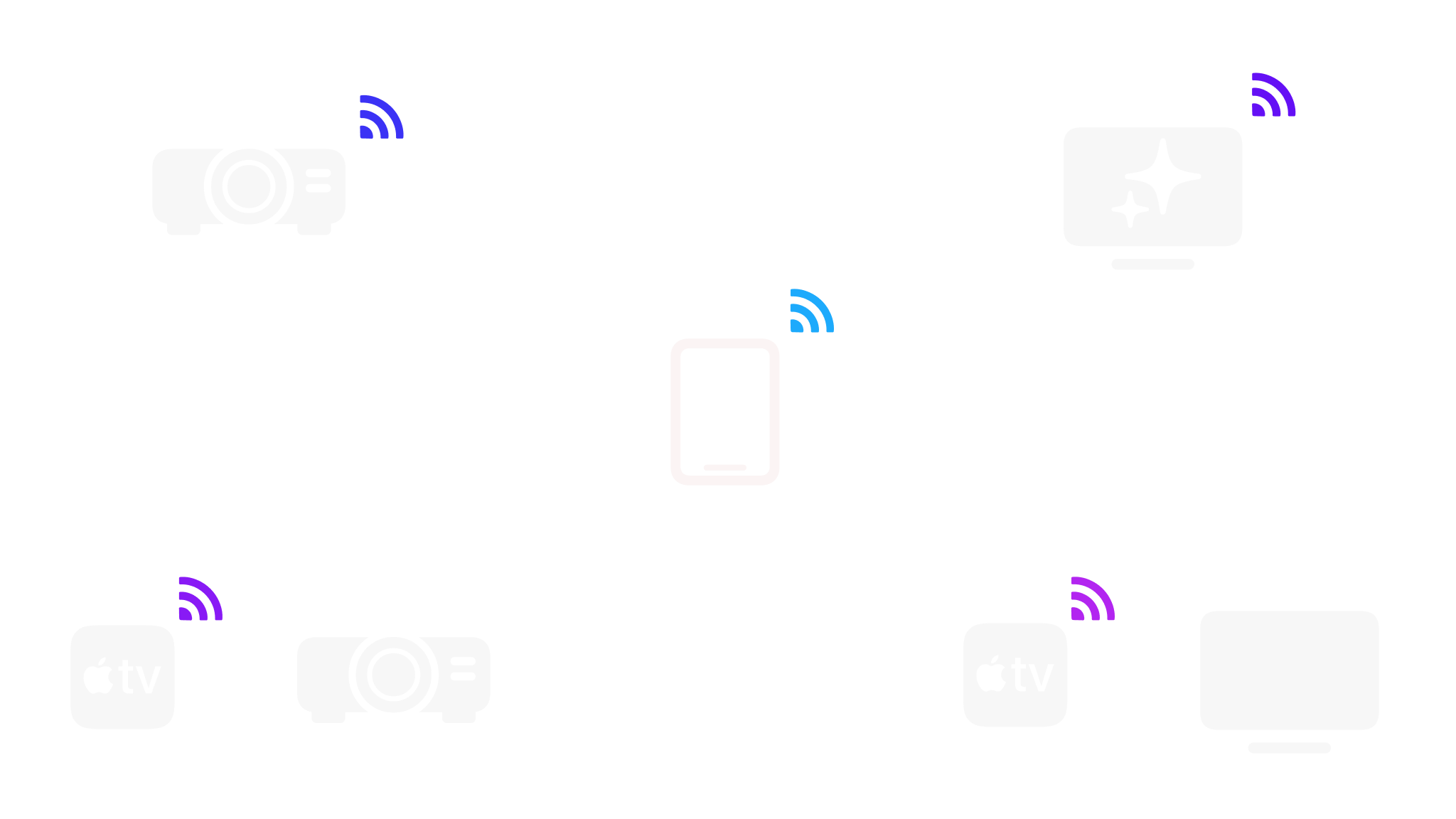
Many venues are now equipped with smart TVs that let you connect your device to a display without cables. On iPadOS, you can stream content to an external display with AirPlay through a Wi-Fi connection. Note that you usually need both your iPad and the display to be on the same Wi-Fi Network for AirPlay to work.
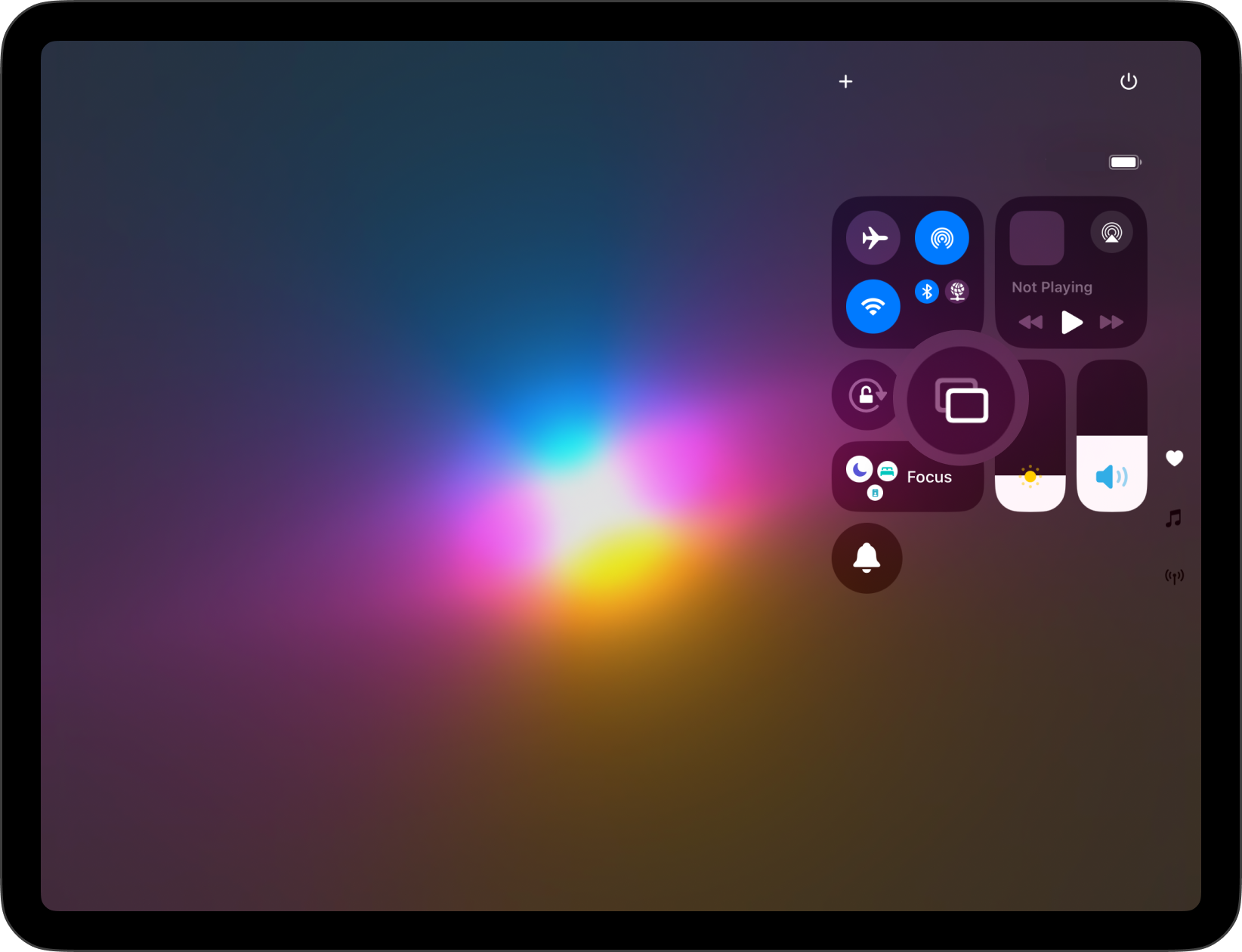
On your iPad, go to Control Center → Screen Mirroring. More about that on Apple’s Support site: Use AirPlay.
💡 Some third-party tools allow you to mirror your iPad wirelessly instead of using AirPlay. Please refer to those apps’ documentation in case you run into issues.
Smart TV Compatibility
If you aren’t sure whether the TV at the venue is a smart TV or not, here are some indicators. Smart TVs:
- Have an Ethernet port
- Are connected to the internet and let you use online features (like browsing an App Store)
- Usually have streaming apps embedded such as YouTube, Hulu, Netflix, or Amazon Prime
- Often have more buttons on their remote controllers, such as Netflix and YouTube
What matters for a wireless connection, though, is AirPlay support, not whether the TV is a smart TV. If the TV doesn’t support AirPlay and there’s no Apple TV connected to it (see below), connect your iPad with a cable instead (find out how above).
Some smart TVs, including models from Samsung, LG and Sony, support Apple AirPlay. Look for an AirPlay option in the TV’s settings. If you’re not sure, check the documentation for your TV model.
Apple TV
Venues may also make use of an AppleTV connected to an external source like a projector, external display or non-smart TV. In this case, you can connect to the Apple TV via AirPlay.
Your iPad and the smart TV/Apple TV unit usually need to be on the same Wi-Fi Network for AirPlay to work. Some venues will have different networks available, so be sure to check which one you should connect to. Apple TV HD and Apple TV 4K also support peer-to-peer AirPlay, which works without a shared network.
💡 If the smart TV is not an Apple TV, you might need to turn on AirPlay in the TV’s settings.
Presenting Onsite
7-Day Free Trial
Download now.
No credit card required.
Mac
No credit card required