Cloud Storage Mac
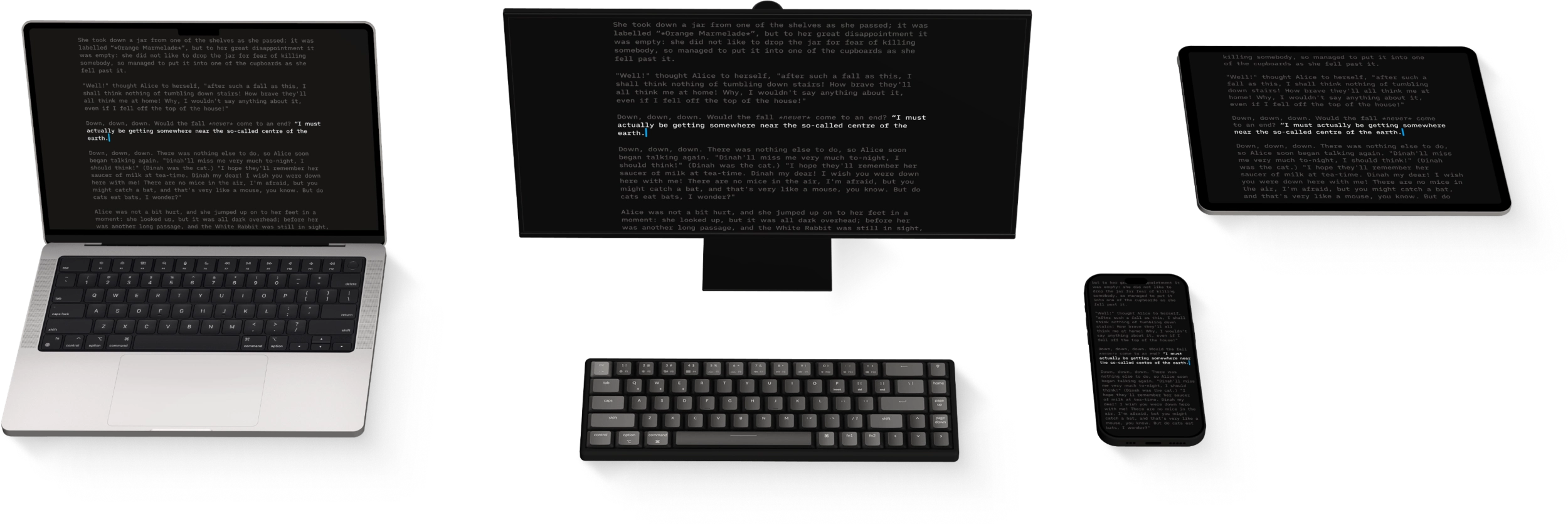
Having access to your documents on multiple devices makes life easier. Storing and working with documents in the cloud is easy in iA Writer for Mac.
Enabling iCloud
iA Writer for Mac includes native integration for iCloud. If iCloud Drive is enabled on your Mac, iA Writer will automatically use this as the default storage location, giving you the ease and security you’ve come to expect from iCloud.
If you are not already using iCloud or need to enable iA Writer for iCloud Drive, you can do so by:
- Launch Mac System Preferences
- Navigate to iCloud → Saved to iCloud (See All) → iCloud Drive → Apps syncing to iCloud Drive
- Check box next to iA Writer

Other Cloud Providers
iA Writer for Mac supports the addition of basically any folder you can locate in Finder. You can add a cloud storage folder as a Location in iA Writer in one of three ways:
- Drag and Drop from Finder window to Locations pane in iA Writer
- Hover over Locations (iA Writer Library) and press the + button
- Use the Add Locations... function found in the Go menu
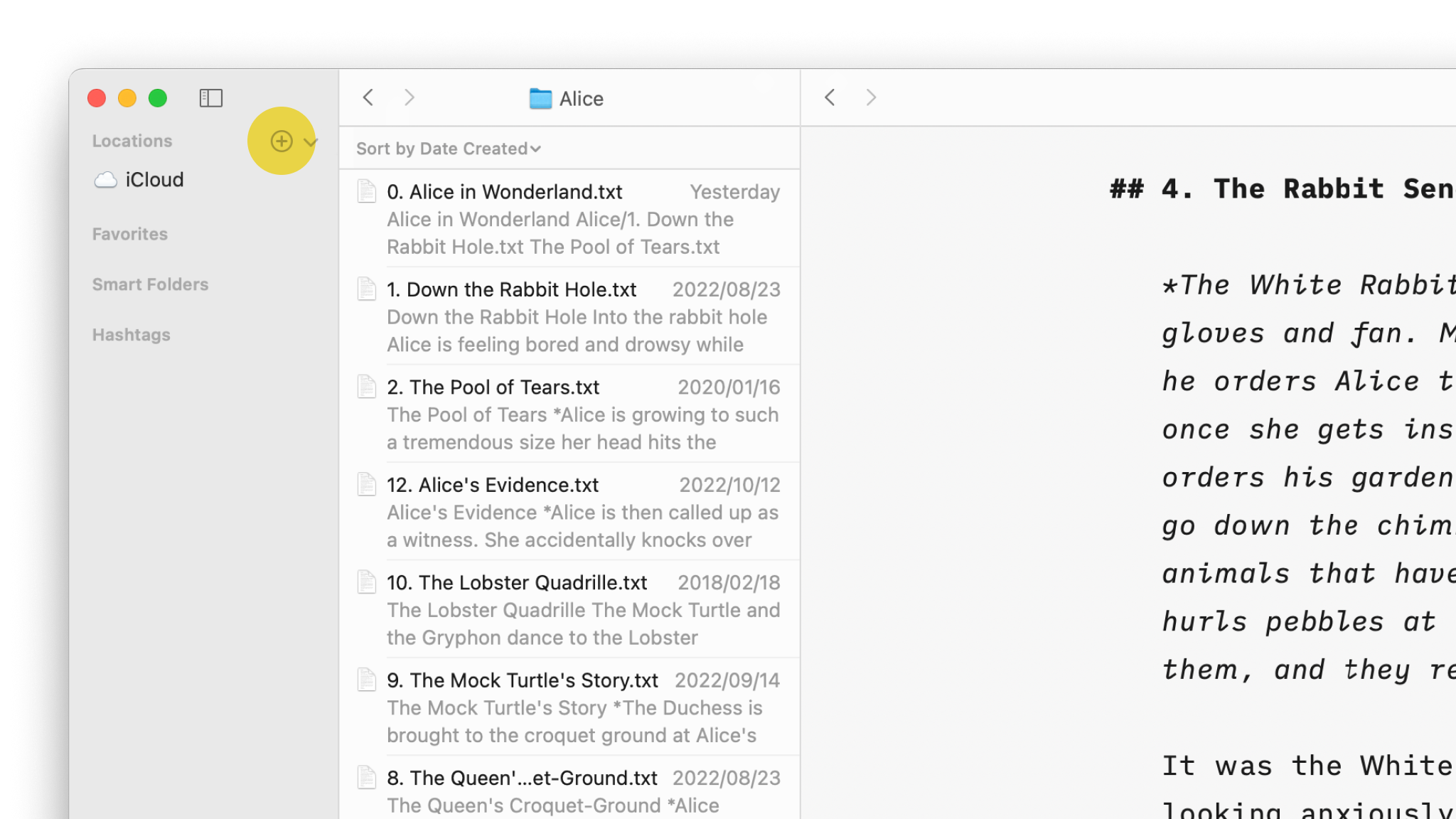
For more information on working with your Library on Mac, please see: Library.
Popular options which offer good cross platform support include:
Dropbox | Google Drive | OneDrive
You can click on the links above to visit the file storage provider’s website for more info.