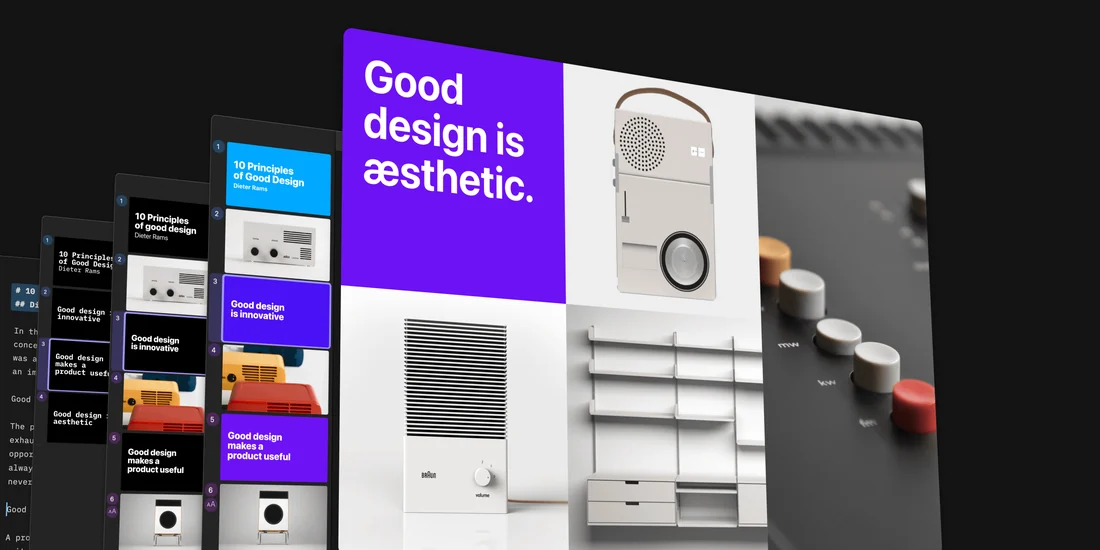
iA Presenter
Turn Text Into Slides
Use iA Writer’s Settings to customize how you write and organize your files.
Open File → Settings, or click the ⚙️ at the top of the Library.
Sort files by name or by date.
Sort files in ascending or descending order.
Lists folders above files instead of sorting them among your files.
Shows file extensions, such as .txt or .md, in the Library.
Shows a short excerpt of each file in the Library.
Choose Mono, Duo, or Quattro for the Editor.
Changes the text size in the Editor. Preview is not affected.
Sets the maximum number of characters per line in the Editor. This changes how text wraps on screen without adding line breaks to your text.
Choose the spellcheck language. You can also add dictionaries.
Choose the color of highlighted text.
Keeps Preview and the Editor at the same position. Turn it off to scroll them independently.
Shows invisible characters, such as spaces and tabs, in the Editor.
Keeps the columns of Markdown tables aligned while you type.
Click Reset Defaults to restore the Editor settings.
Add, edit, or remove the authors you use with Authorship. For each author, set a name, an optional identifier such as an email address or a website, the kind (Human, AI, or Reference), and a text color.
Human contributions appear in pastel tones, AI-generated text is shown with a colorful gradient, and reference material is dimmed.
Choose A4 or Letter for printing and PDF export.
Adds a title page to printed documents and exported PDFs.
Adds a header to printed documents and exported PDFs.
Adds a footer to printed documents and exported PDFs.
Centers headings instead of aligning them left.
Numbers headings automatically.
Marks new paragraphs with an indent instead of vertical space.
Shows Preview in dark colors while the Editor is light, and vice versa.
Replaces straight quotes with the selected style in formatted output, such as Preview and exports.
Hides hashtags in Preview and exports.
New files use this extension.
Reopens the last document when you start iA Writer. When it’s off, iA Writer starts with an empty file.
Processes YAML metadata at the top of a file and hides it from Preview and exports. Restart iA Writer after changing this setting. Learn more about metadata.
Hides the Windows taskbar when the iA Writer window is maximized.
Swipe on a trackpad, or tilt a mouse wheel that supports it, to show or hide the Library and Preview.
Sets how fast documents scroll.
Reverses the direction of swipe gestures.
Renders the interface in software instead of on the graphics card. Try this if you see problems with screen refresh or dialogs, which can happen with some graphics cards and high-resolution displays. Restart iA Writer after changing this setting.
Protects Preview against cross-site scripting in your files.
Hides the title bar when you start typing or scrolling in a document.
Add your own patterns to Style Check. To use them, choose Focus → Style Check → Custom List.
This tab shows the email address of your iA Account and the status of your iA Writer purchase or trial.
Sign in with your email address and the six-digit confirmation code we send you.
Opens your iA Account in a browser.
Signs out of your iA Account on this PC. If iA Writer doesn’t recognize your purchase, see Troubleshooting.

How to apply basic formatting in iA Writer simply by adding a few punctuation characters.

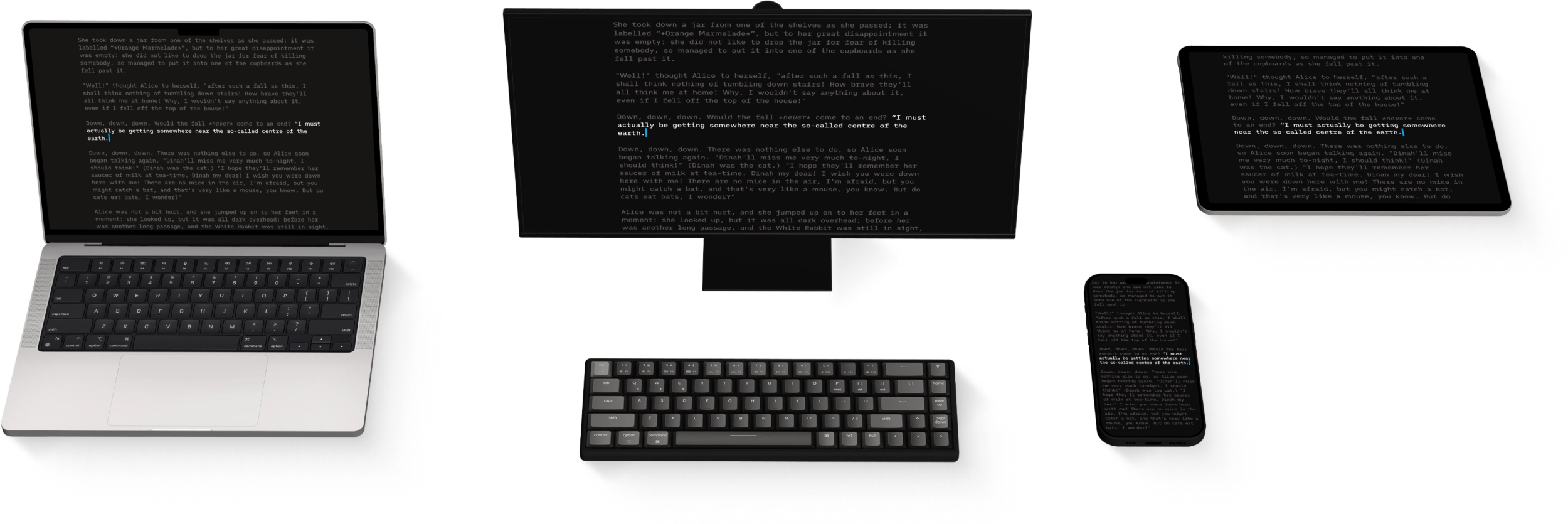
An overview of iA Writer’s features on Mac, iPhone, iPad and Windows.

Below are answers to common questions. Everyone is special, but most questions that we get overlap.

Learn a few iA Writer shortcuts to save time and keep you in the creative flow.

Learn which languages iA Writer supports across its platforms, including spellcheck, Syntax Highlight and Style Check.