Export Share Print iPad
iA Writer for iPad is a plain-text editor but, with a plethora of ways to export your text, it helps you produce beautiful and professional documents.
You can export your files either from:
- The Editor or Preview
- The Library
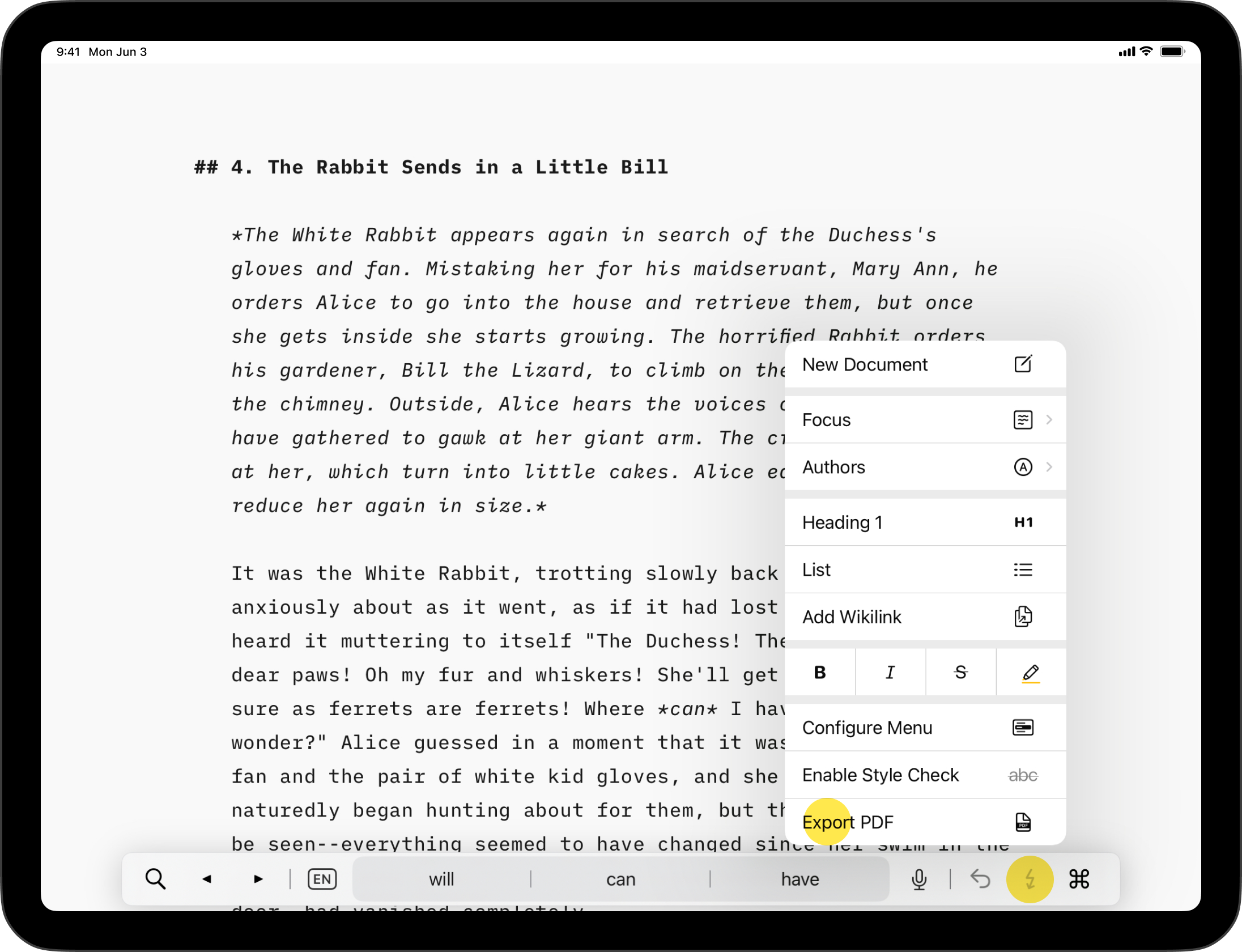
- The Command Palette
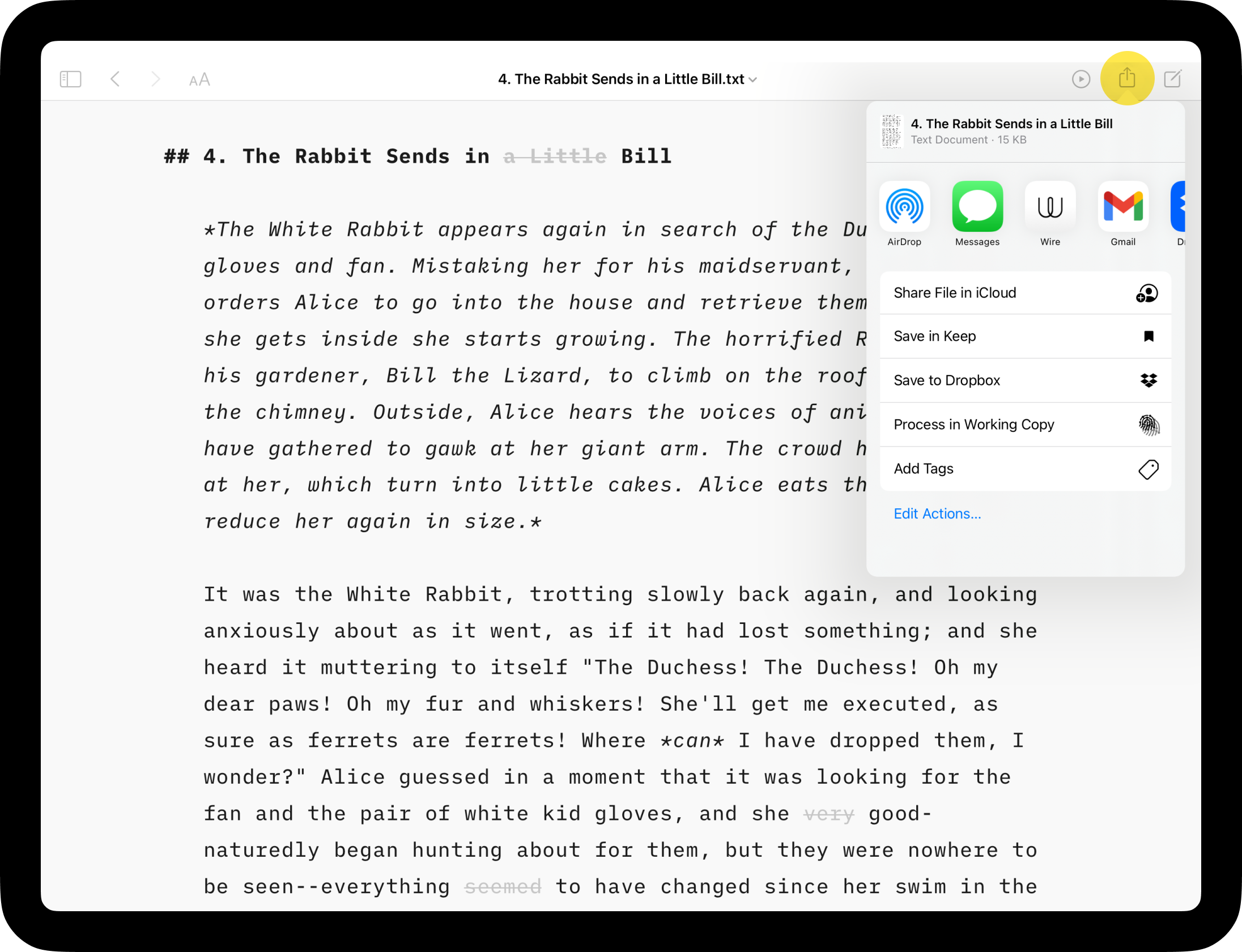
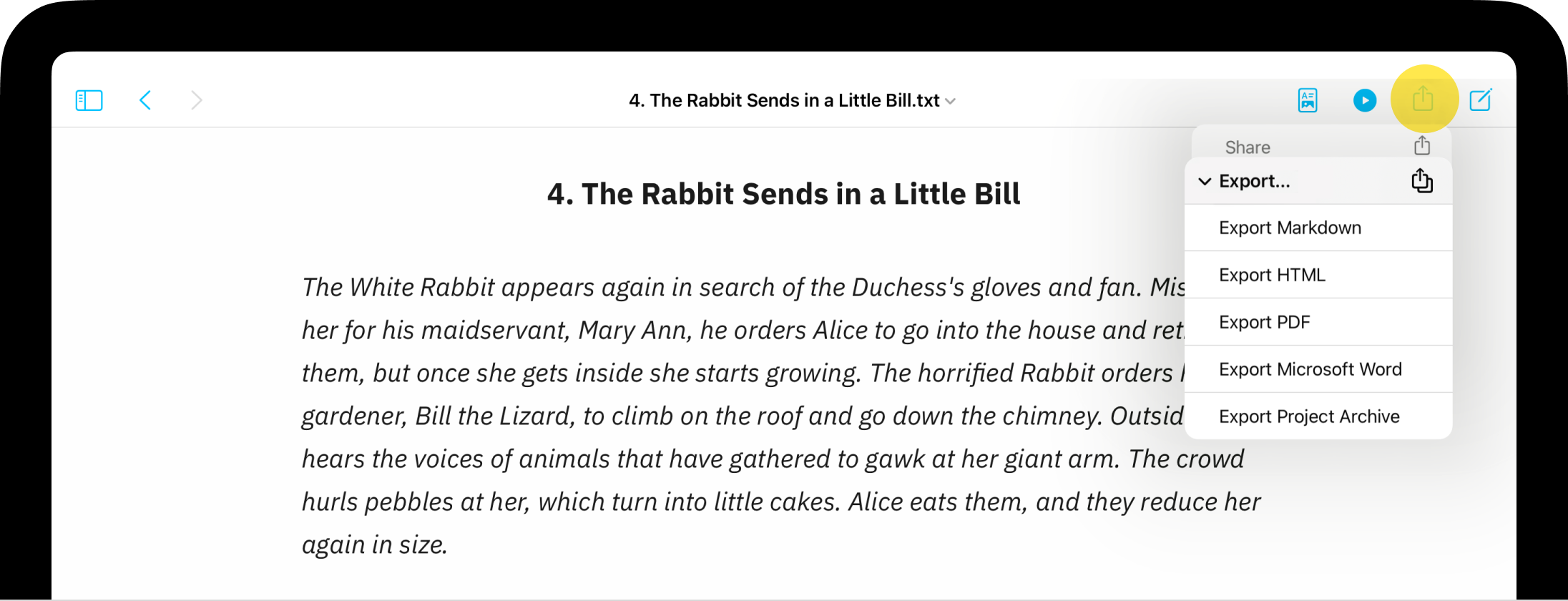
From the Editor or Preview, simply tap the iPadOS sharing button on the top right of the title bar.
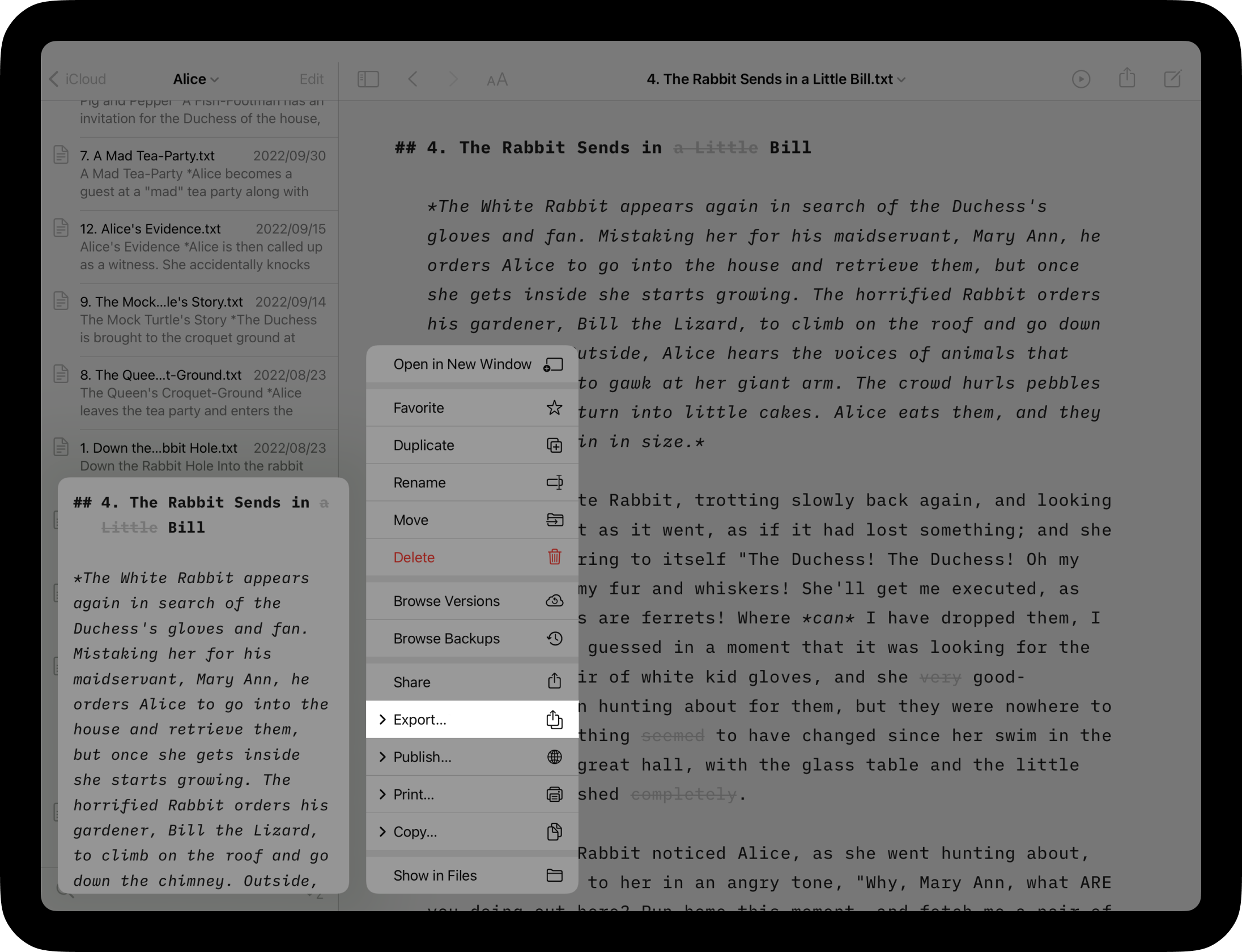
From the Library, long press on a file in the file list and select Export.
You can also customize the Command Palette to include Export.
Export Formats
| Format | Notes |
|---|---|
PDF | .pdf |
Universal format that’s great for sharing and for printing at a later time. Template styling is applied and locked in so you can share beautiful finished documents. |
MS Word | .docx |
Widely recognized and accepted document format. Great for sharing content that will later be edited, formatted or styled in Word. |
HTML | .html |
The language of the web. Great for sharing a document’s content to popular blogging or content management systems (CMS). |
Markdown | .md |
Unformatted, unstyled, plain-text file format which can be opened across a wide range of systems and apps. Preserves your original MD syntax so you can work with this in other Markdown editors/apps. |
Project Archive | .zip |
All encompassing export which includes not only your document (as you see in Editor) but also any embedded Content Blocks. Great for sharing an entire project or even for creating a duplicate/backup of an in-progress project in Writer. |
PDF Export Options
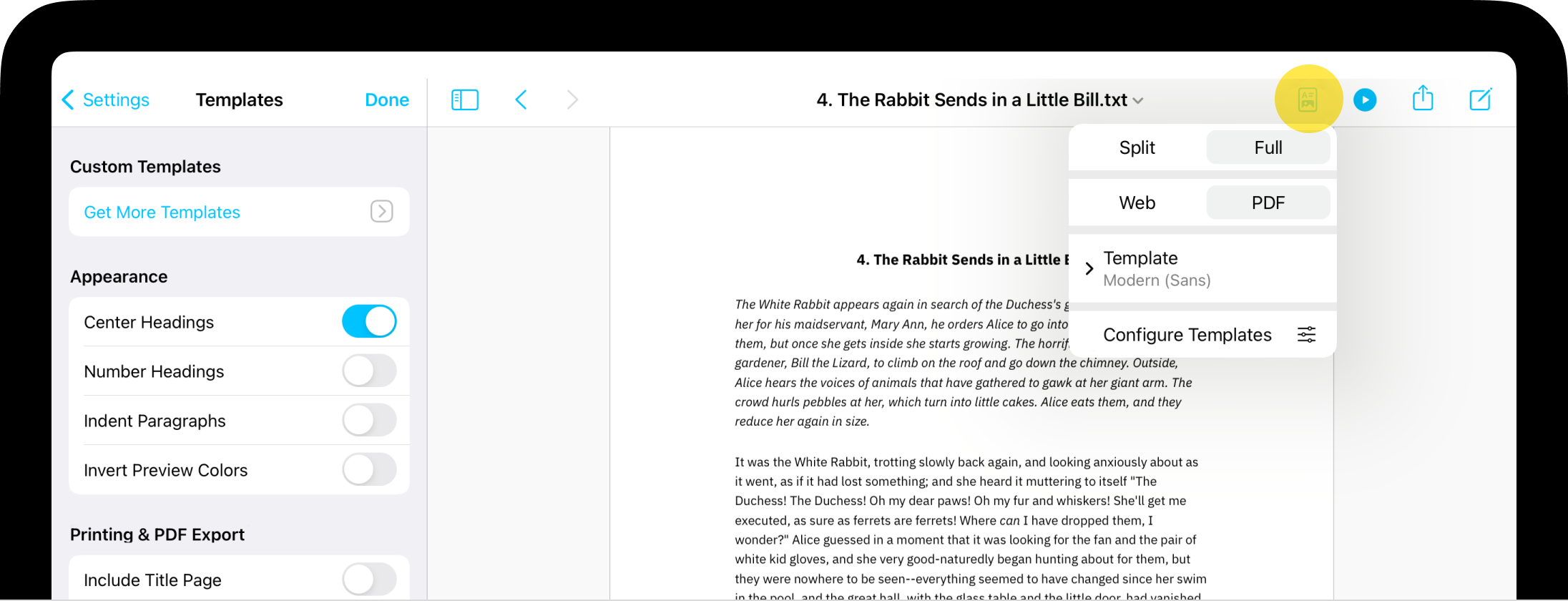
Preview determines what Export and Print will look like. In the case of PDF, the currently selected typography in the Preview will be used.
You can change the appearance of your export by selecting another Template from Preview and adding a title page, headers, or footers in Configure Templates. More about that on this dedicated page: Templates.
Printing Text
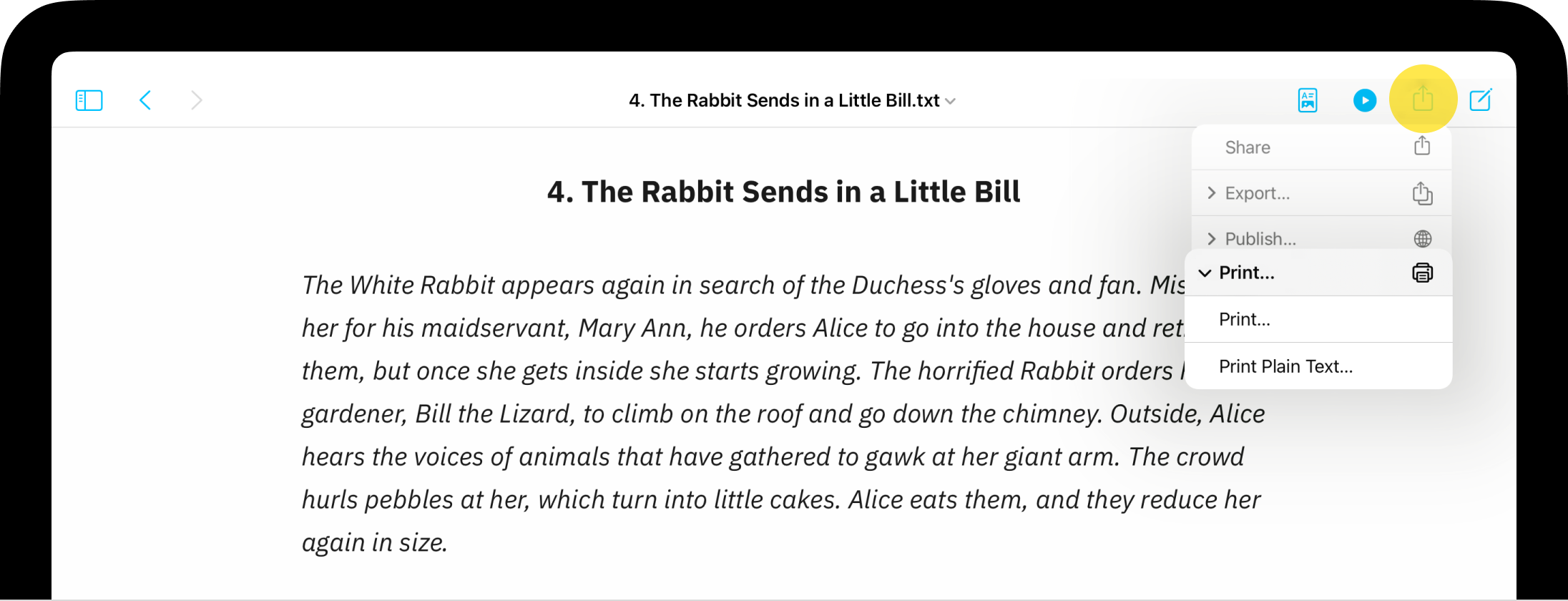
Still from the iOS sharing button, you have the choice between printing your formatted text with Print… (as you see it on Preview, the most common situation) or as plain text with Print Plain Text….
Just like for the PDF Export, you can include page numbers (footers), title page, and headers from Preview with Configure Templates.
Paper Size
You can choose your preferred paper size for printing or exporting from:
- Settings → Templates → Paper Size
- The iOS sharing button → Print → Paper Size
From there, you will see different options including A4 or Letter. Select the desired one and proceed to your export or print.
Sharing Text
iA Writer for iPadOS allows you to share drafts of your text to various blogging platforms such as Medium, WordPress, or Ghost. For more details about this, please check this article.
iOS provides a system service to share any text selection via email, Twitter, Facebook, and Messages. The easiest way to use this is to select the text you want to share then choose Share in the popup menu.
To share the whole file, tap the iOS sharing button and select the destination.