Languages
Language availability of iA Writer varies across platforms and features. Below is a detailed breakdown for Windows.
Menus & Interface
iA Writer will automatically use the Windows system settings to display the the app’s interface –also known as “localization”.
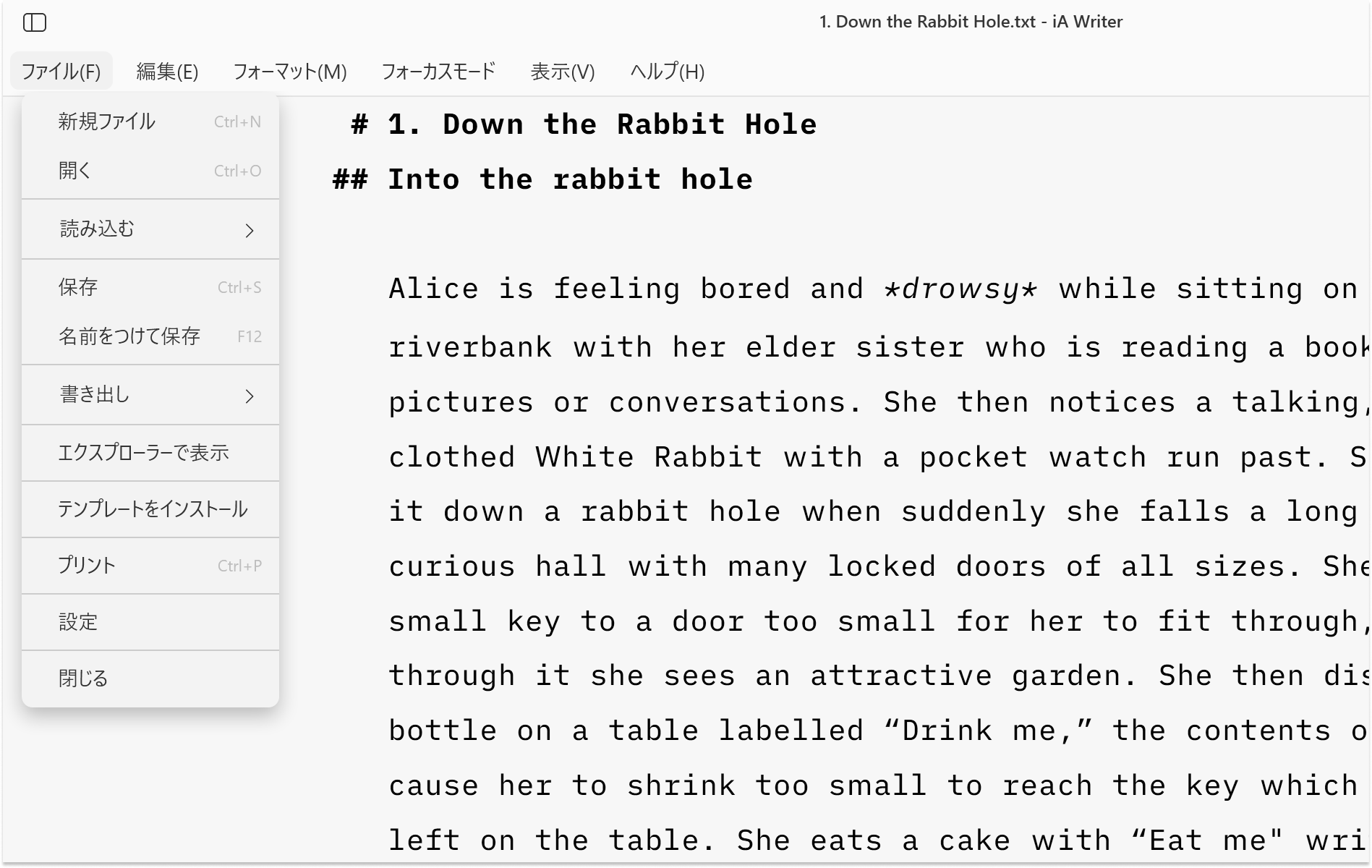
Supported languages include:
En |
English | English |
De |
Deutsch | German |
Fr |
Français | French |
Es |
Español | Spanish |
Jp |
日本語 | Japanese |
Syntax Control
Syntax Highlight provides a structured view of your document. It helps in improving your writing style by using different colors to highlight various parts of speech.
iA Writer for Windows supports Syntax Control for English.
If your document contains non-English text, you may see the following warning dialog box at the bottom of the Editor:
The language of the current file does not seem to be supported by Syntax Control.

Style Check
Style Check acts as your personal editor-in-chief, detecting redundancies, clichés, and filler words as you type.

Supported languages for Style Check :
En |
English | English |
De |
Deutsch | German |
Fr |
Français | French |
Spellcheck
iA Writer uses hunspell dictionaries which can be found all over the web. It comes installed with the following languages:
En |
English | English |
De |
Deutsch | German |
Fr |
Français | French |
Es |
Español | Spanish |
It |
Italiano | Italian |
However, you can add additional dictionaries. The example below details adding a Brazilian Portuguese dictionary from the OpenOffice website. You can also search online resources like the LibreOffice Extensions Repository.
Downloading a Dictionary
- Navigate to the OpenOffice (Portuguese) dictionary website here.
Click on “Download extension”.
This will download the file
vero_pt_br_v208aoc.oxt. Note: some browsers may present a warning when downloading files with.oxtextension. This is ok.

💡 For additional languages - go to Search and type in the language in the Search box. Repeat steps 1 & 2 above.
Installing
- Launch iA Writer
- Navigate to View → Spellcheck → Install Dictionary
- Select dowloaded
.oxtor.zipfile - Click Open
On some systems you may need to grant Admin rights and restart the app to complete this process. After selecting Install Dictionary in step 2, follow the prompts as shown below:
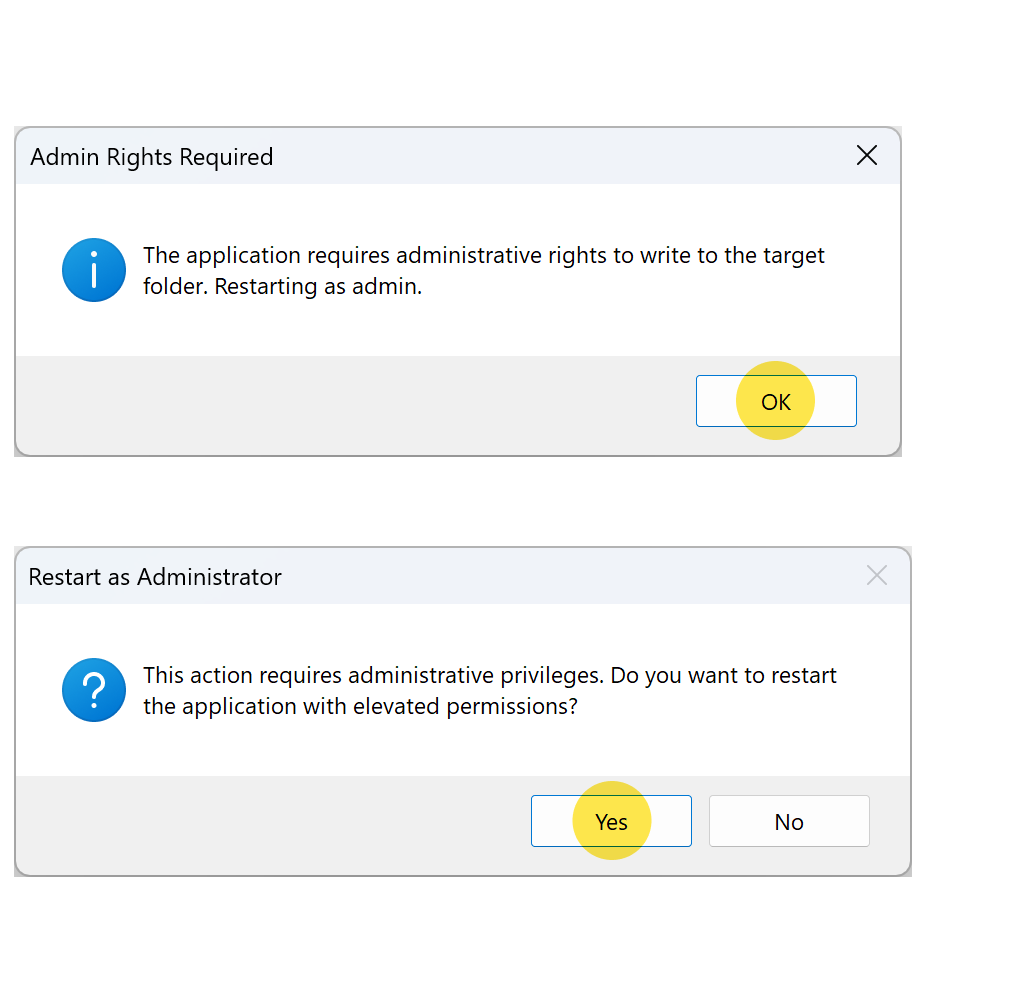
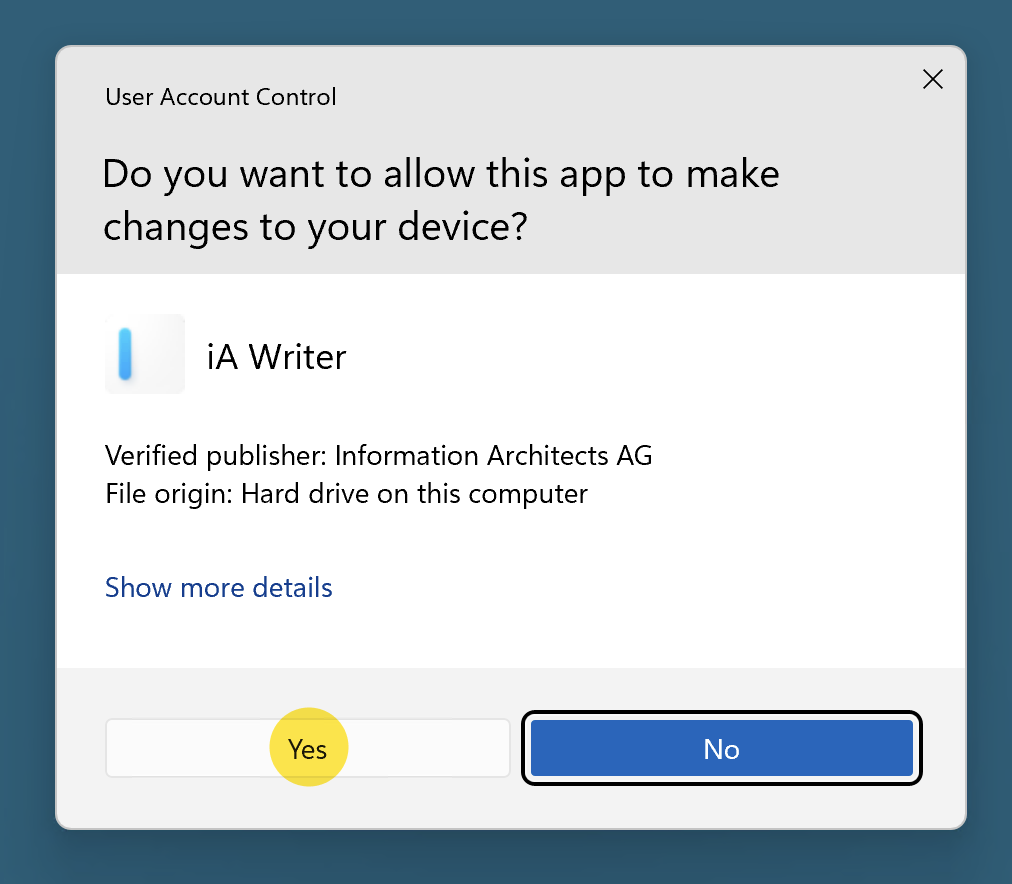
Once right are granted, iA Writer will restart. Repeat the installing steps to add your downloaded dictionary.
Enable Spellchecking
Spellcheck can be enabled in one of two ways:
- File → Settings → Editor → Spellcheck
- View → Spellcheck
 Basics
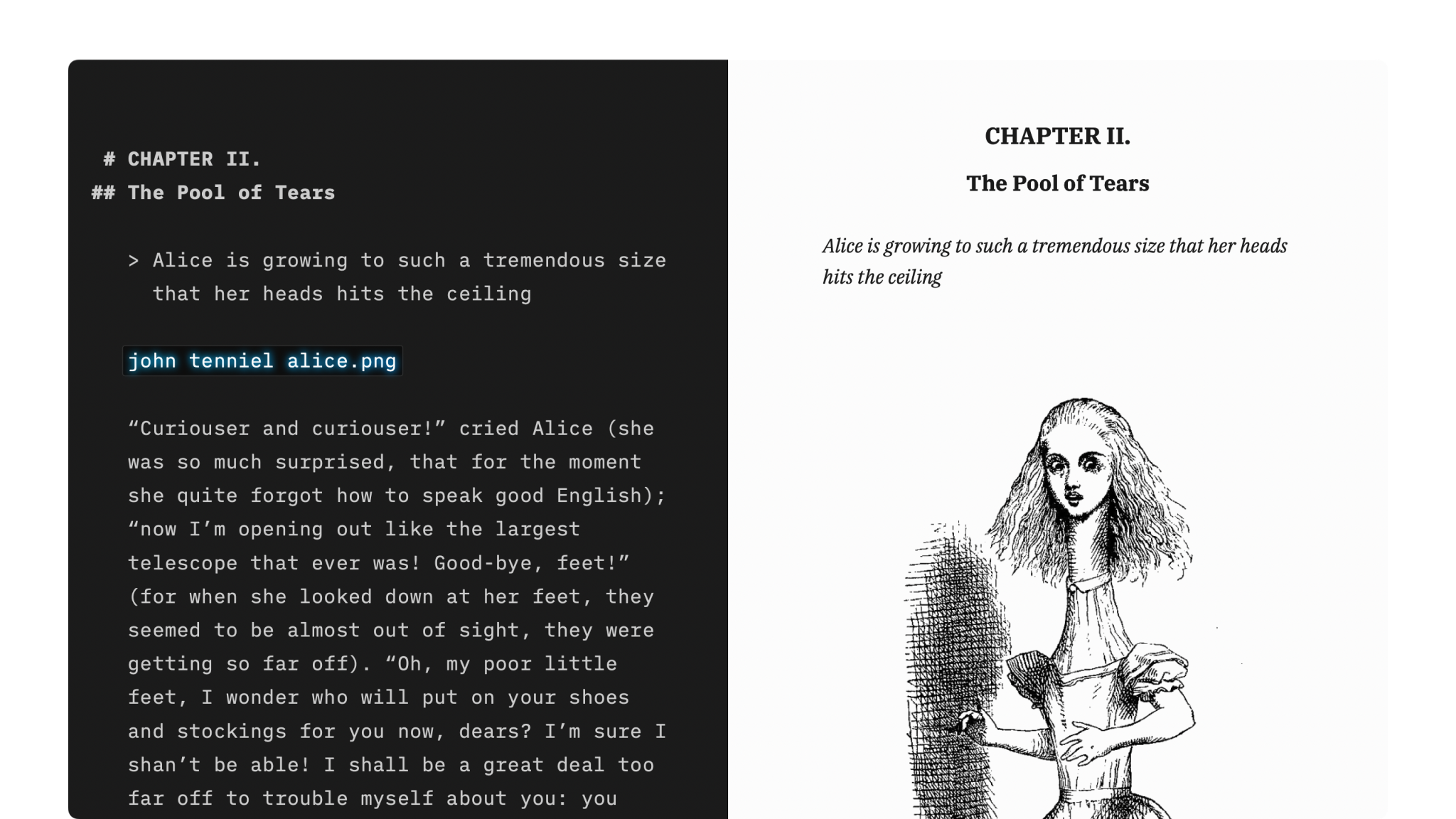
Markdown Guide
How to apply basic formatting in iA Writer simply by adding a few punctuation characters.

Features
An overview of iA Writer’s features on Mac, iPhone, iPad and Windows.
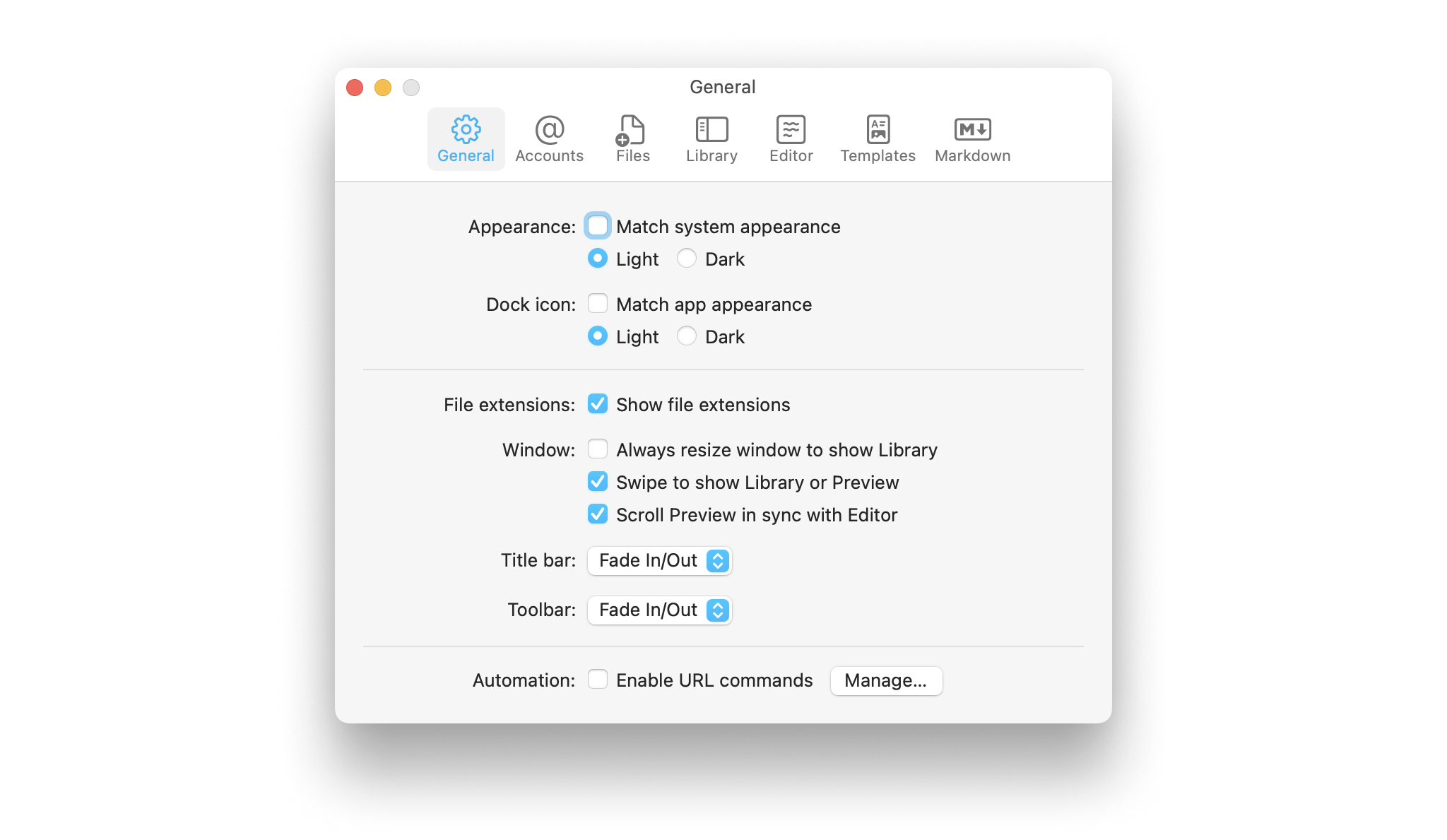
Settings
Learn how to tweak iA Writer’s settings to suit your needs.
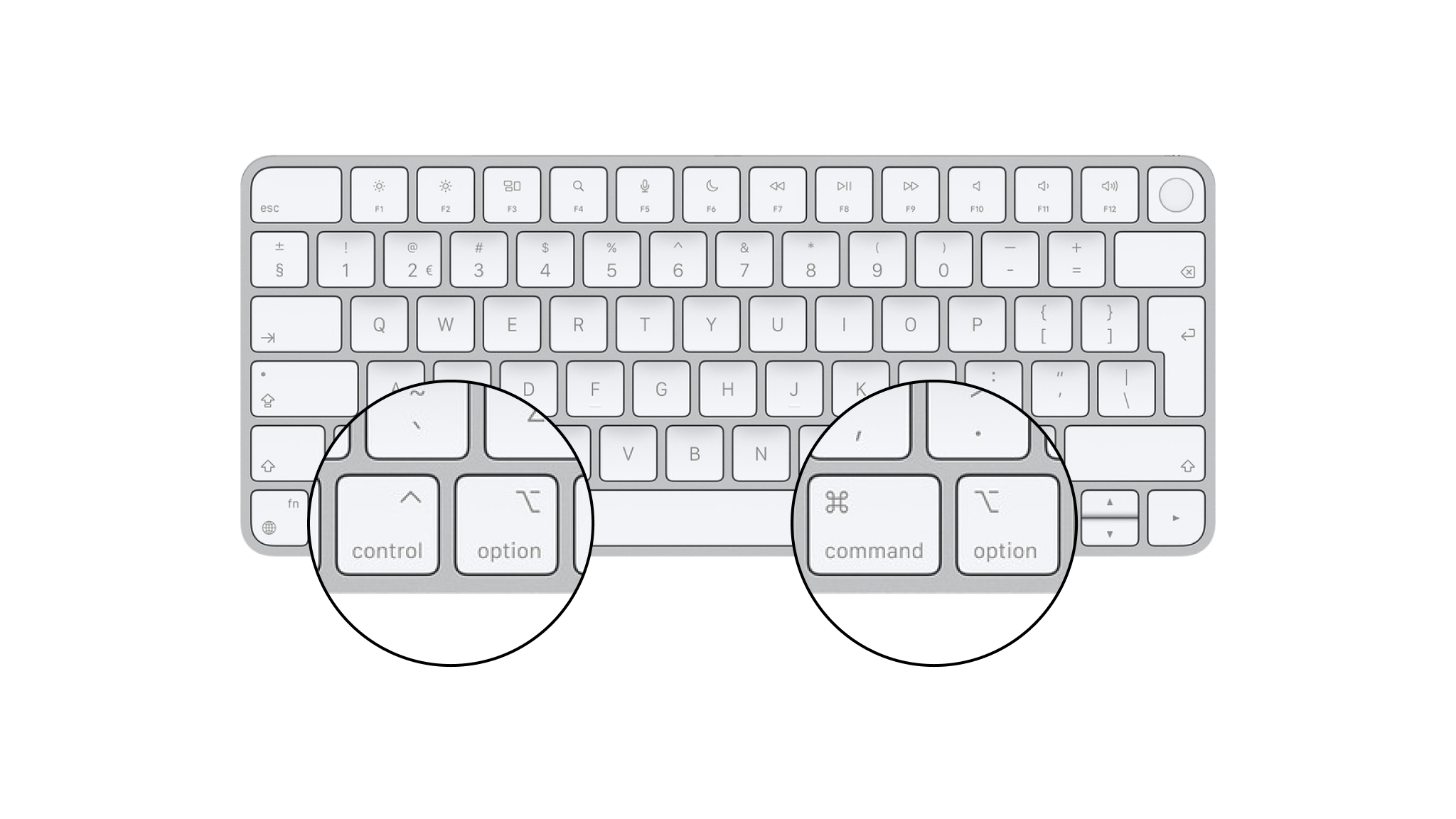
Shortcuts
Learn a few iA Writer shortcuts to save time and keep you in the creative flow.

Apple Shortcuts
Shortcuts are a powerful automation tool that saves time and helps you focus on writing by avoiding repetitive busywork.