Snippets Windows
With Snippets, you can quickly add pre-written text with custom-typed shortcuts. They make it easier to push out recurring text blocks—like salutations, sign-offs, or, indeed, any text you reuse a lot.
Once you’ve added a Snippet, simply type out the abbreviation and issue a Space or Tab to see it expand in the Editor.
Creating Snippets
To create a new Snippet navigate to Edit → Snippets then click Add New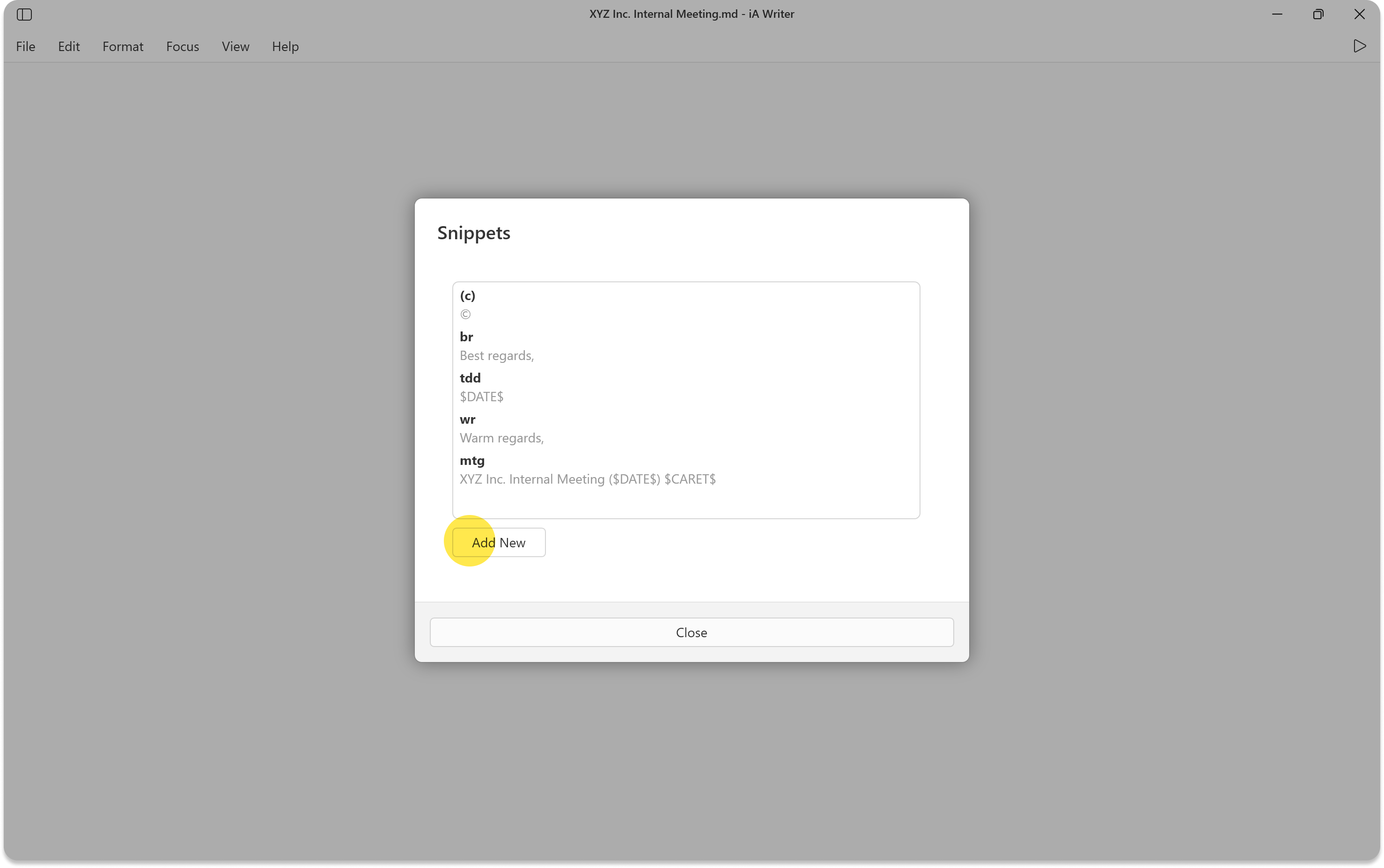
You’ll be able to enter your abbreviation and the replacement in a box directly below it. Click OK to save.
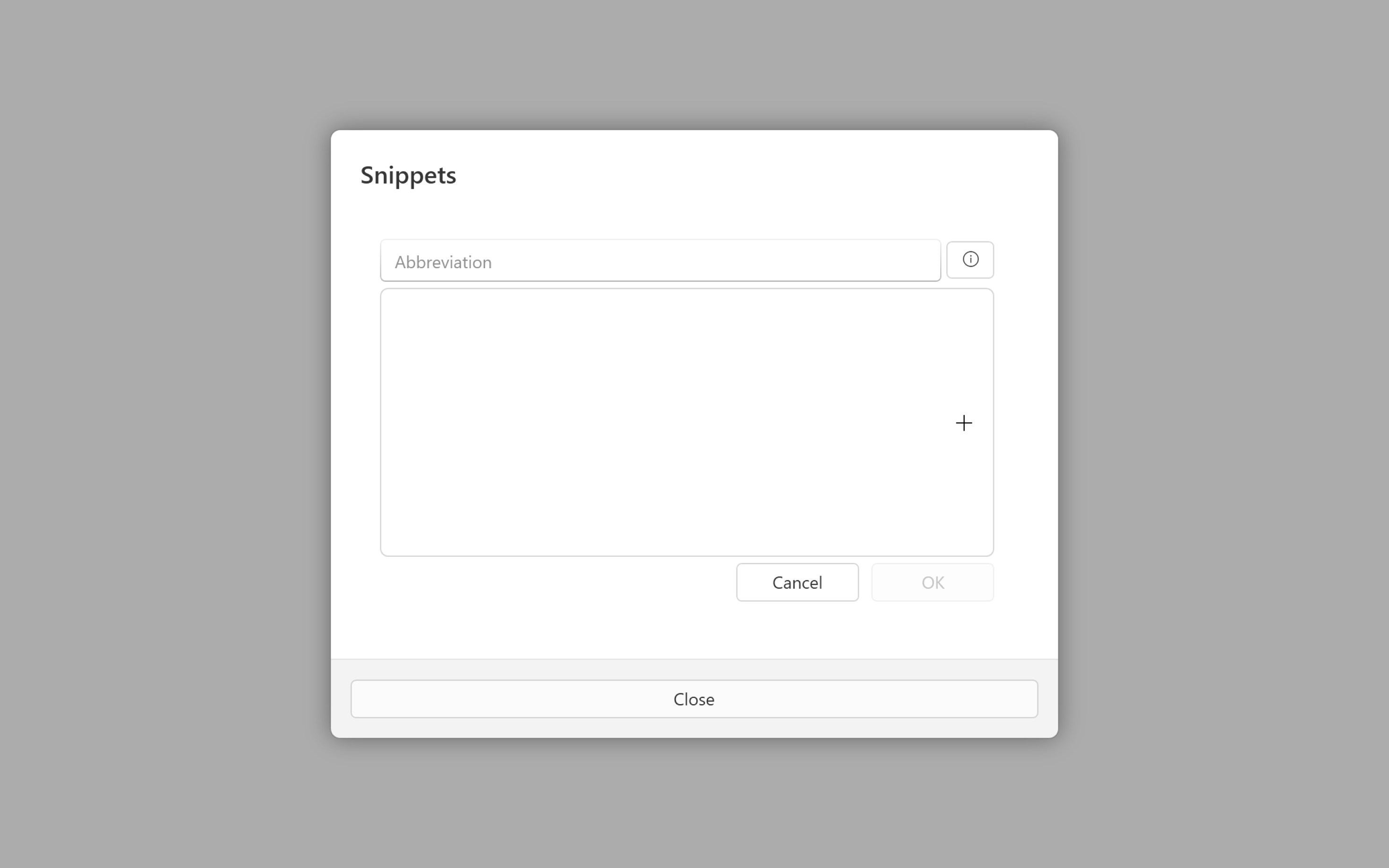
You can always edit an existing Snippet by coming back to this pane.
Some rules to keep in mind:
- Each snippet needs to have a unique abbreviation
- Shortcut cannot contain spaces
Variables
You can add variables to Snippets to make them even more useful.
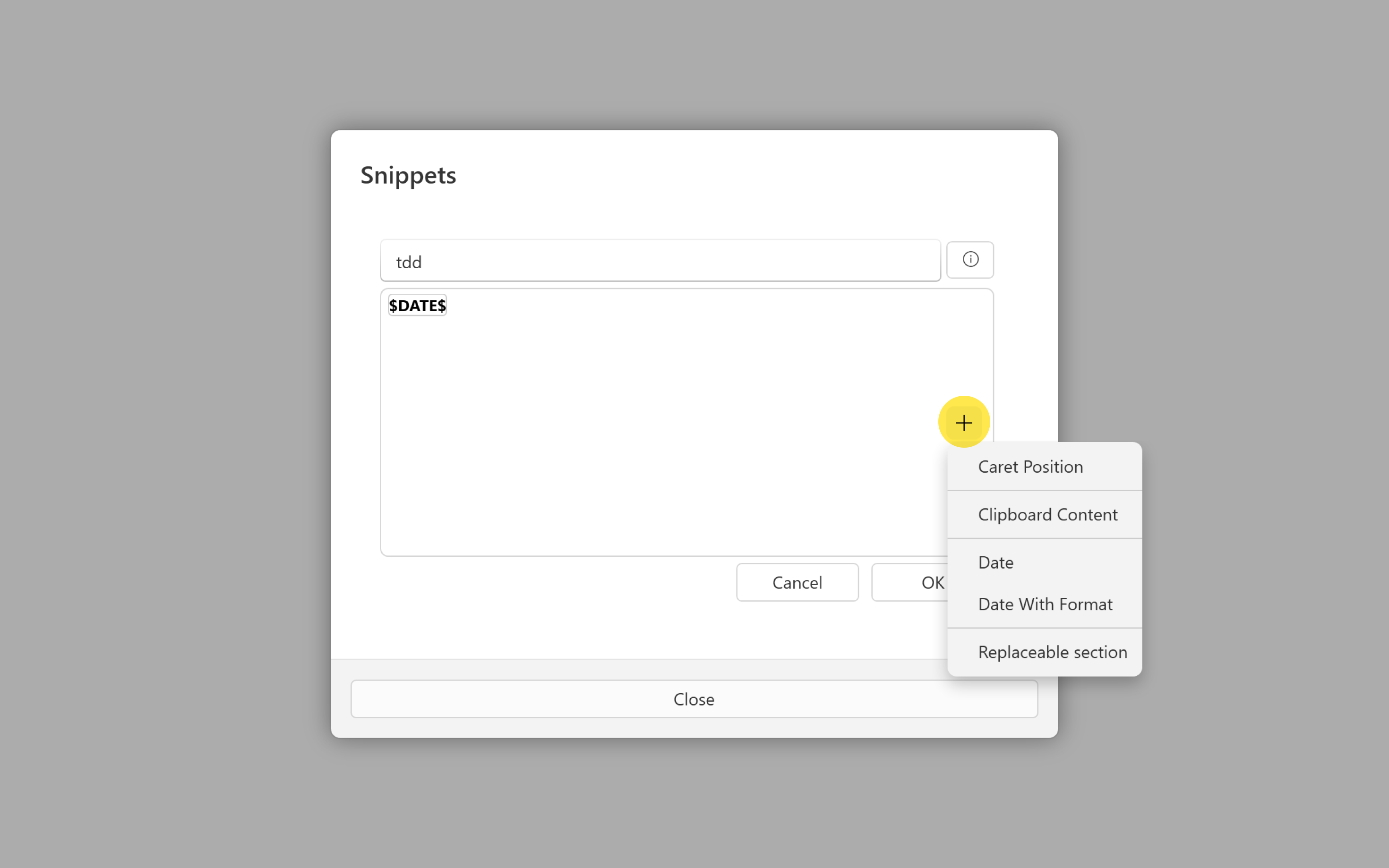
Predefined variable types:
Dates
iA Writer provides 2 different date variables:
$DATE$inserts the current date and time$DATE("d")$where a custom format can be specified
The full list of possible date formats can be found here.
Clipboard
Replaces the $CLIPBOARD$ variable with the clipboard content if the clipboard contains text.
Caret Position
Sets the caret position at $CARET$ after applying the substitution.
Placeholder Sections
If you include a variable with internal text other than DATE, CLIPBOARD or CARETa placeholder section will be added to your snippet. These sections will be written out in the Editor with the internal text as the placeholder.
Placeholder sections can then be overwritten at the time of writing. Jump between placeholders with the keyboard using the Tab key. If you’ve ever added a table in iA Writer for Windows, you’ll recognize these placeholders and how easy they make adding text.