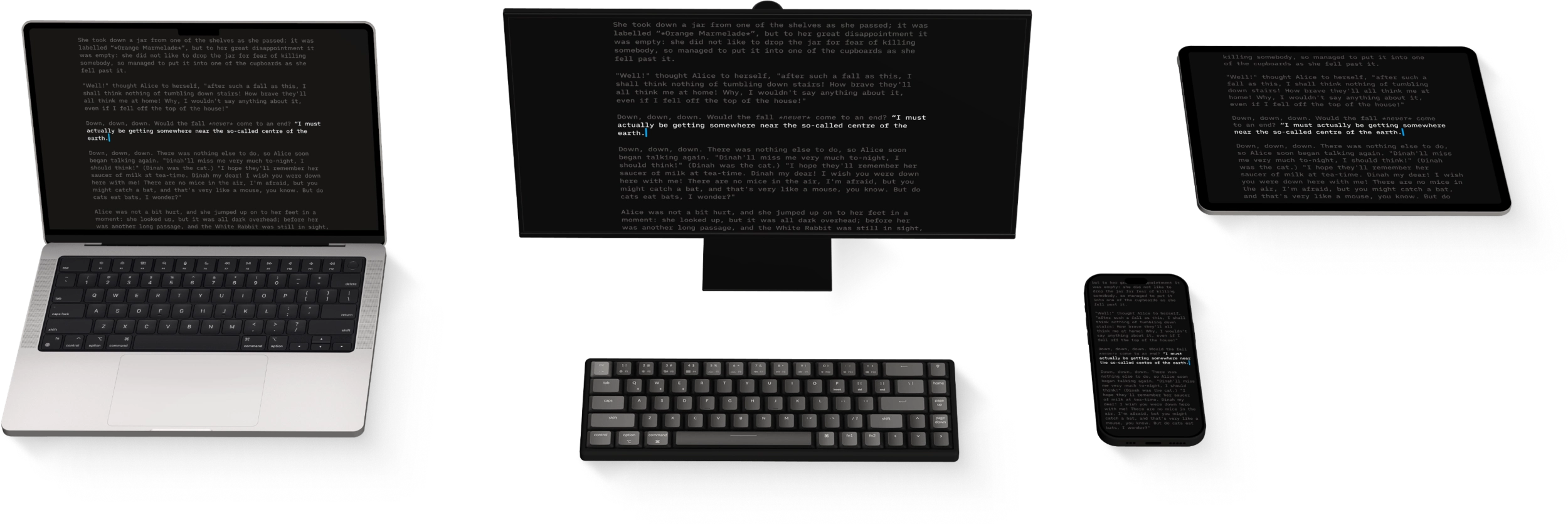
Navigation iPhone
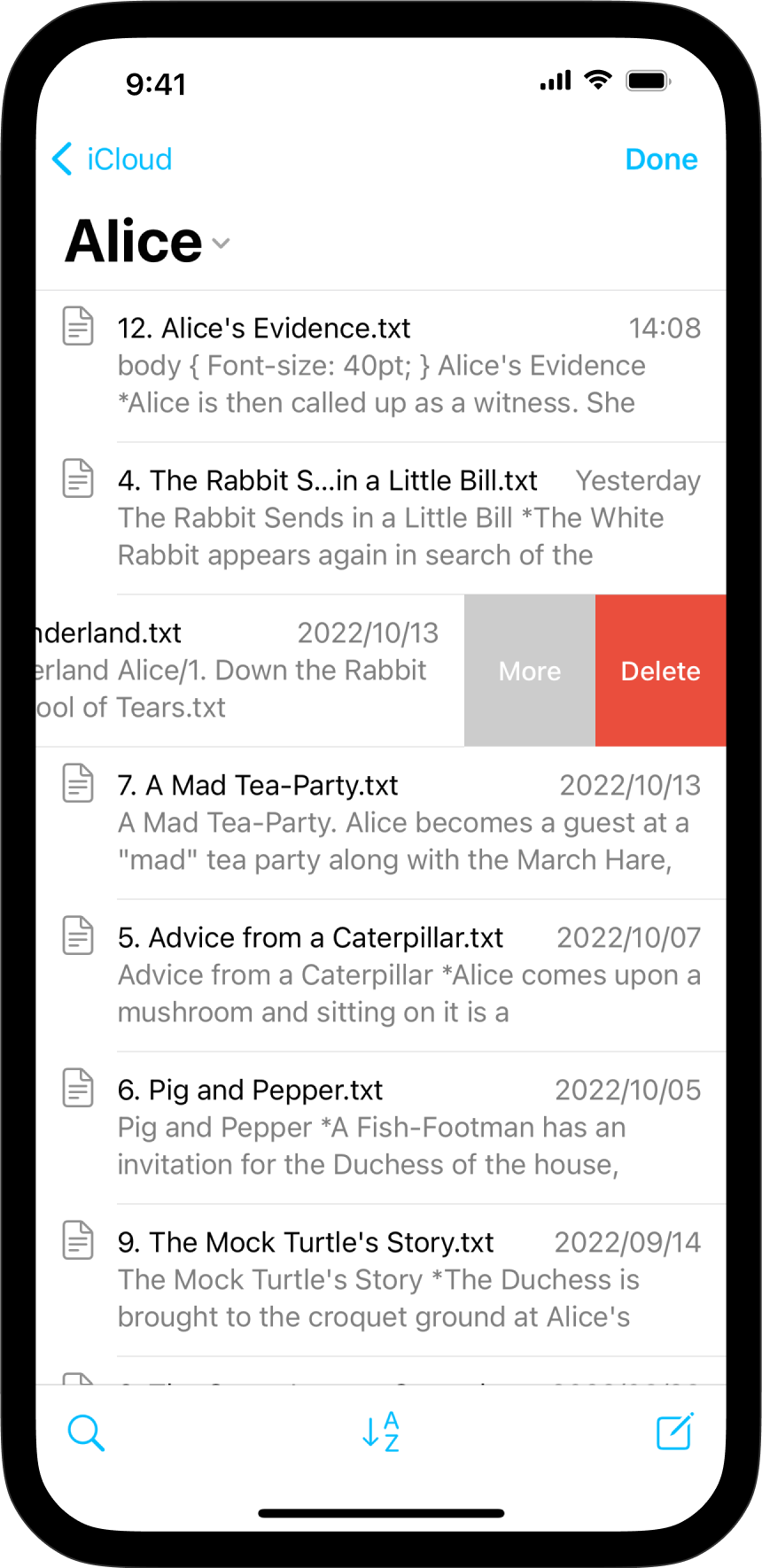
The management of your files in Writer for iOS will be done mostly from the File list of the Library.
Files Location
The File List will show you all the folders and files stored in the selected Location (iCloud for example). You can:
- tap a folder to display its contents in the list
- tap a document to open it in the Editor
- long-press a document to display a context menu (to rename, delete, duplicate, favorite…)
Swiping a document to the left reveals the following actions:
- More to open the context menu of this file
- Delete permanently deletes the document

Edit Mode
Tap the Edit button in the Library to select multiple files or folders. You can then batch-move, rename or delete them by using the buttons in the bottom bar. Tap Done when completed.
Note that if you are using a hardware keyboard, the onscreen keyboard may occlude the bottom row of the Library where these buttons exist. Dismiss it with the arrow on the far right to reveal the button.
You can also create new folders from this function.


Navigating Files
From anywhere in the Library you can tap the < button at the top left to go back to the Organizer.
You can sort your documents in the File List by Name, Date, or Extension.
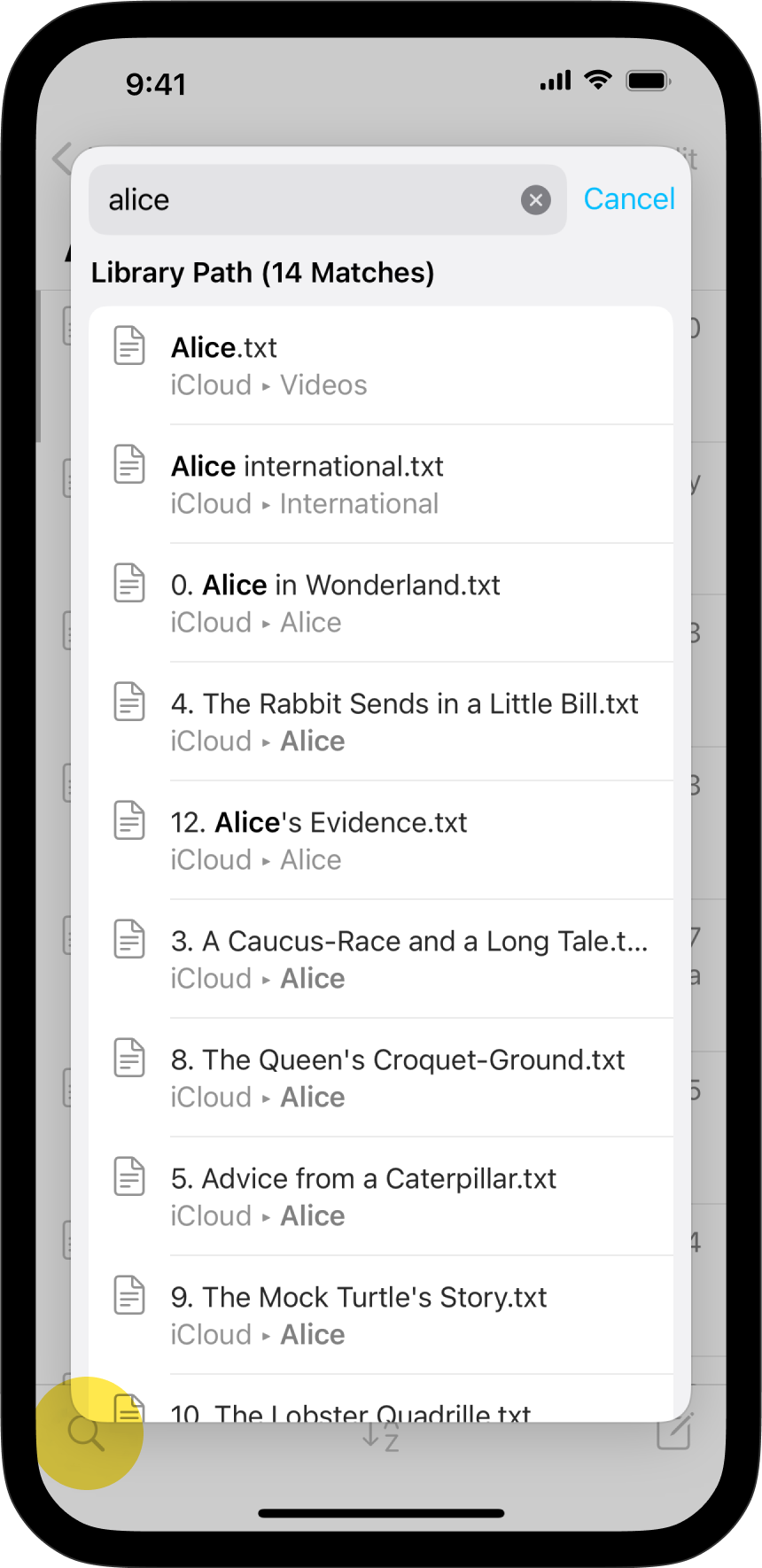
Another very powerful tool to search for files is Quick Search, you can access it from the 🔍 icon on the bottom-left of the Library.

Finally, another powerful way to navigate from a document to another one is by using the wikilinks, you can learn more in this dedicated article: Wikilinks
Learn more about the Library’s possibilities on this video: