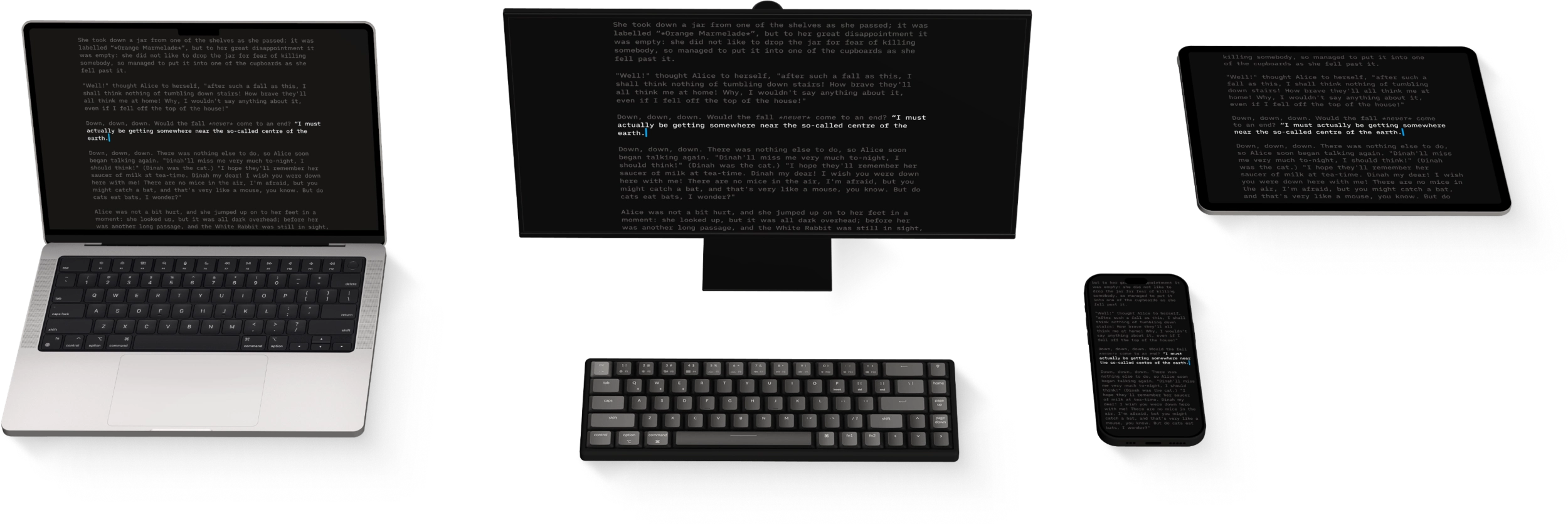
Authorship Windows
iA Writer for Windows lets you label text by source: Human, AI-generated, or Reference.
Authorship is a manual process; iA Writer does not automatically detect the source of your text. You must explicitly assign authorship using Mark as…, Paste as…, or Paste Edits from… options.
When Authorship is enabled, you can distinguish source types:
- Human contributions appear in .
- AI-generated text is shown with a .
- Reference material is .
Authorship does not modify your content in any way, and your text is not sent to a server to detect authors. Everything happens locally, on your device. Your data is yours, in compliance with our Privacy Policy.
When you edit as the primary author, your own writing remains in full focus so you can clearly see where your text ends and externally sourced content begins.
Want to learn more about our perspective on AI and how to use it to improve rather than replace writing? Read Turning The Tables on AI.
Enable or Disable Authorship
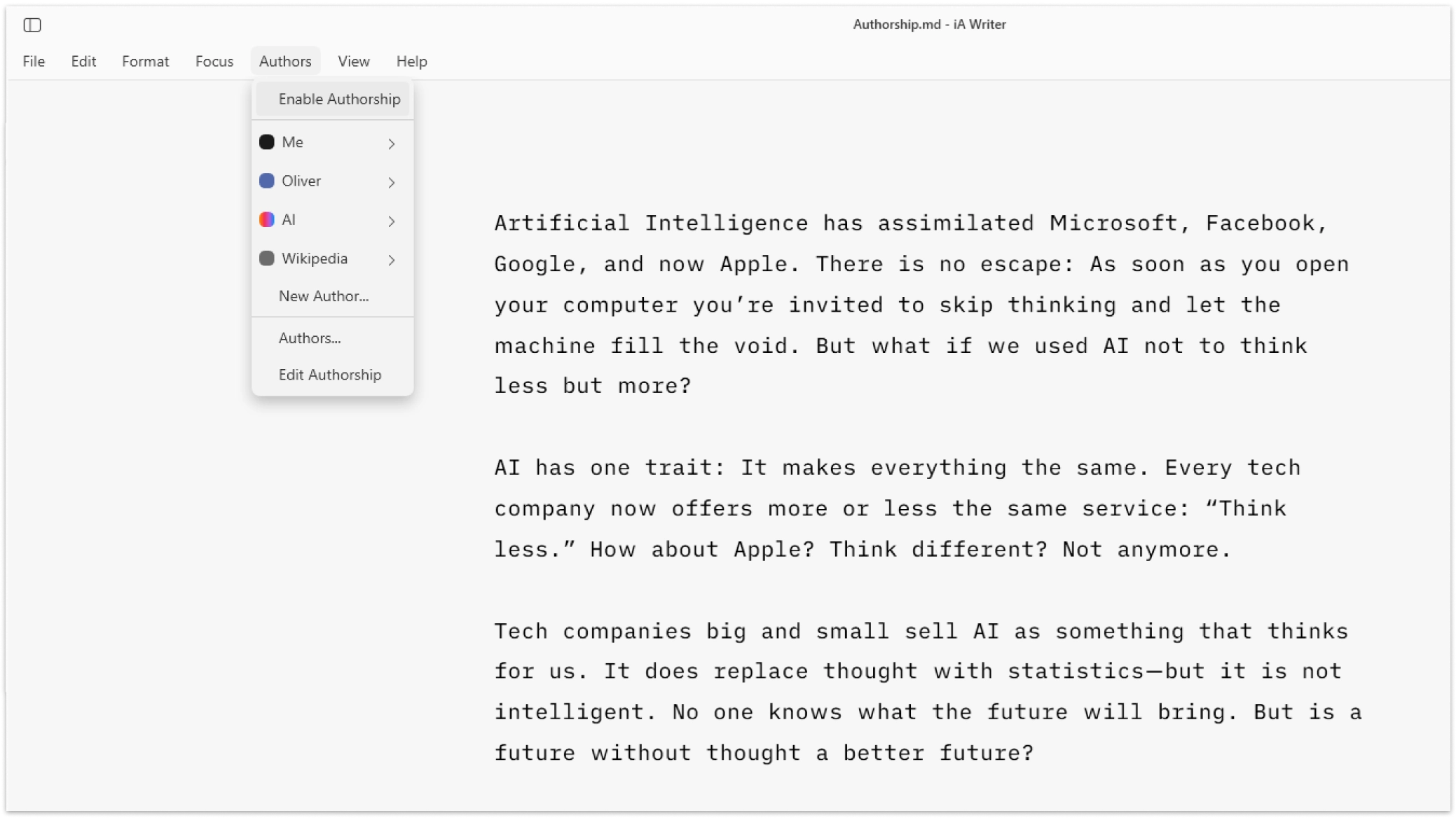
You can always mark a selection or paste text as any author type. You can also paste edits over existing text as any author. To see source distinctions in the Editor, enable Authorship first.
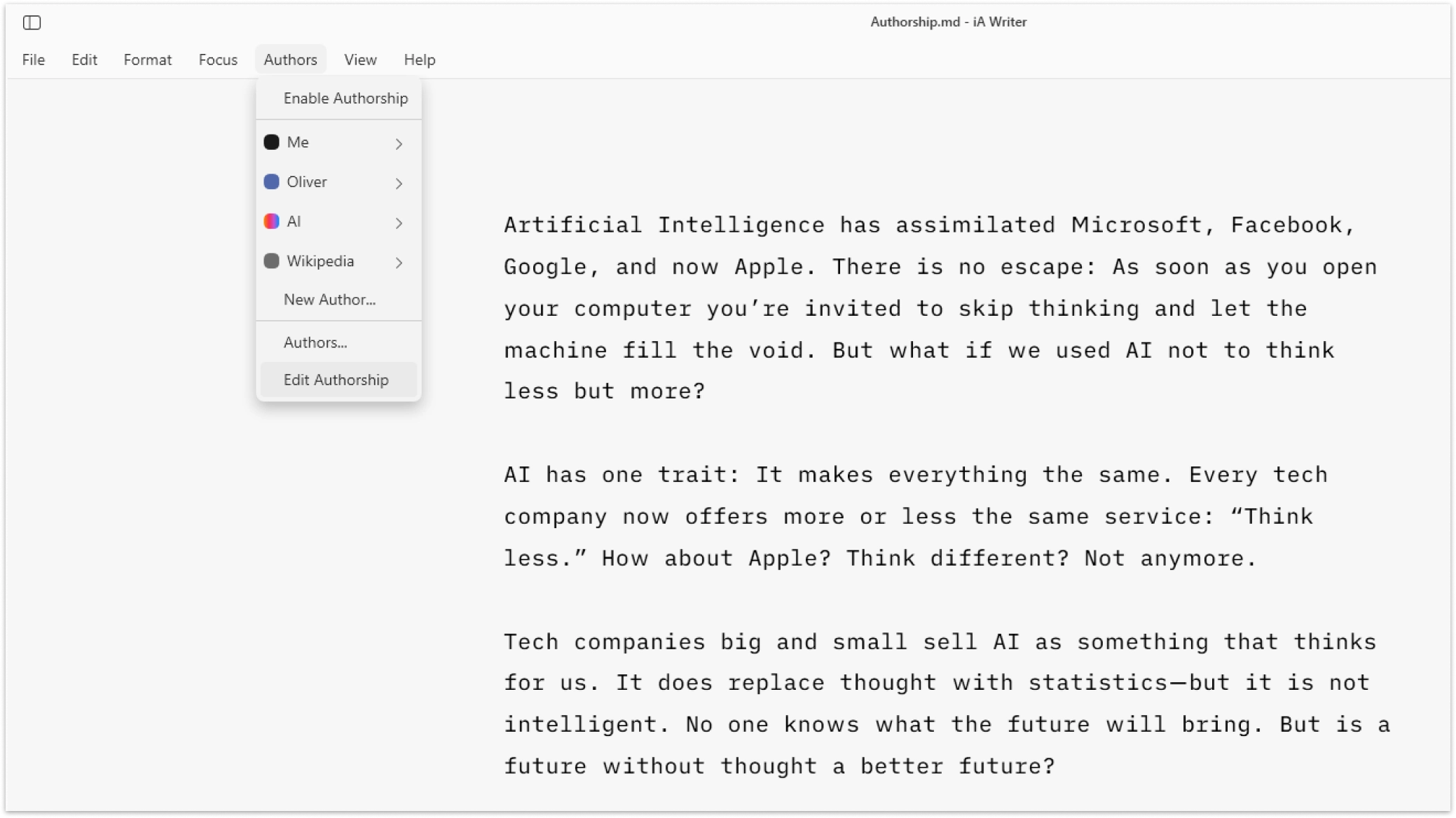
You can enable Authorship from the menu bar Authors. Note that when using Authorship for the first time, you will be prompted to Set up Authorship.
Pasting
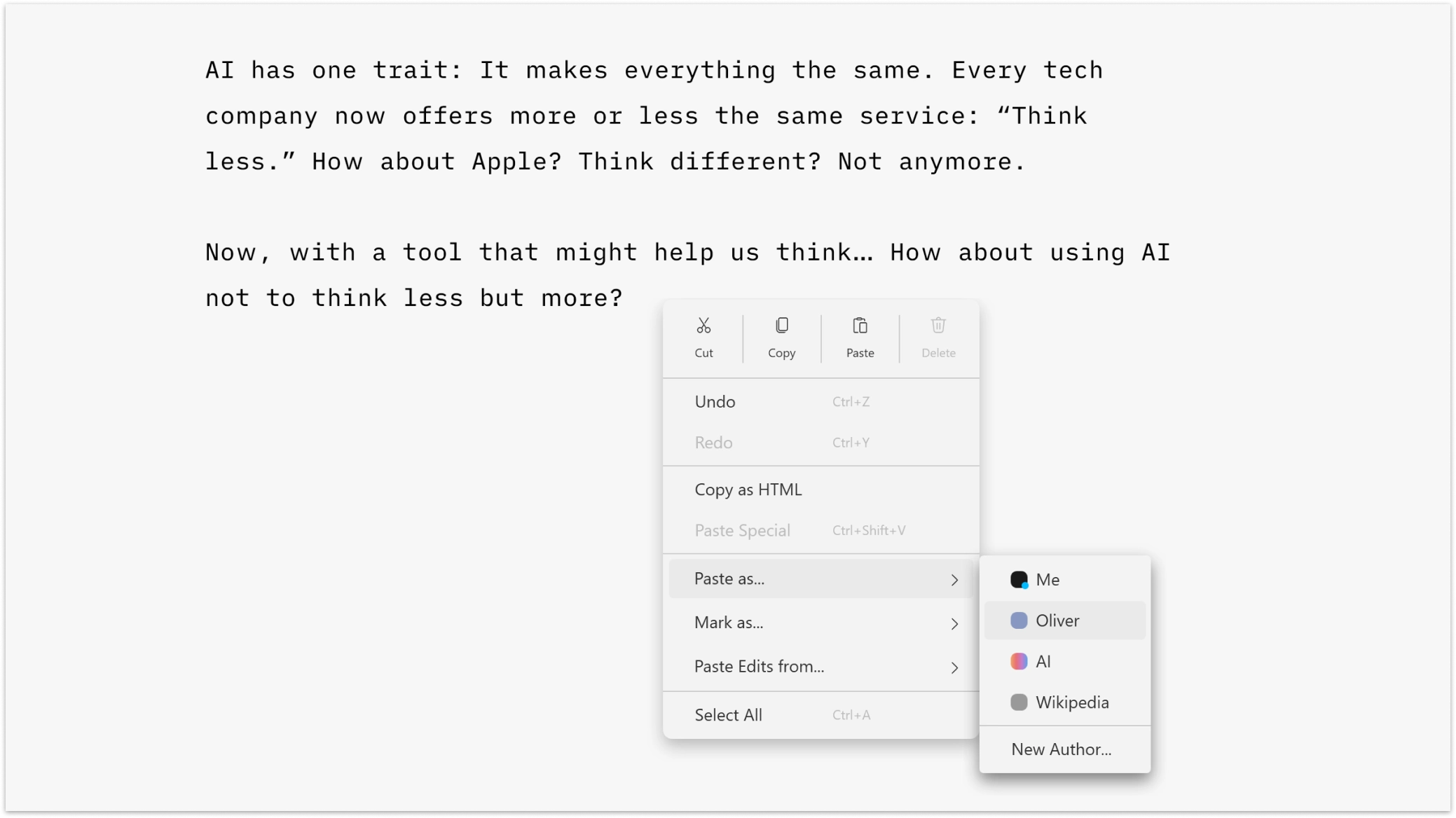
Paste as Author
Choose the author and type before pasting clipboard content.
| Method | Action |
|---|---|
| Right-Click | Right-click in Editor → Paste as… → {desired author} |
| Authors Menu | Menu bar Authors → {desired author} → Paste as {desired author} |
Paste Edits From
Overwrite an existing span of text with clipboard content and add authorship attribution.
| Method | Action |
|---|---|
| Right-Click | Right-click in Editor → Paste Edits from… → {desired author} |
| Authors Menu | Menu bar Authors → {desired author} → Paste Edits from {desired author} |
Copy and Pasting Between Existing Documents
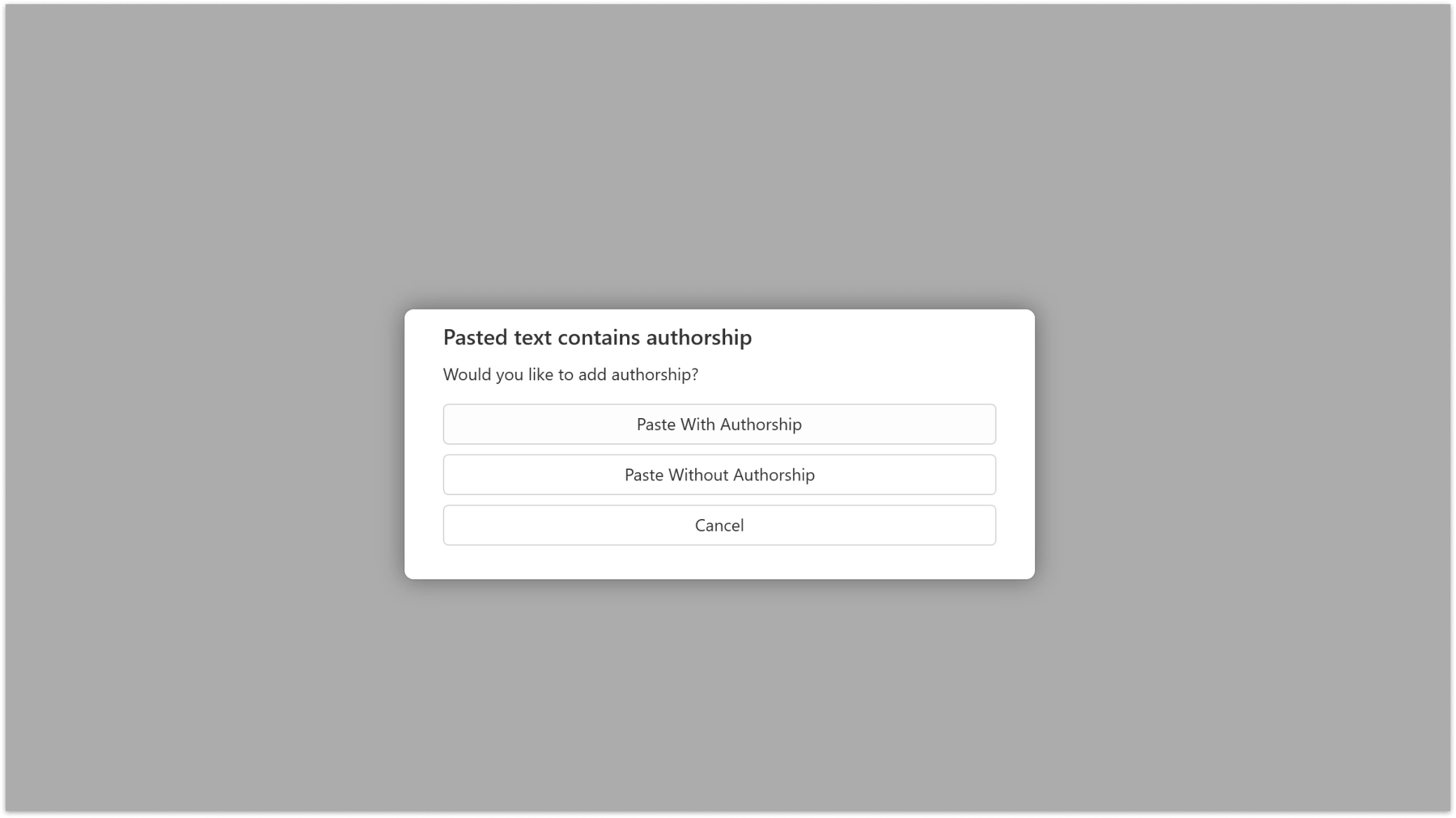
If a copied span of text includes authorship data, iA Writer lets you choose:
| Option | Result |
|---|---|
Paste With Authorship |
Keeps authorship information and adds it to the receiving document. |
Paste Without Authorship |
Pastes text without authorship data. |
Marking Existing Text
Use this when you want to add attribution to existing text.
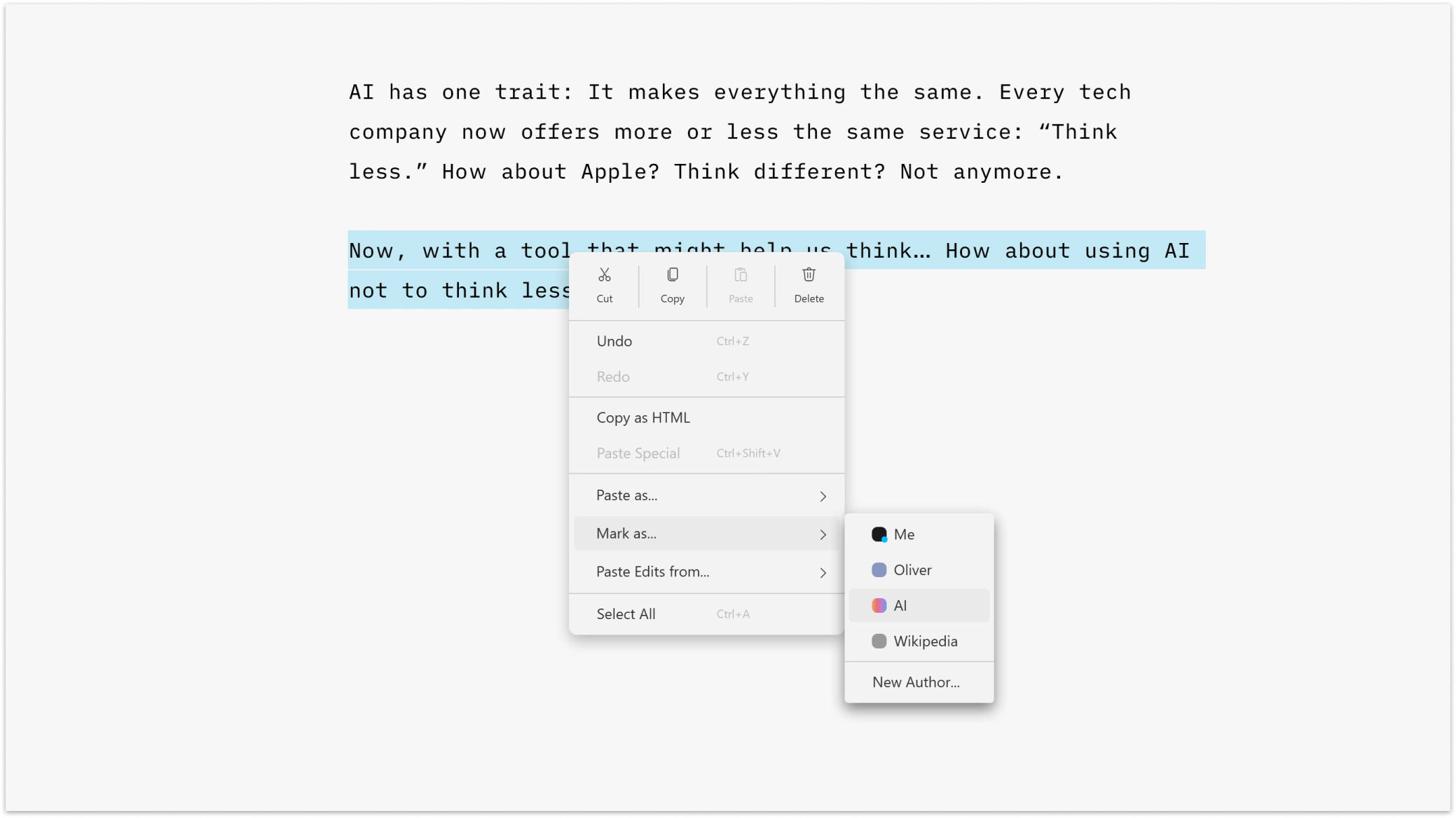
After selecting a range of text:
| Method | Action |
|---|---|
| Right-Click | Right-click in Editor → Mark as… → {desired author} |
| Authors Menu | Menu bar Authors → {desired author} → Mark as {desired author} |
Managing Authors
Global Settings
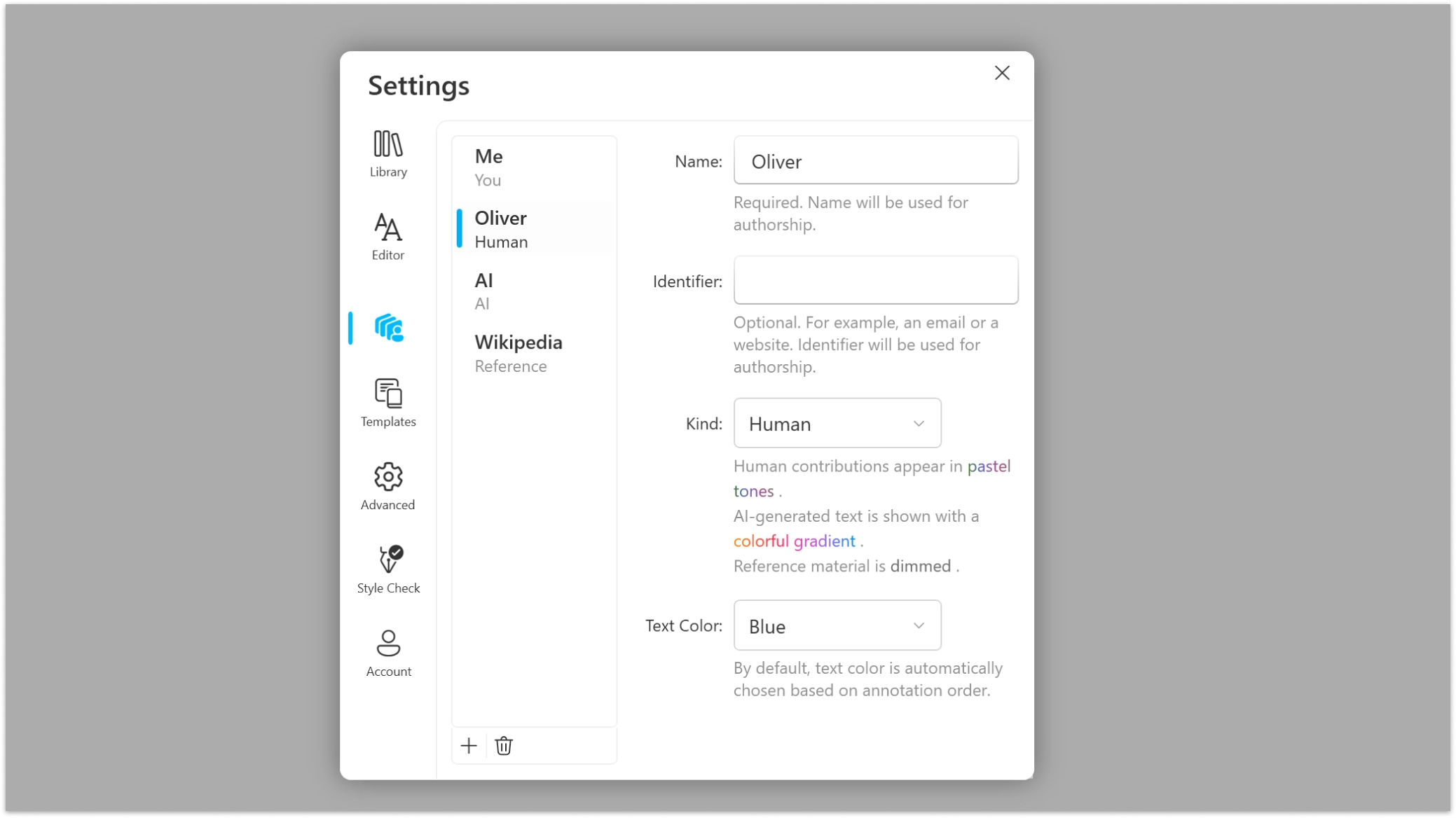
Managing your list of authors is simple in Writer: Settings → Authors
In Authors settings you can:
- Add or remove an author
- Edit an author’s details
- Set a specific color for a human author
Removing an author does not remove authorship already assigned in existing documents.
In a Document
With a document open in the Editor, go to: Authors → Edit Authorship
This opens a popup with the document’s author list and character count per author.
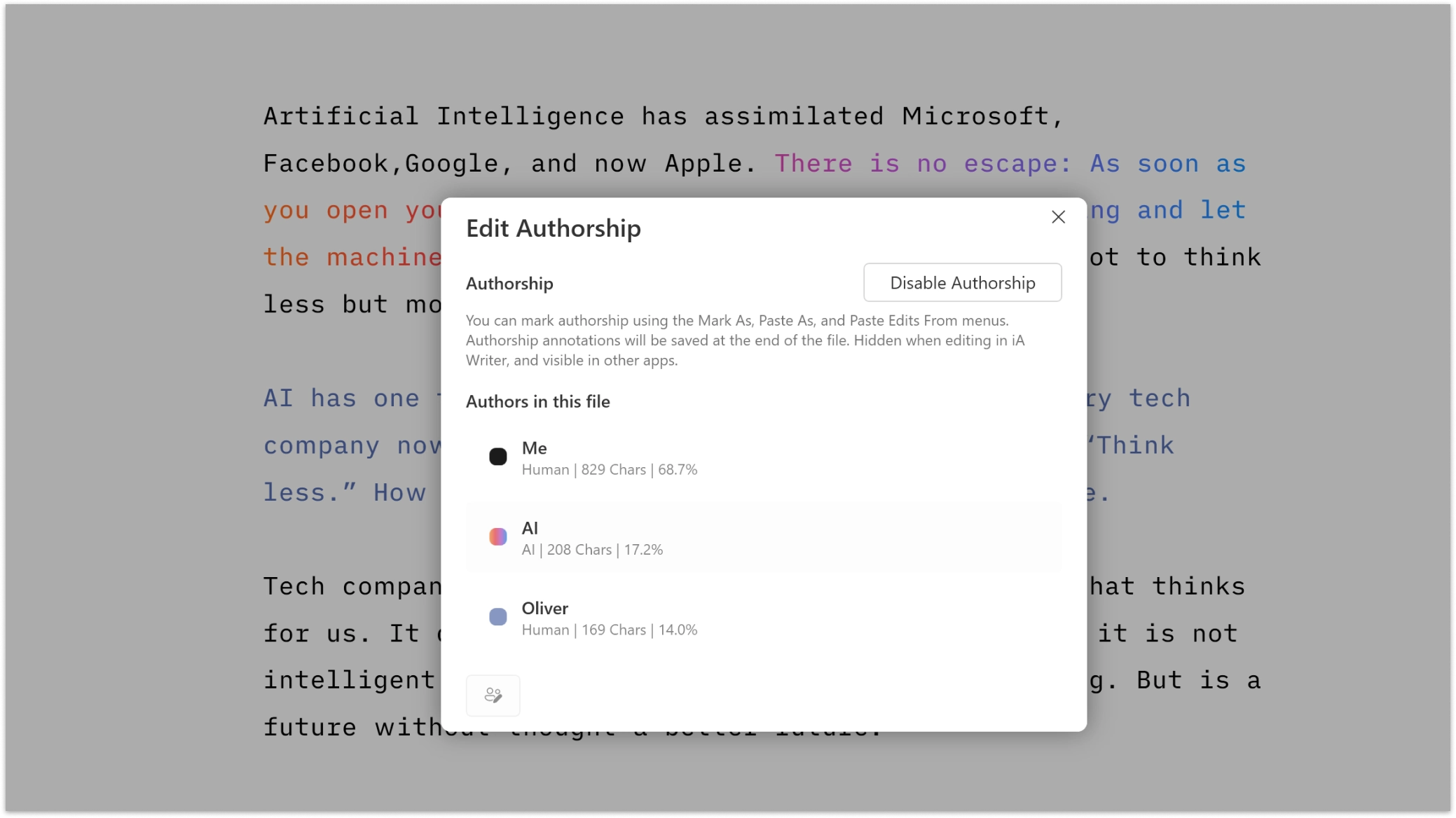
You can also:
| Action | Result |
|---|---|
| Enable | Assigns newly typed text to you and enables paste/mark attribution actions. |
| Disable | Removes all authorship data from the file. |
In a document with existing authors, select an author and right-click or press the edit icon:
| Action | Result |
|---|---|
| Replace Author | Transfer authorship to another author. |
| Save/Remove Author | Save new authors coming from external documents. Remove any author you’ve added. |
| Edit | Modify details such as name, identifiers, and kind for the selected author. |
| Delete | Remove the author and associated data from the file (does not remove the author from app Settings). |
Annotated Files
Files that include authorship data show a blue Ⓐ icon in the Library listing.
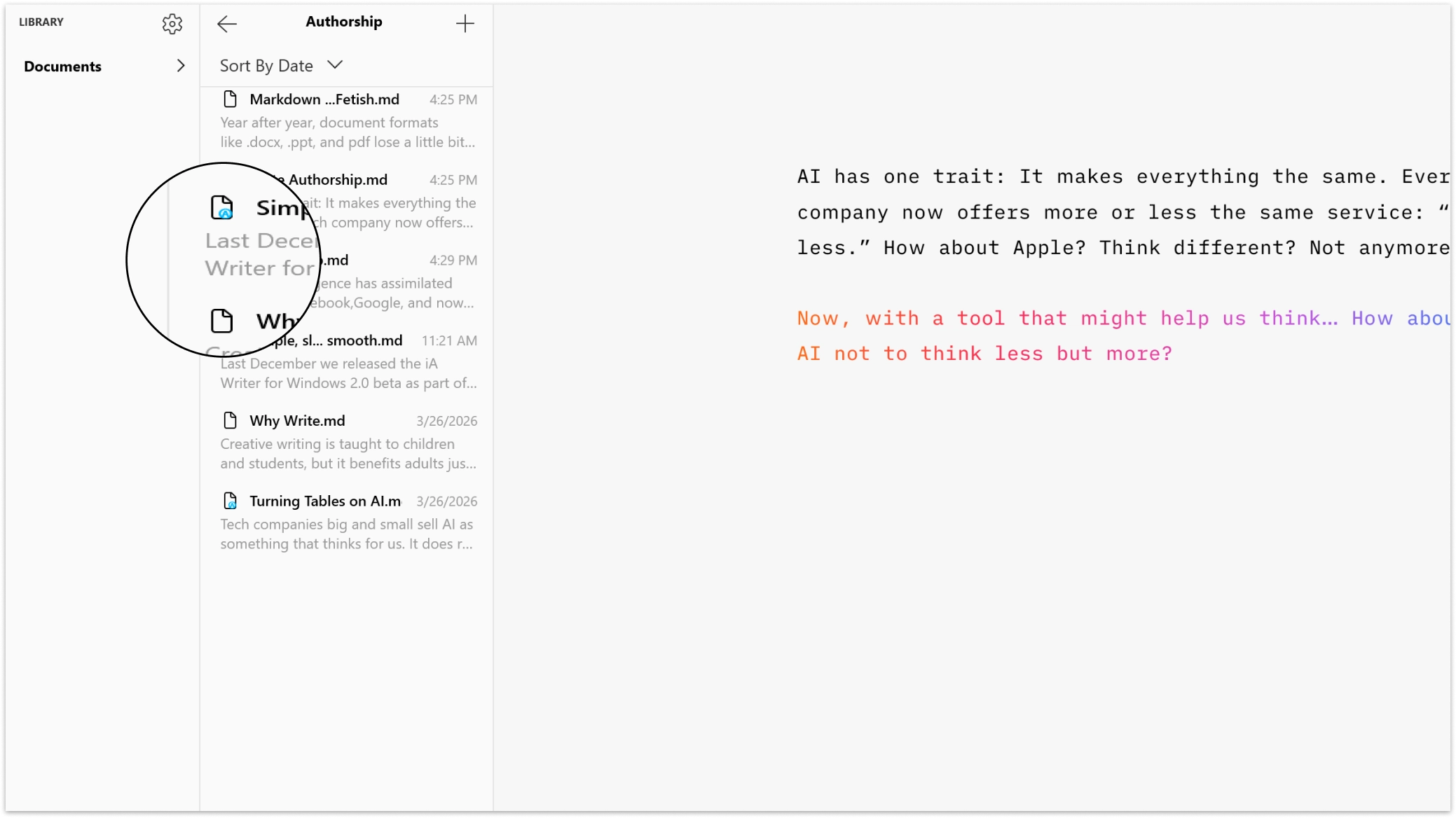
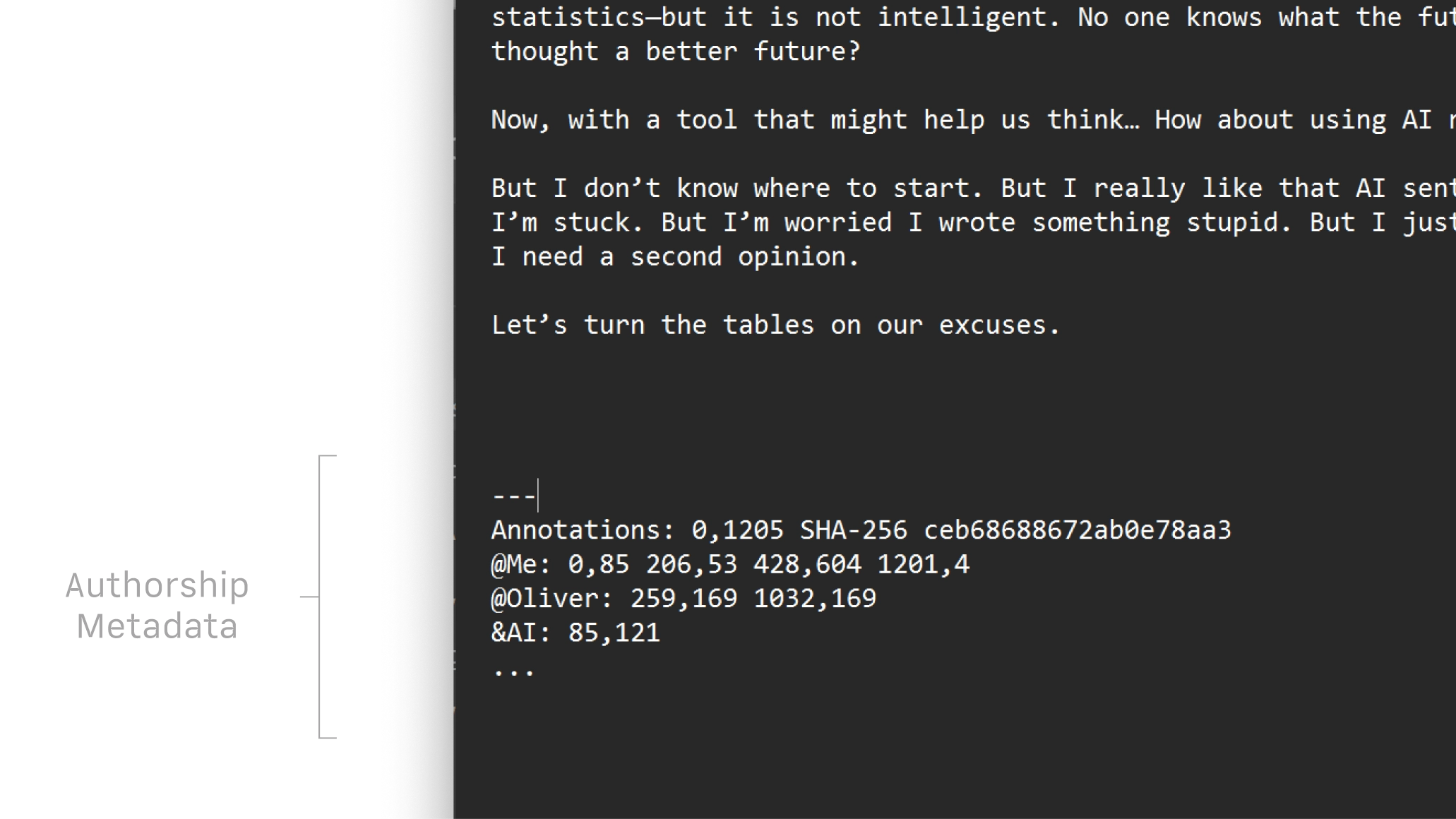
iA Writer stores authorship metadata at the end of the file. This metadata is hidden in Writer’s Editor, but visible if the file is opened in other text editors or apps.
Export
iA Writer automatically strips author metadata when exporting to Markdown, HTML, PDF, and MS Word.
Authorship
Authorship Mac
Highlight the text you craft yourself and keep track of your sources, artificial or natural.
Authorship iPhone
Highlight the text you craft yourself and keep track of your sources, artificial or natural.
Authorship iPad
Highlight the text you craft yourself and keep track of your sources, artificial or natural.