iA Writer
The Original Focused Writing App
Presenter comes with many keyboard shortcuts—learning just a few of them can help you put together presentations even faster.
You’ll find most shortcuts on the main menu, next to their actions.
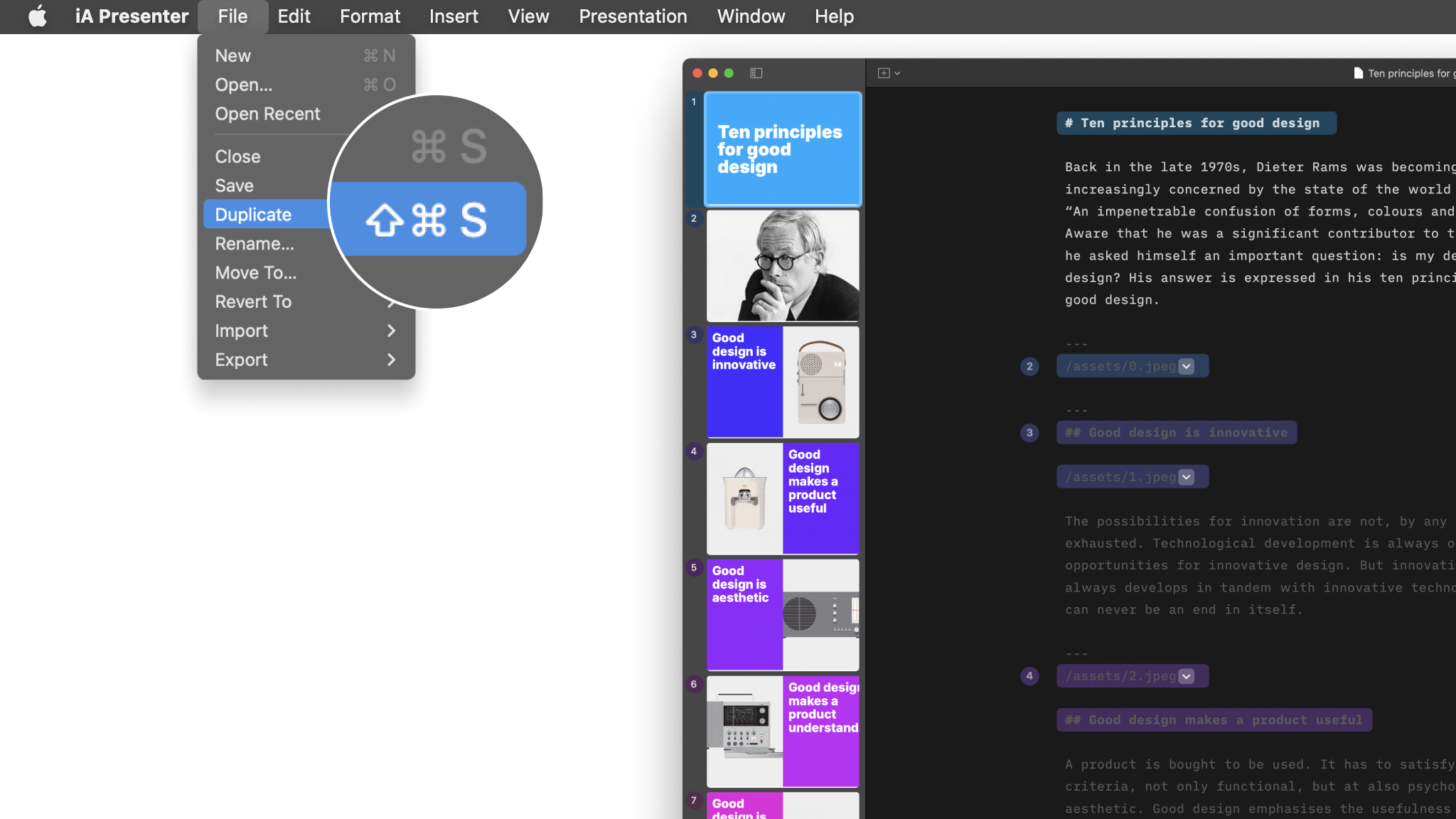
These shortcuts deal with the File menu and work alongside default macOS shortcuts such as copy/paste and select all.
| Shortcut | Action |
|---|---|
| New presentation | |
| Open existing presentation | |
| Close presentation | |
| Save presentation | |
| Save presentation as new file | |
| Duplicate | |
These commands are available from the Edit and Format menus.
| Shortcut | Action |
|---|---|
| Undo | |
| Redo | |
| Cut | |
| Copy | |
| Paste | |
| Paste as plain text | |
| Select all | |
| Indent | |
| Outdent |
| Shortcut | Action |
|---|---|
| Find | |
| Find and replace | |
| Find next | |
| Find previous | |
| Use selection for find |
| Shortcut | Action |
|---|---|
| Ordered list | |
| Unordered list | |
| Task list | |
| Blockquote |
| Shortcut | Action |
|---|---|
| Slide break | |
| Add empty slide | |
| Title | |
| Subtitle | |
| Heading | |
| Subheading |
| Shortcut | Action |
|---|---|
| Bold text | |
| Italic | |
| Comment | |
| Strikethrough | |
| Highlight | |
| Footnote | |
| Link |
| Shortcut | Action |
|---|---|
| Inline code | |
| Code block | |
| Inline math |
Shortcuts for Editor display and pane visibility.
| Shortcut | Action |
|---|---|
| Show all tabs | |
| Focus Mode | |
| Zoom in | |
| Default text size | |
| Zoom out | |
| Show/Hide Thumbnails | |
| Show/Hide Inspector | |
| Play presentation | |
| Presentation Preview | |
| Show/Hide Toolbar | |
| Show/Hide Teleprompter | |
| Command Palette | |
| Enter/Exit full screen | |
| Preferences |
Slide navigation shortcuts when using the Editor.
| Shortcut | Action |
|---|---|
| Go to previous slide | |
| Go to next slide | |
| Go to first slide | |
| Go to last slide |
You can customize keyboard shortcuts and add your own for menu items that don’t have them yet. To do so:

When successful you’ll see the shortcut added next to the menu item in iA Presenter and you’ll be able to trigger the action with your shortcut.
Note that some key combinations will not work due to being mapped to system functions or other restrictions. If this happens, please repeat the steps above to re-map the menu item to a new key combination.