Versions and Backups iPhone
If you’ve deleted a file or want to revert recent changes from an existing one, restoring a previous version of your document is a simple process on Writer for iOS.
You have various options to recover your previous work, either through the iA Writer app or iCloud. iA Writer for iOS comes with built-in support for iCloud Drive. In addition to the advantages of document synchronization across devices, users also benefit from the extra security provided by online recovery tools available in iCloud.
Recently Deleted
You can restore files recently deleted from iCloud or your device for up to 30 days.
In Files App
- Open Files app
- Select Recently Deleted in sidebar
- Select the files you want back then click Recover
iCloud Recently Deleted
- Sign in to iCloud.com from your browser
- Go to the Drive section
- Click the Drive icon
- Click Recently Deleted
- Select the files you want back then click Recover
iCloud Data Recovery
If you cannot find the deleted files in Recently Deleted, you may be able to recover them using the Data Recovery feature on iCloud.com:
- Open iCloud Data Recovery
- Click Restore Files
- Select the files you want back then click Restore
For more up-to-date instructions on using iCloud Data Recovery, visit Apple’s Support pages.
Other Cloud Storage
Many cloud storage providers preserve multiple versions and backups of your documents for up to 30 days, including Dropbox, Google Drive, and OneDrive.
Revert to Older Version
iOS Undo Function
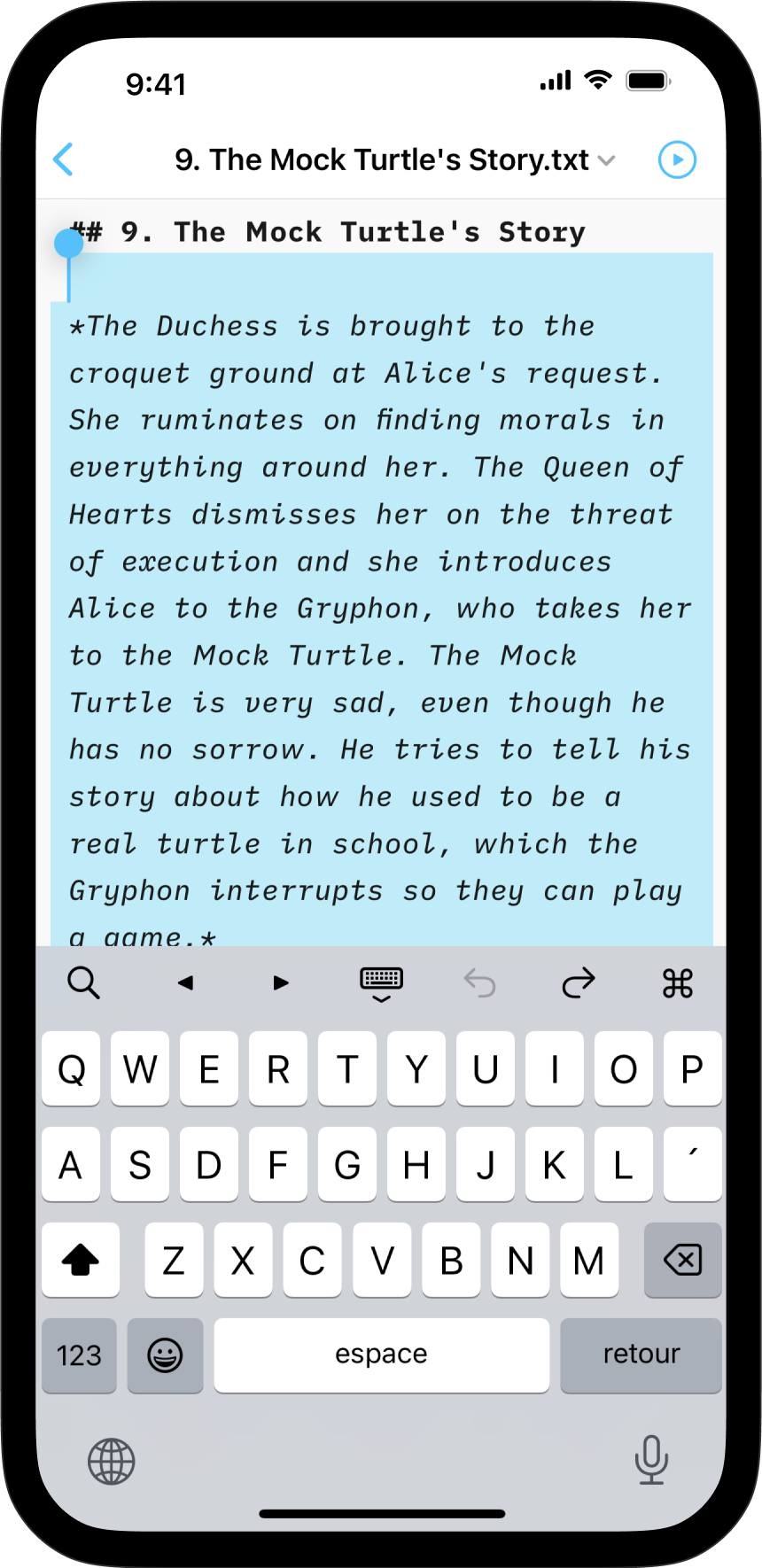
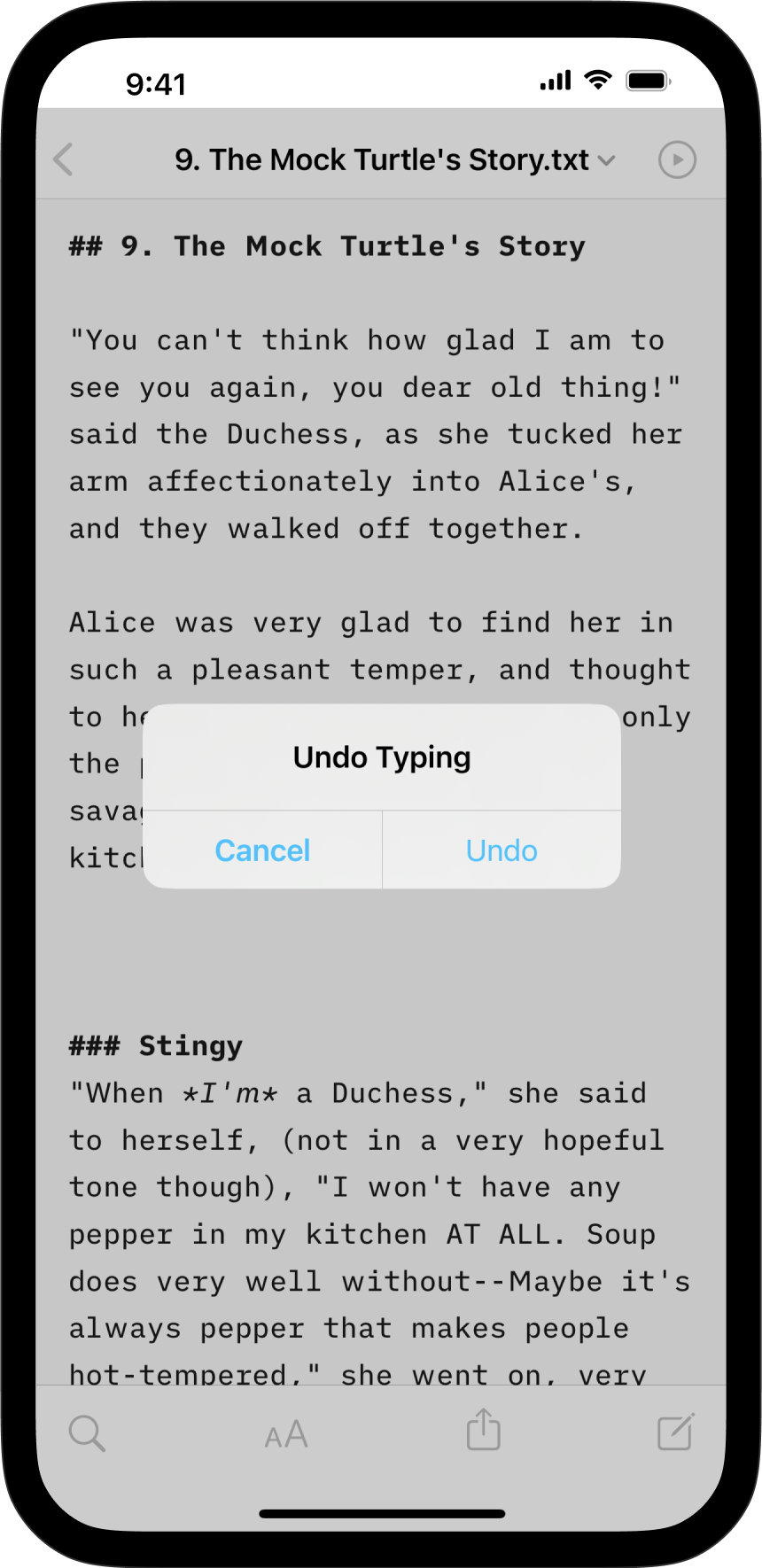
For those familiar with the iPhone, you might already know the iOS Undo function, which is the first step to take to revert recent changes.
While you’re in your document, just shake your phone from left to right to undo the most recent action you’ve taken, such as deleting a paragraph.
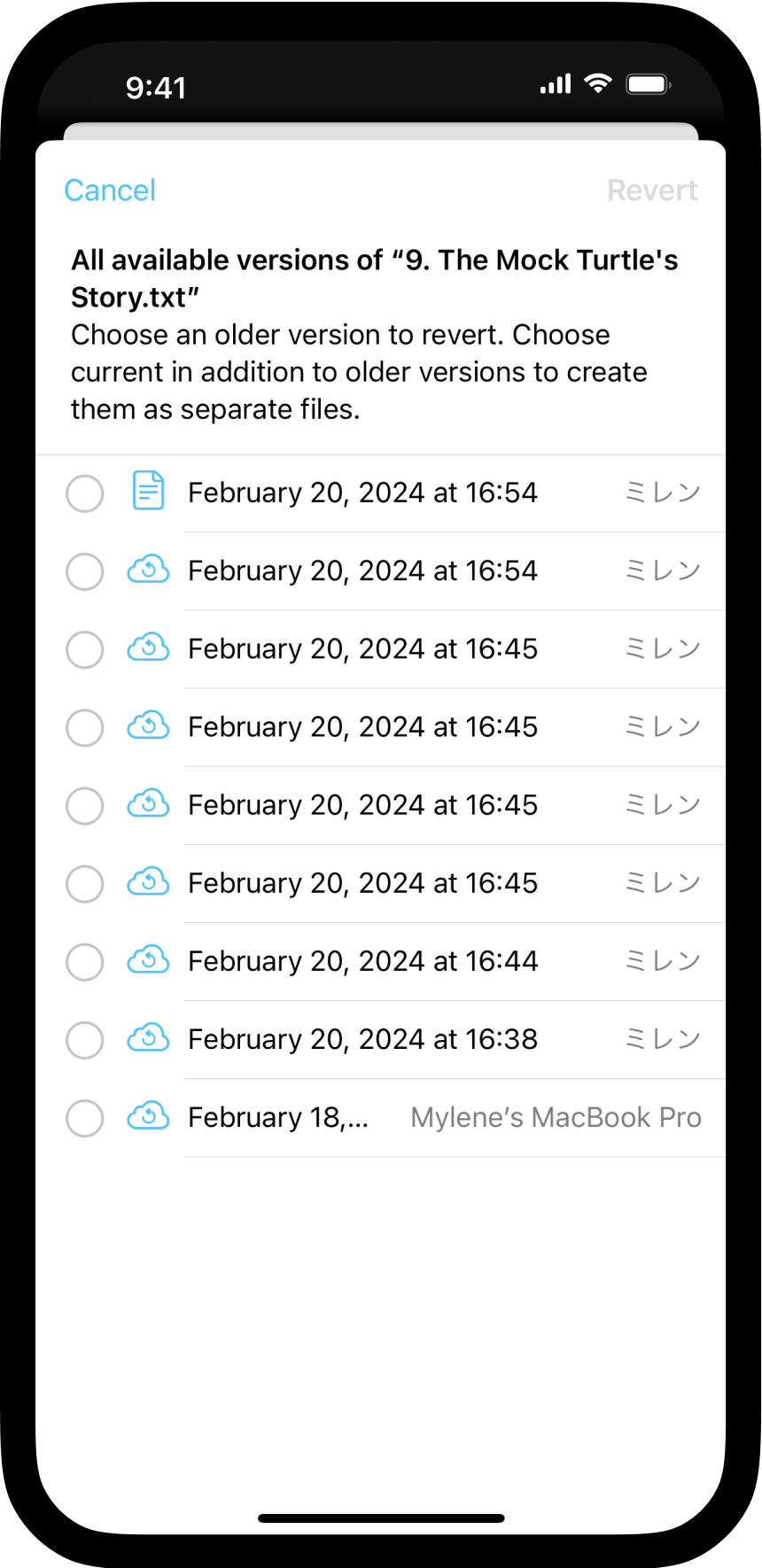
Browse iCloud Versions
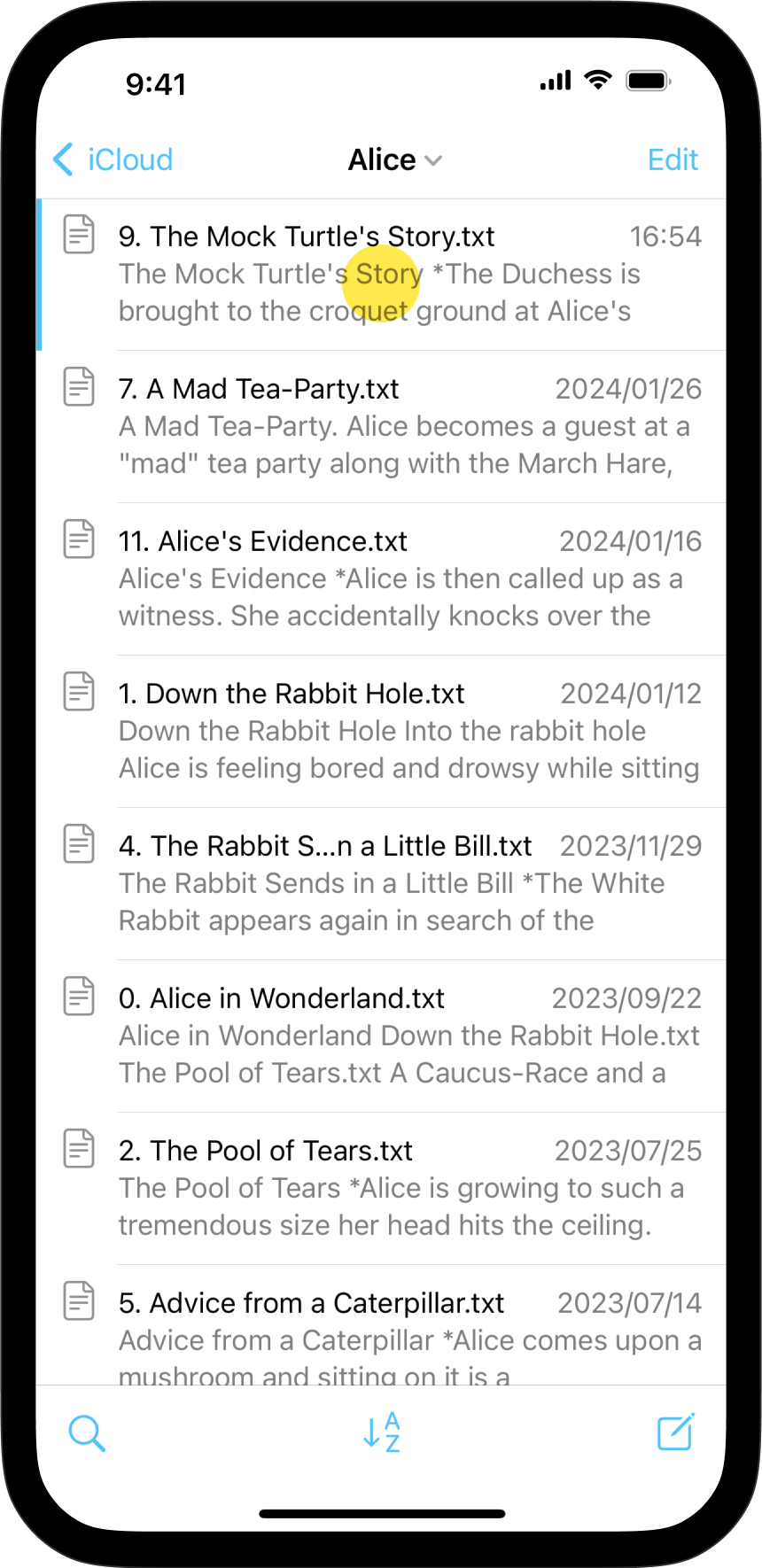
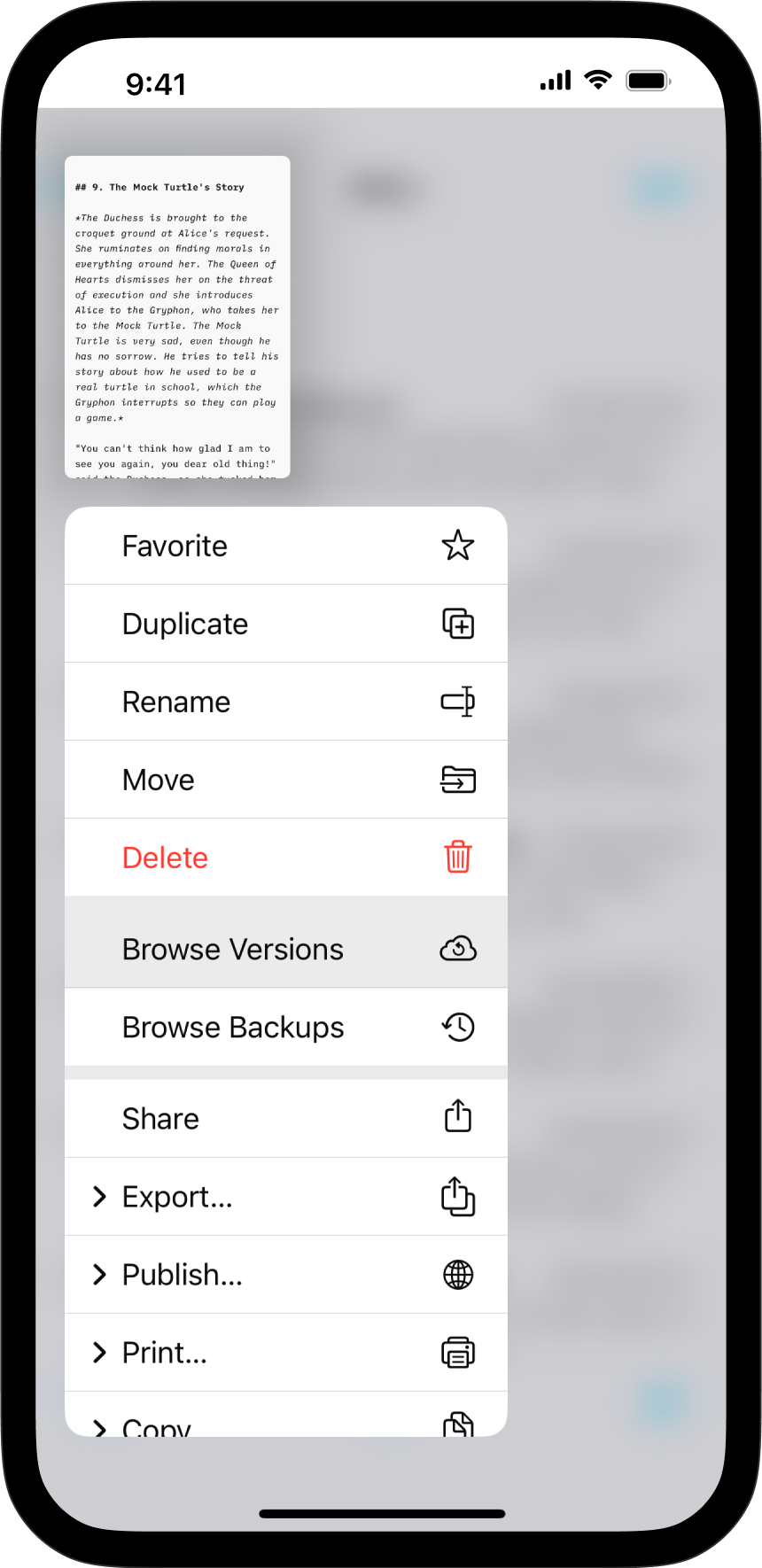
If you are working in iCloud, you can access previous versions by using the Browse Versions function.
Simply long-press on a file in the Library’s File List, then select Browse Versions (sweep upwards to reveal the option if necessary).
Browse Local Backups
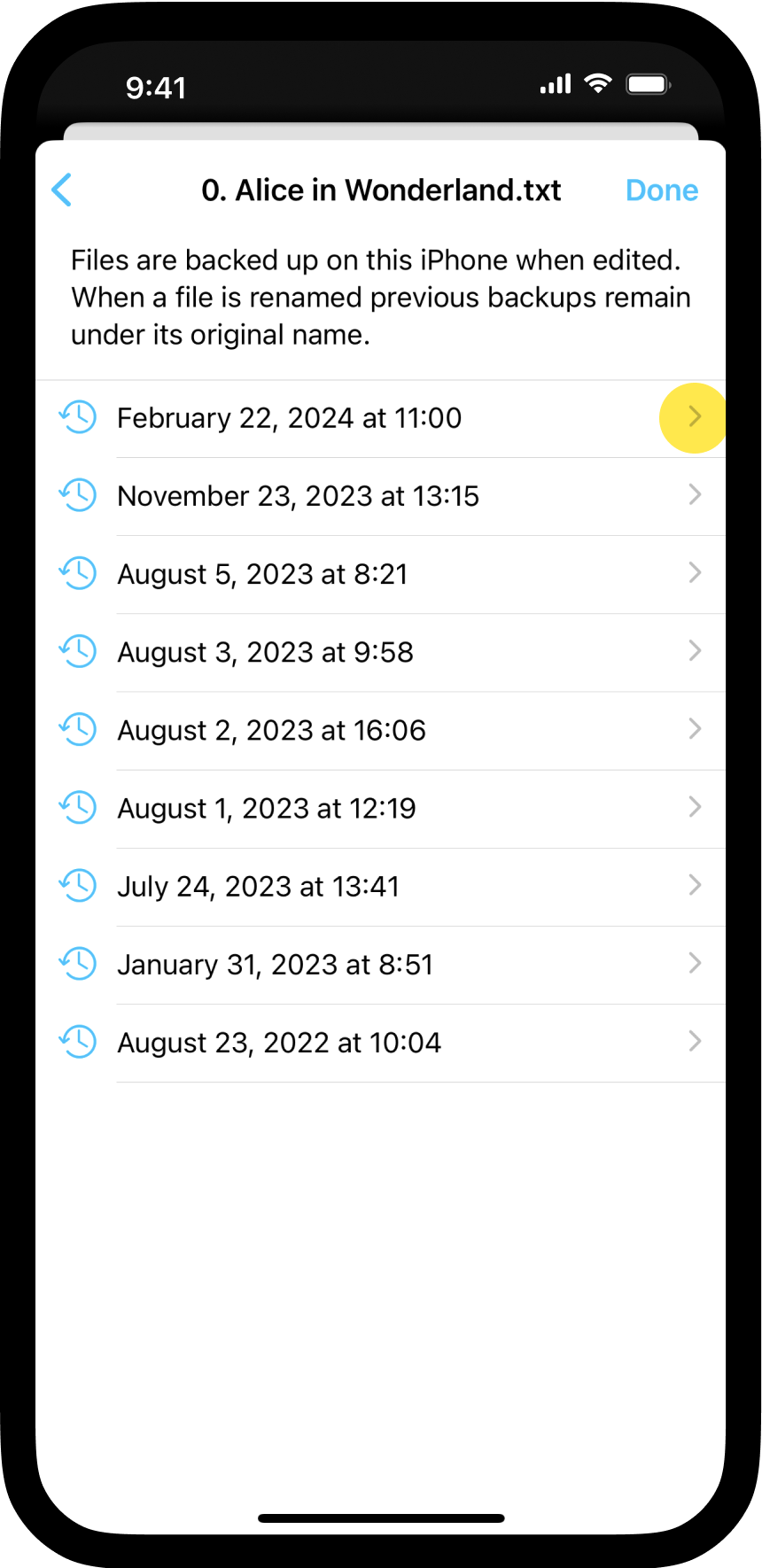
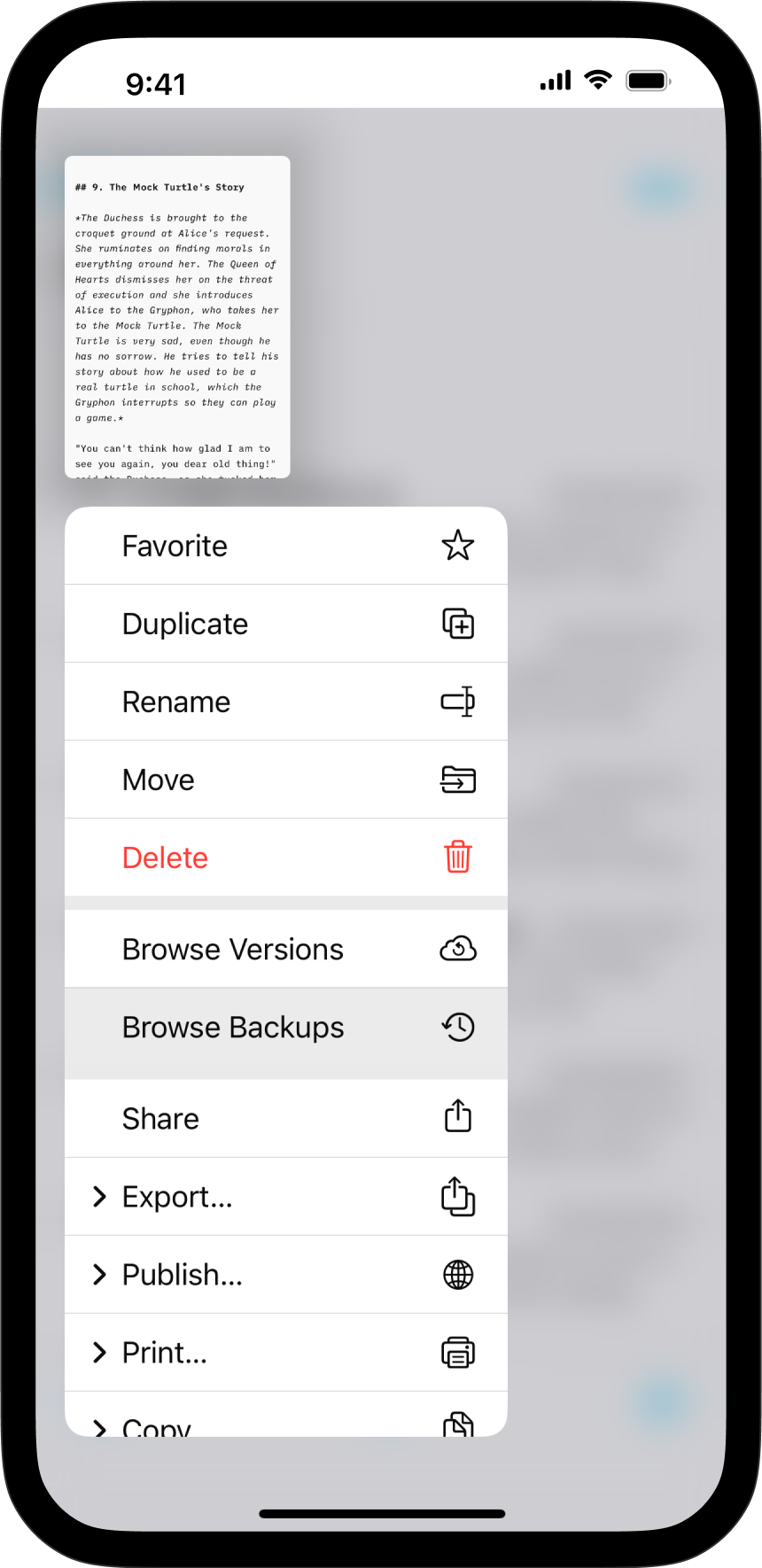
Another way to recover your previous elements in a document is via the Browse Backups function.
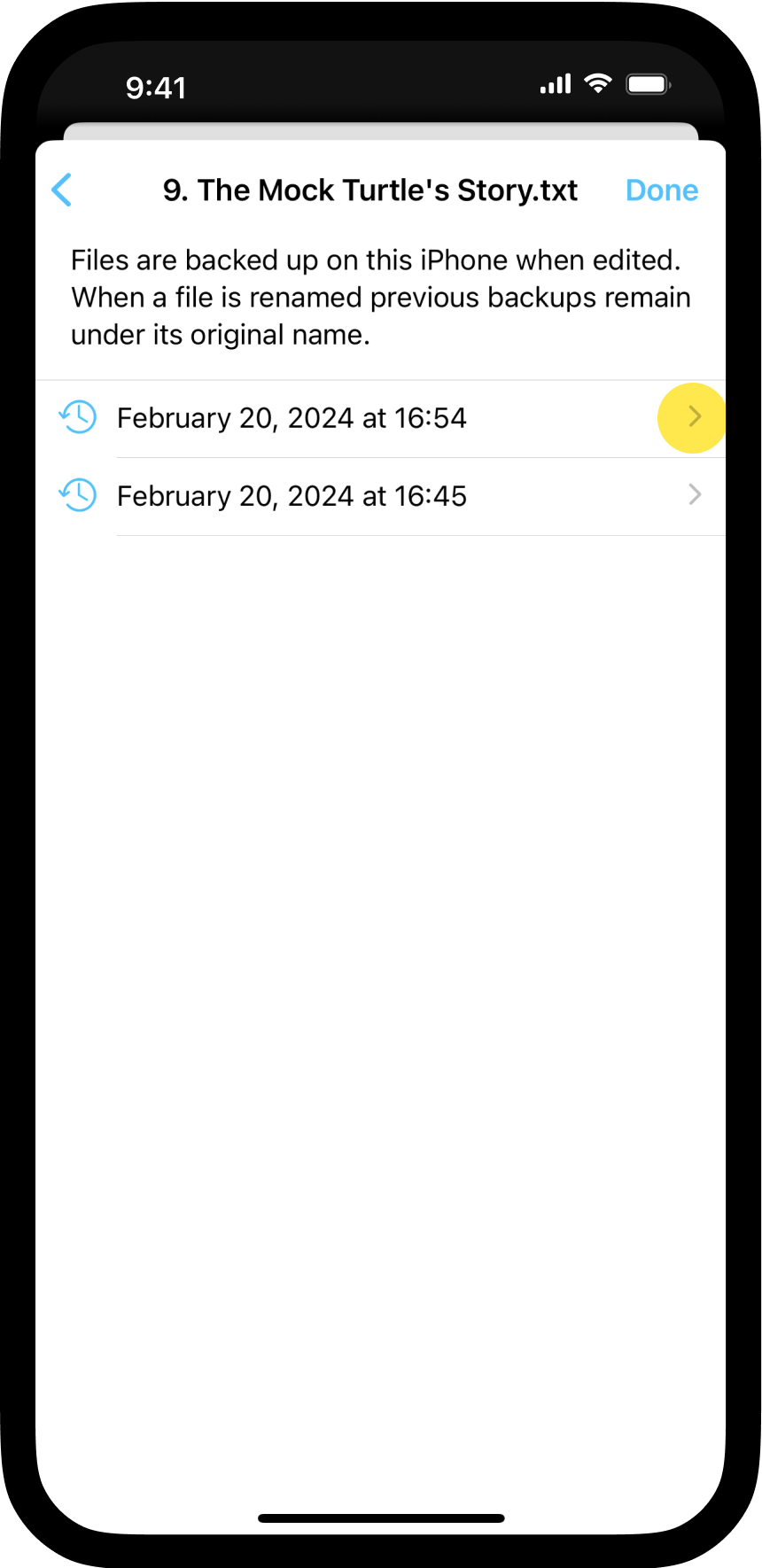
To locate a backup, just like for versions, long-press on a file in the Library then select Browse Backups (sweep upwards to reveal the option if necessary).
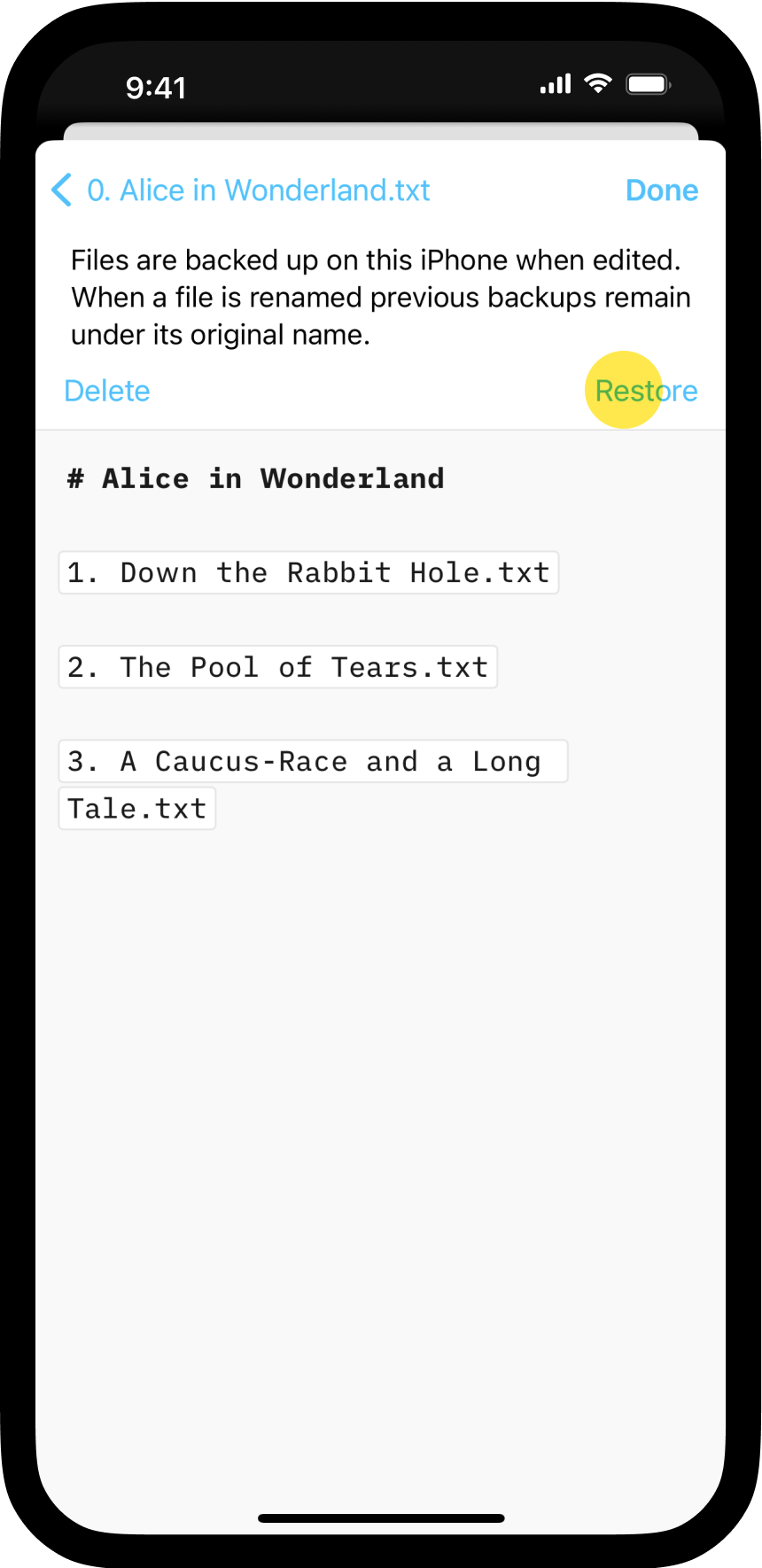
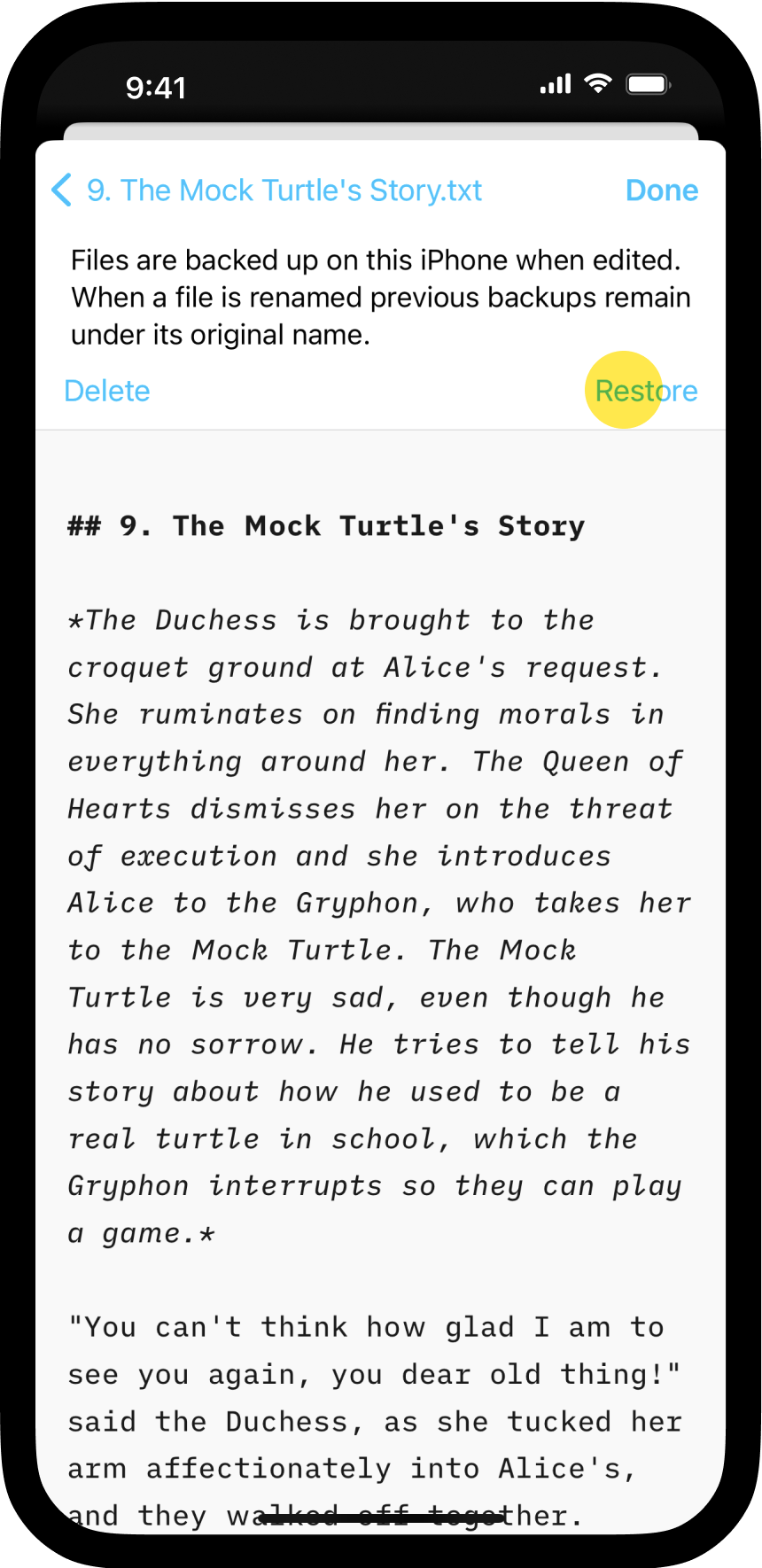
Select the desired backup from the list, then press Restore.
Deleted Document
Browse Local Backups
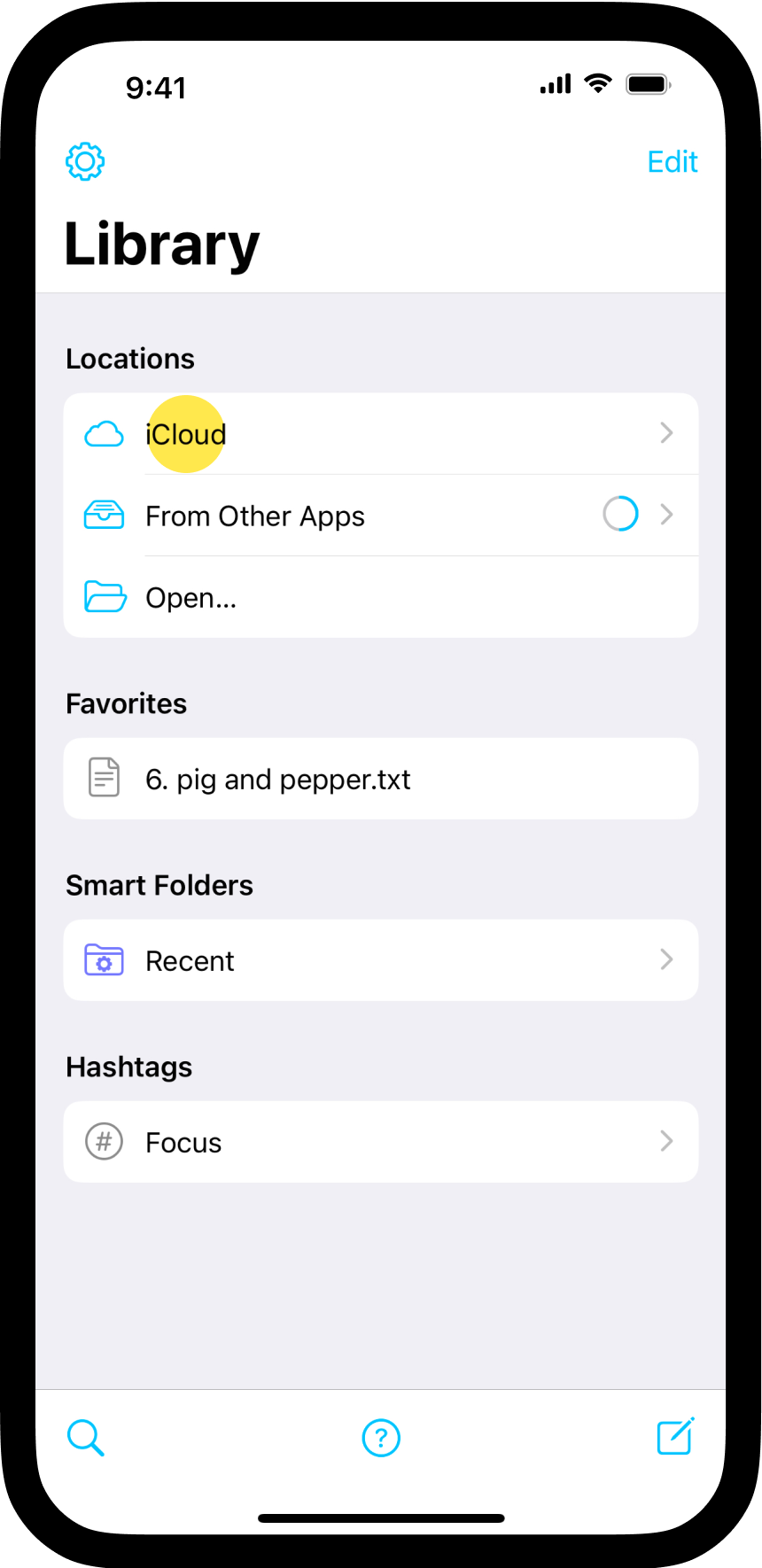
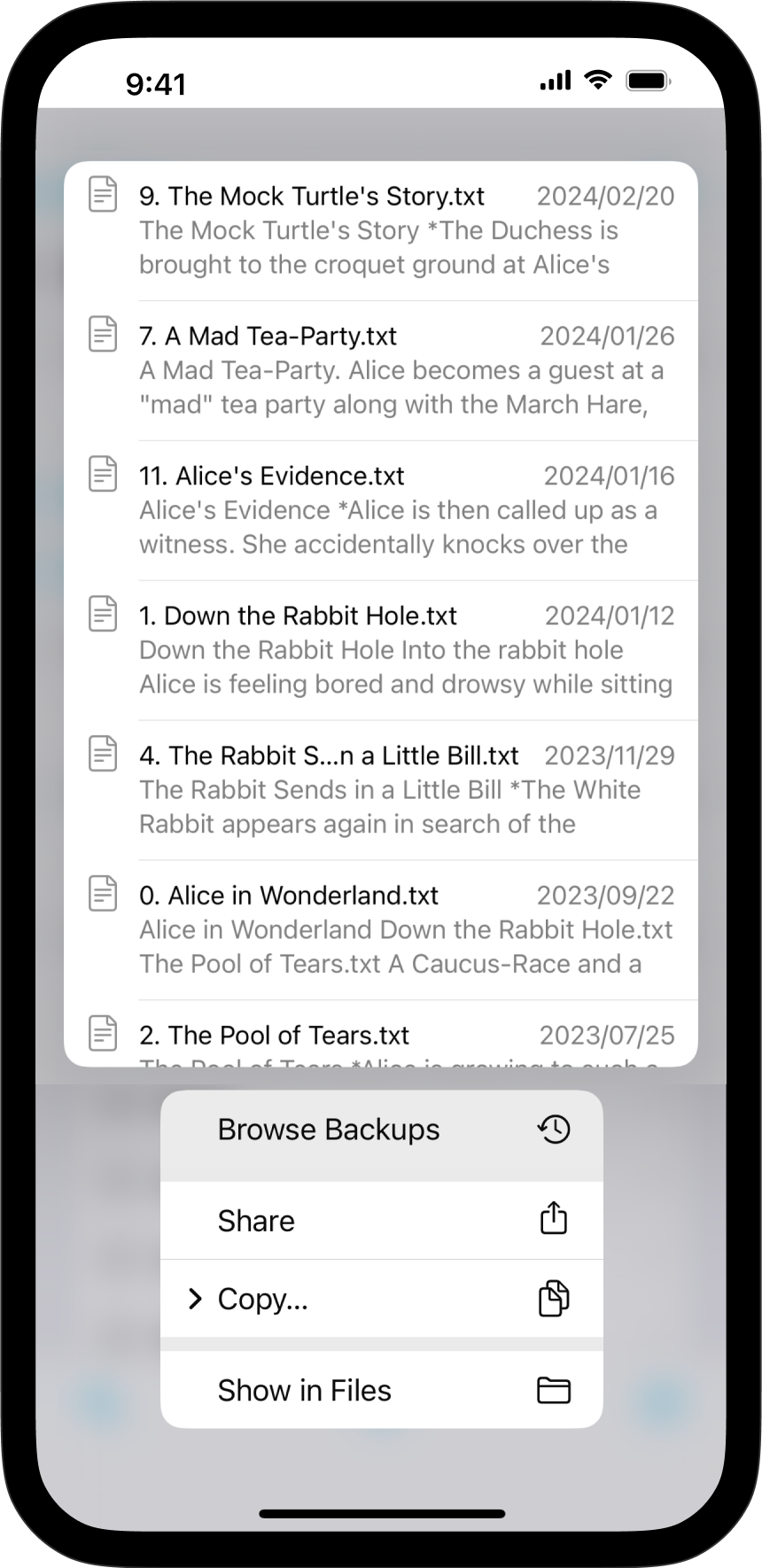
If you’ve deleted a file, you may be able to locate a prior backup by navigating to the top of the Library and long-pressing on a Location.
Down below, we will press on the Location iCloud to access all the recent backups.
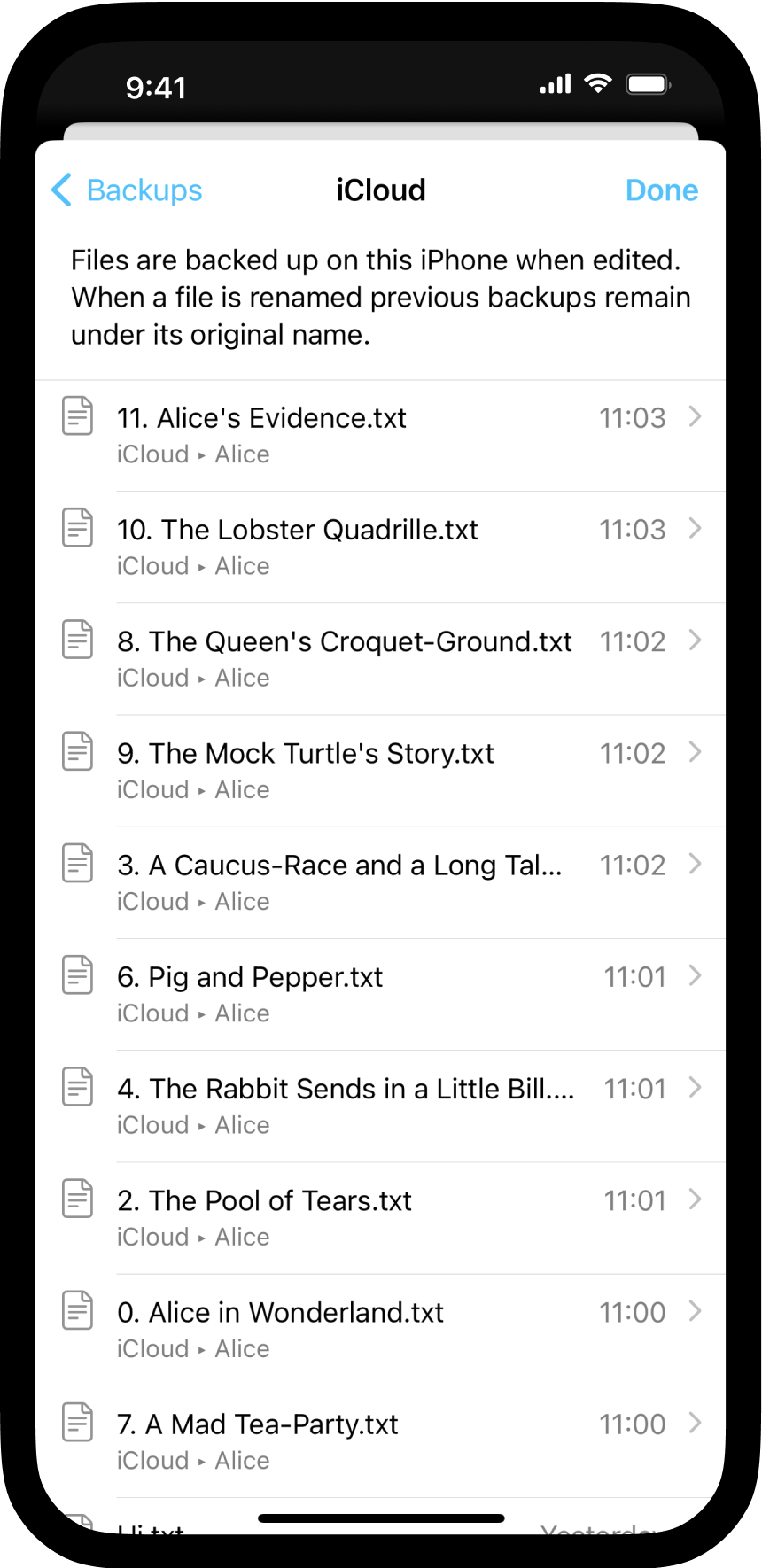
Similar to the process for regular backups, you will see a list of recent backups to choose from. Choose the backup containing the deleted file you wish to recover and click on Restore.
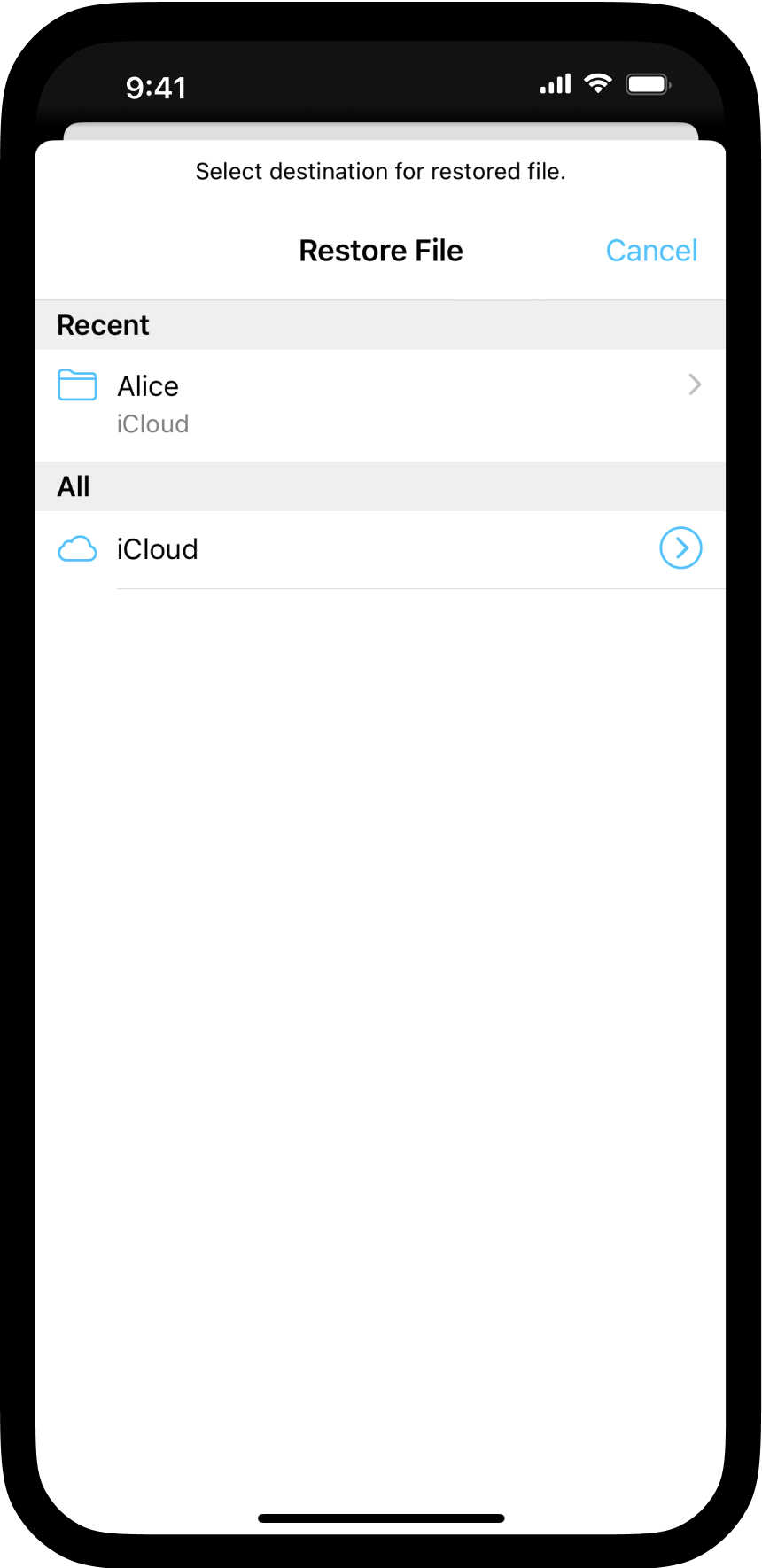
The final screen will allow you to select the location where you want to restore this file.