Versions and Backups Windows
If you’ve deleted a file or want to reverse changes to an existing one, restoring a previous version of your document is a simple process on Writer for Windows.
You have various options to recover your previous work, either in-app or via a cloud storage console.
Reverse Changes
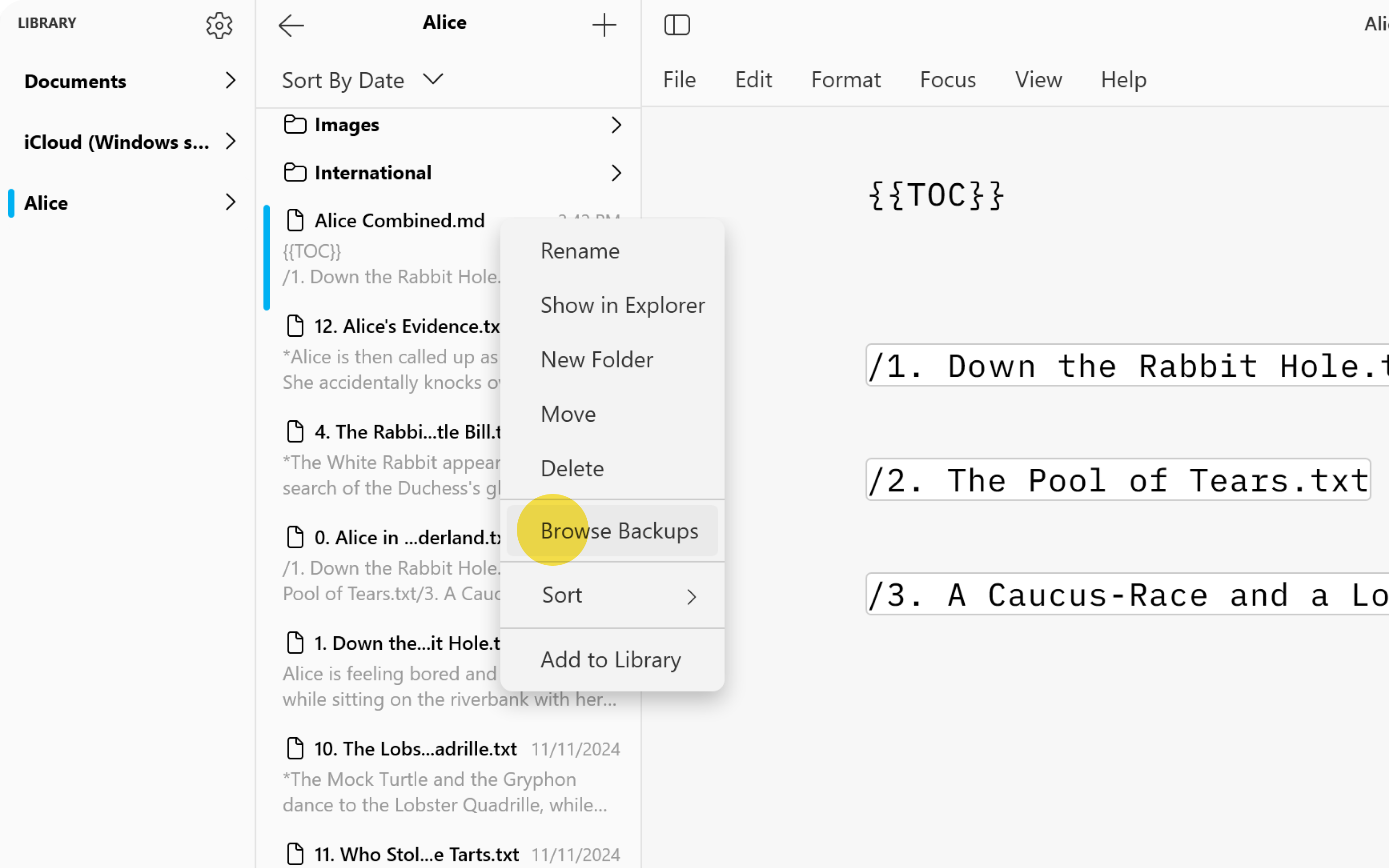
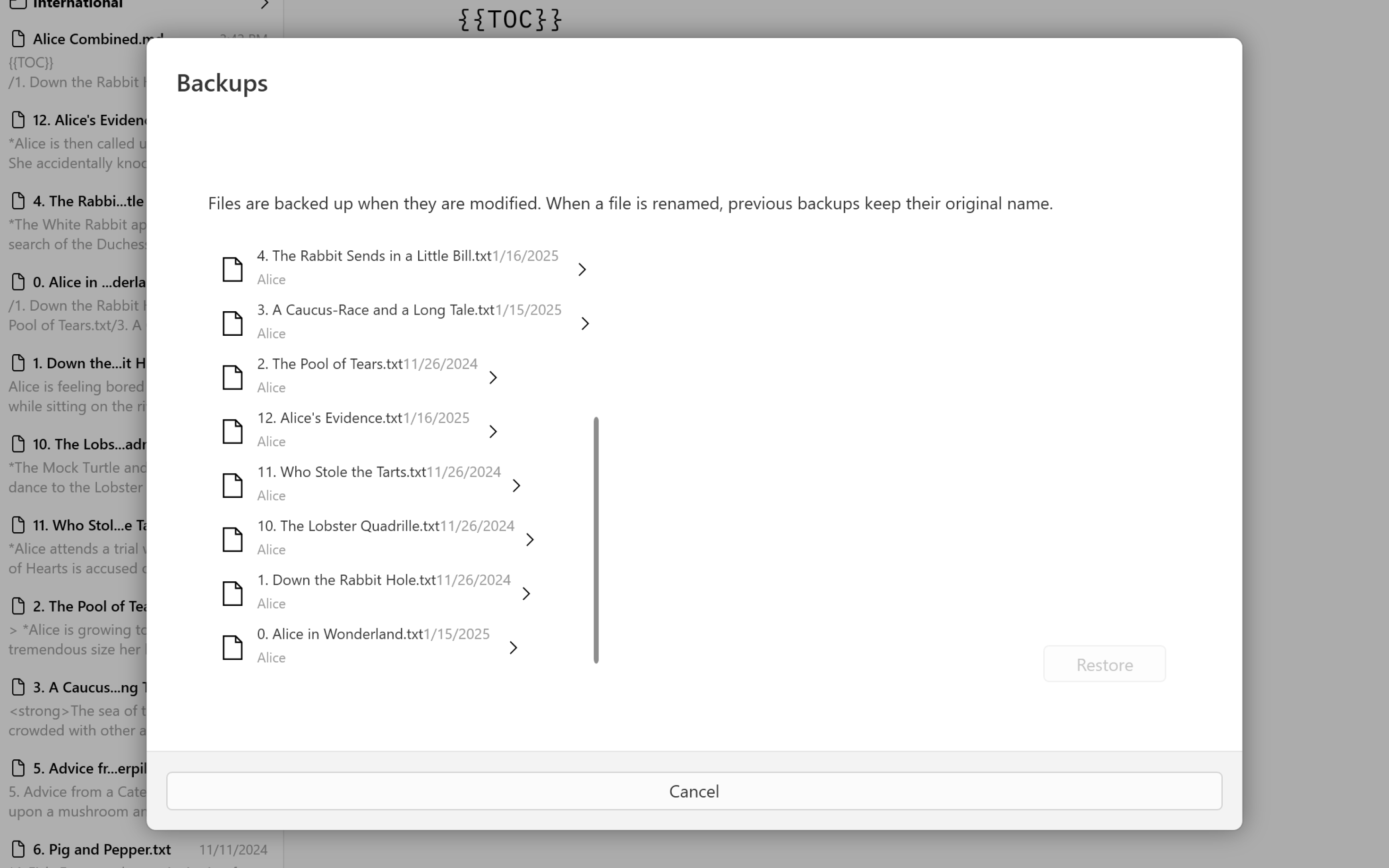
To access a backed up version of a file, simply right-click on the file in the File List and select Browse Backups.
You’ll see a list of available backups for the file. Select the desired one and click on Restore.
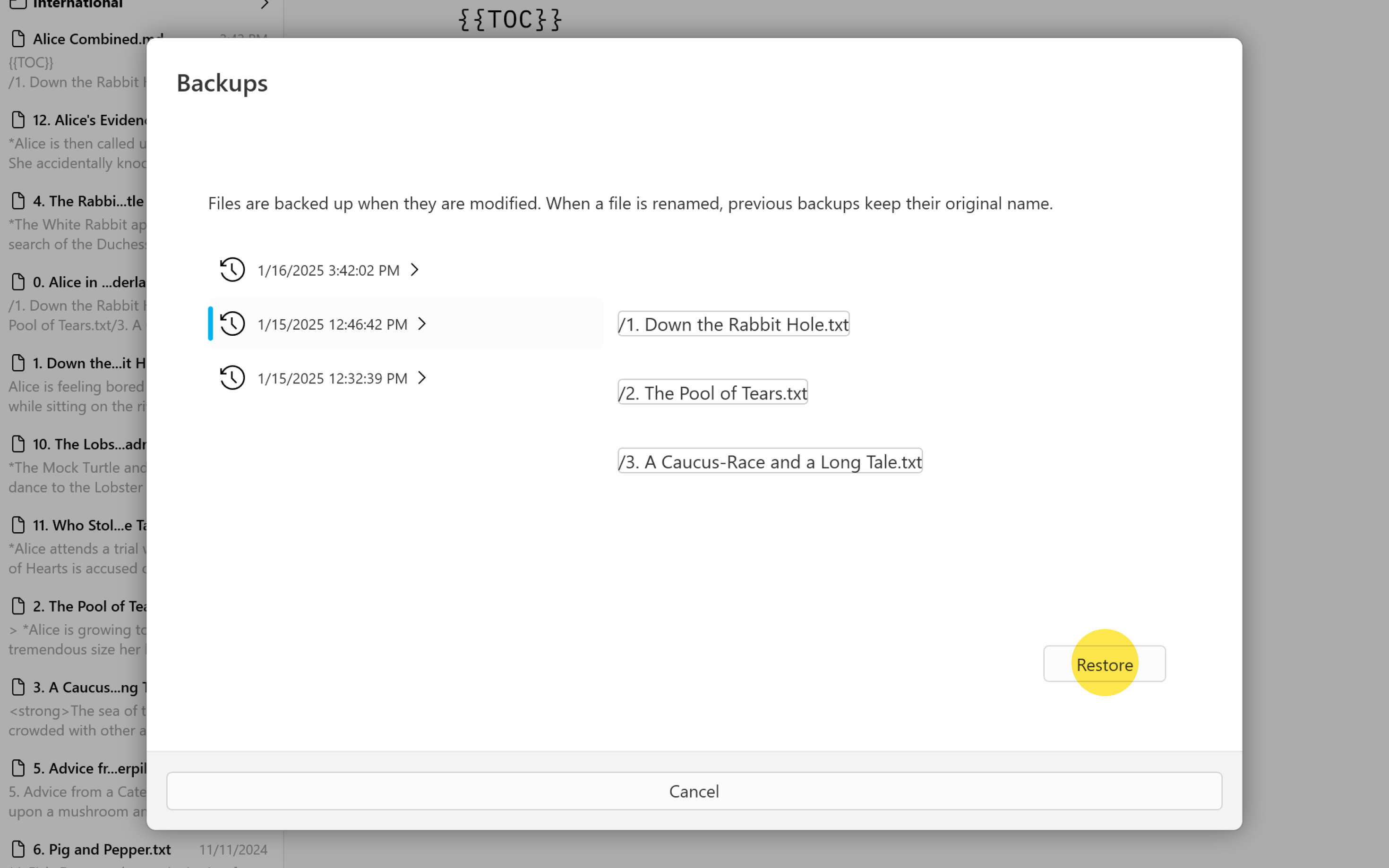
You see a system save window allowing you to restore (save) without overwriting the current version.
Recover a Deleted Document
From the Recycle Bin
Deleting a document from iA Writer is done by right-clicking on it from the File List and selecting Delete. This will place the file in your local Recycle Bin and naturally, the initial step to recover your document is to access the bin folder.
You can restore the file from there with a right-click.
Browse Backups
You can retrieve a deleted document from iA Writer directly. In the Organizer pane, right-click on the Location where the deleted file was stored and select Browse Backups.
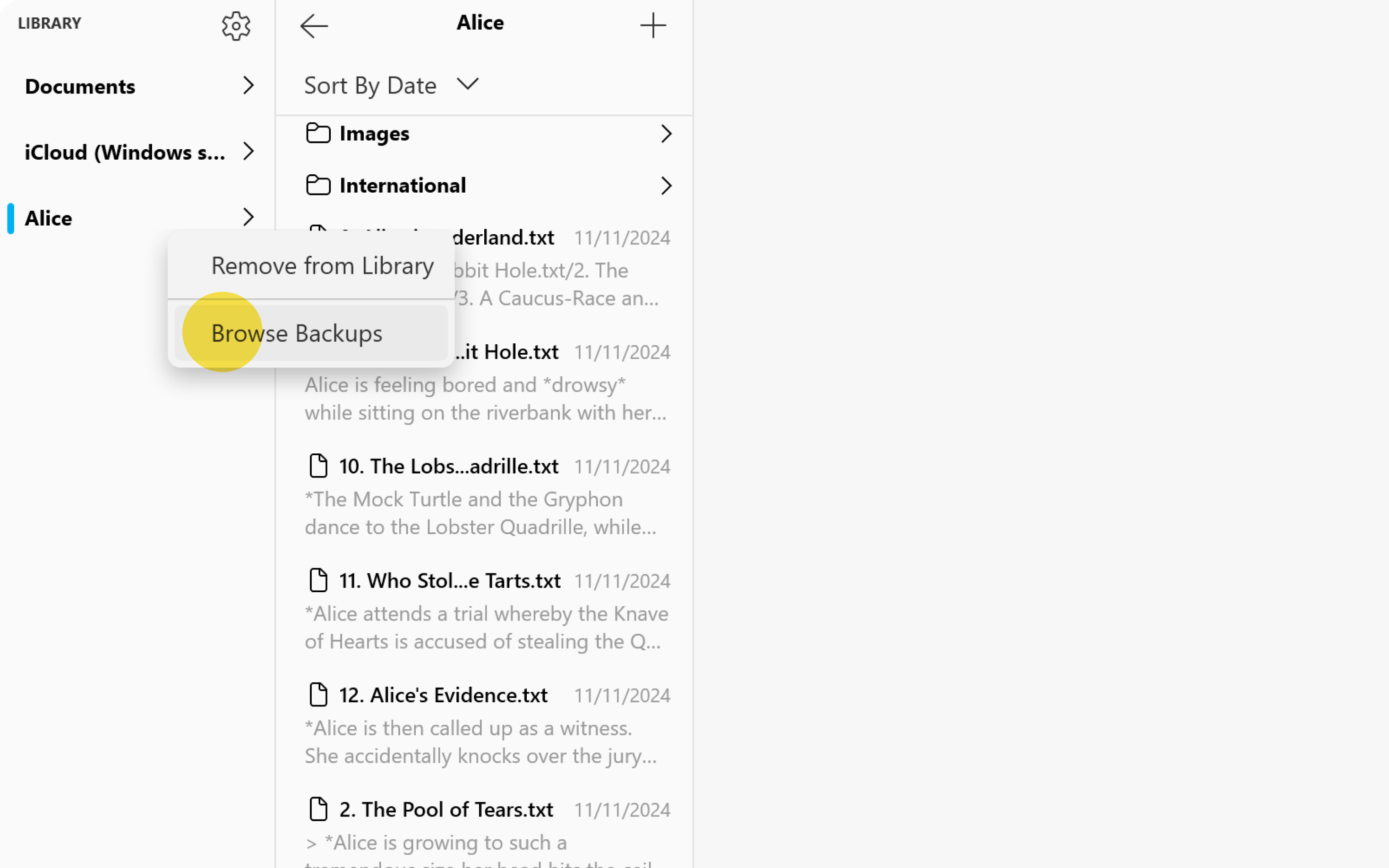
A pop-up window will show you all the files included in this Location. Click on the file you would like to restore, select the desired backup, and click on Restore.
From iCloud Drive
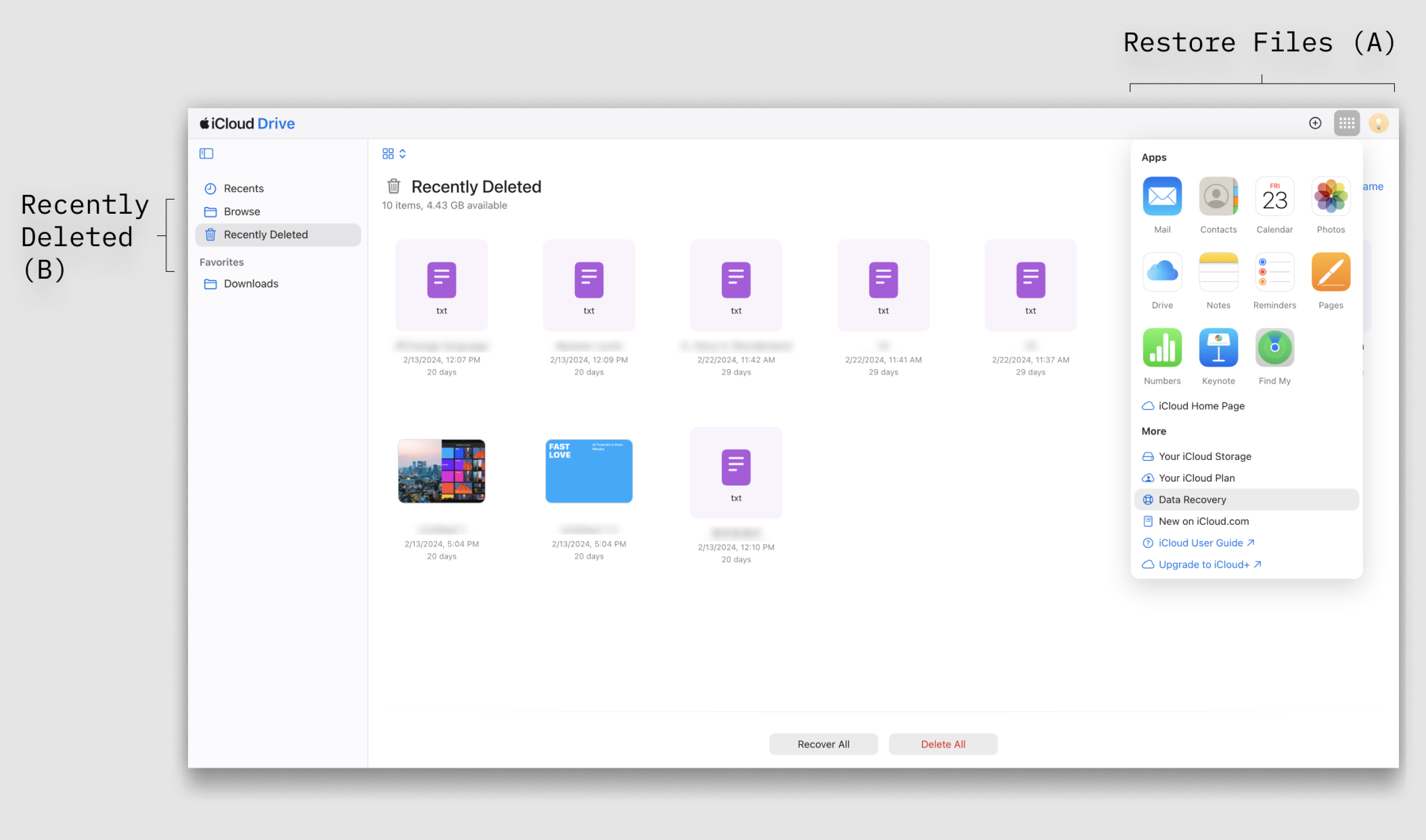
If you’re sharing documents between your PC and iPhone, you may have already installed iCloud Drive for Windows. Deleted iCloud files can be restored for up to 30 days, from either the iCloud’s Restore Files (A) or the Recently Deleted folder (B).
iCloud Drive Data Recovery (Restore Files)
- Log into icloud.com (from desktop browser)
- Go to the Drive section
- Click on Data Recovery
- Click on Restore Files
- Select desired files from list then click Restore
iCloud Drive’s Recently Deleted folder
Files deleted within the app are sent to the Recently Deleted folder. To recover these files:
- Log into icloud.com (from desktop browser)
- Go to the Drive section
- Click on Drive icon
- Click on Recently Deleted
- Select desired files/folders then click Recover
For the most up-to-date instructions on using iCloud recovery, please see the following Apple resource.
Other Cloud Storage
Many cloud storage providers preserve multiple versions and backups of your documents for up to 30 days.
We recommend visiting your cloud storage provider’s desktop/web console to see what options are available. For some of the most popular options please see: