Editor iPad
The central Editor panel is where the magic happens: writing your narrative, adding visuals, and turning your content into slides.
You can easily preview slide thumbnails by swiping right from the left edge of your screen. Swipe left to close the preview.
Start Writing
When you open iA Presenter on your iPad you’ll first see Instant Slides, our in-app tutorial. To remove it and start writing your narrative, select all text and press Delete.
Tip
If you no longer need the tutorial and prefer to start with a different or blank presentation, go to Settings → General → New Presentation Text and add your own template text, or delete it altogether.
Start by writing your narrative, the story you want to tell. As you write, format your text using Markdown. You can also import existing text—from iA Writer, for example.
New Slides and Layouts
To create a new slide, either type three dashes --- or press Return three times. You can also open the onscreen keyboard, select the Command Palette on the right and select Slide Break from the menu. Pressing Return three times only starts a new slide while Three returns to start a new slide is turned on in Settings → Editor (it’s on by default).
If you need a specific layout for your slide, click the + on the top-left of the Title Bar.
Presentation Options
In the Title Bar’s centre, click on the presentation’s name to rename it.
Under the Title Bar you’ll find a timer that estimates how long your presentation will take, based on your narrative. The time estimate updates in real-time as you write and edit.
Formatting Text
If you don’t know Markdown yet, open the onscreen keyboard, select the Command Palette on the right and select a formatting option. To choose which options you’ll see, go to Settings → Commands.
The first category in the Command Palette is called Spoken Text. Most of your narrative will probably be spoken text, but you can add lists or quotes here too.
Tip
Keep in mind that any text in the Spoken Text category won’t appear on your slides, but you’ll see it when you present.
The second category is called Text on Slide. Use it to add text that you want your audience to see. A faster way to do this is to add a tab ⇥ in front of your text.
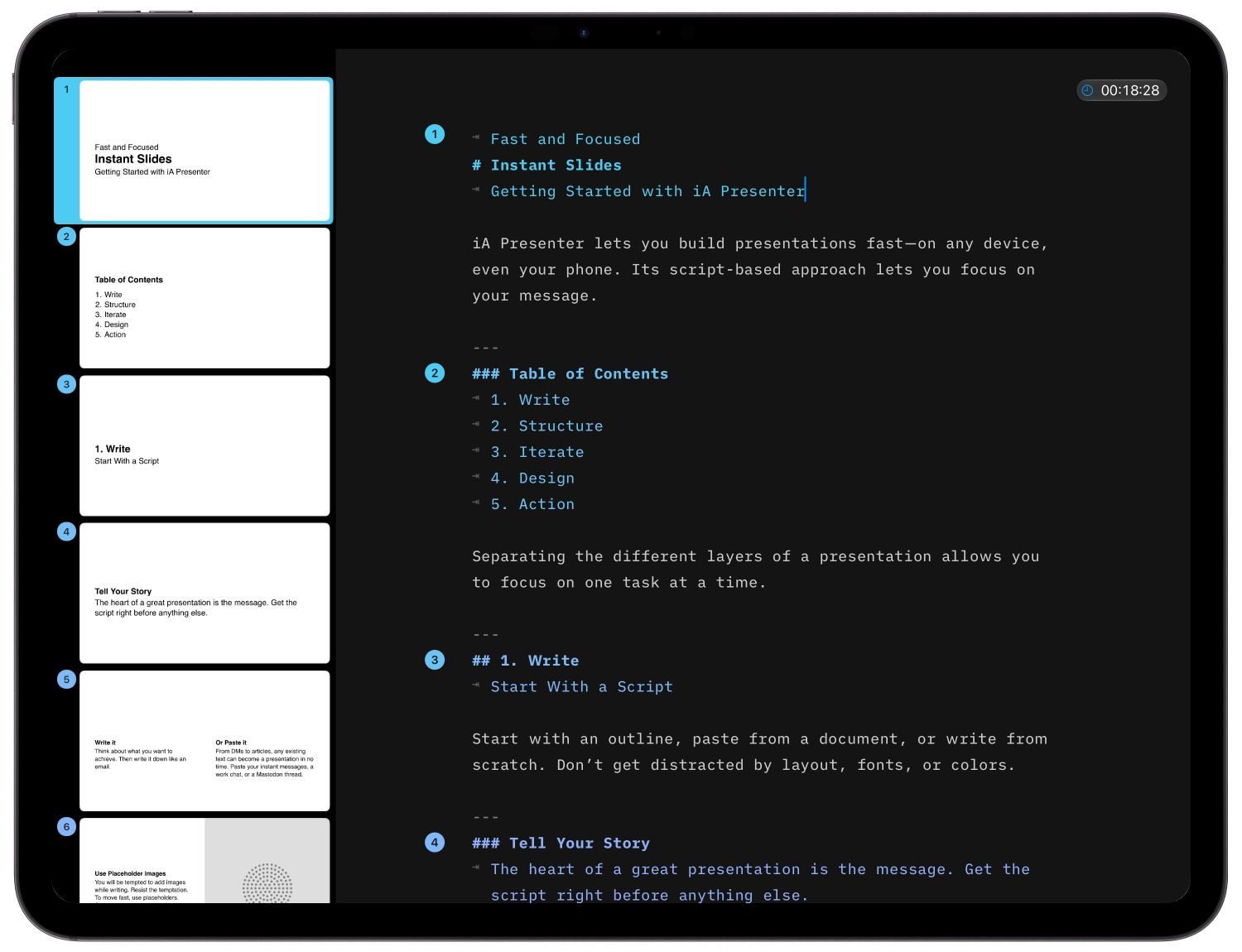
Find Your Focus
With iA Presenter you can easily cut out all distractions while you’re writing.
Use iA Writer’s famous Focus Mode, which we integrated into iA Presenter too. Enable Focus Mode via the Text Size button AA.
Tip
Compared to iA Writer, Focus Mode in iA Presenter works slightly differently. Instead of highlighting a paragraph or a sentence as in iA Writer, Focus Mode in iA Presenter focuses on the slide you’re writing.
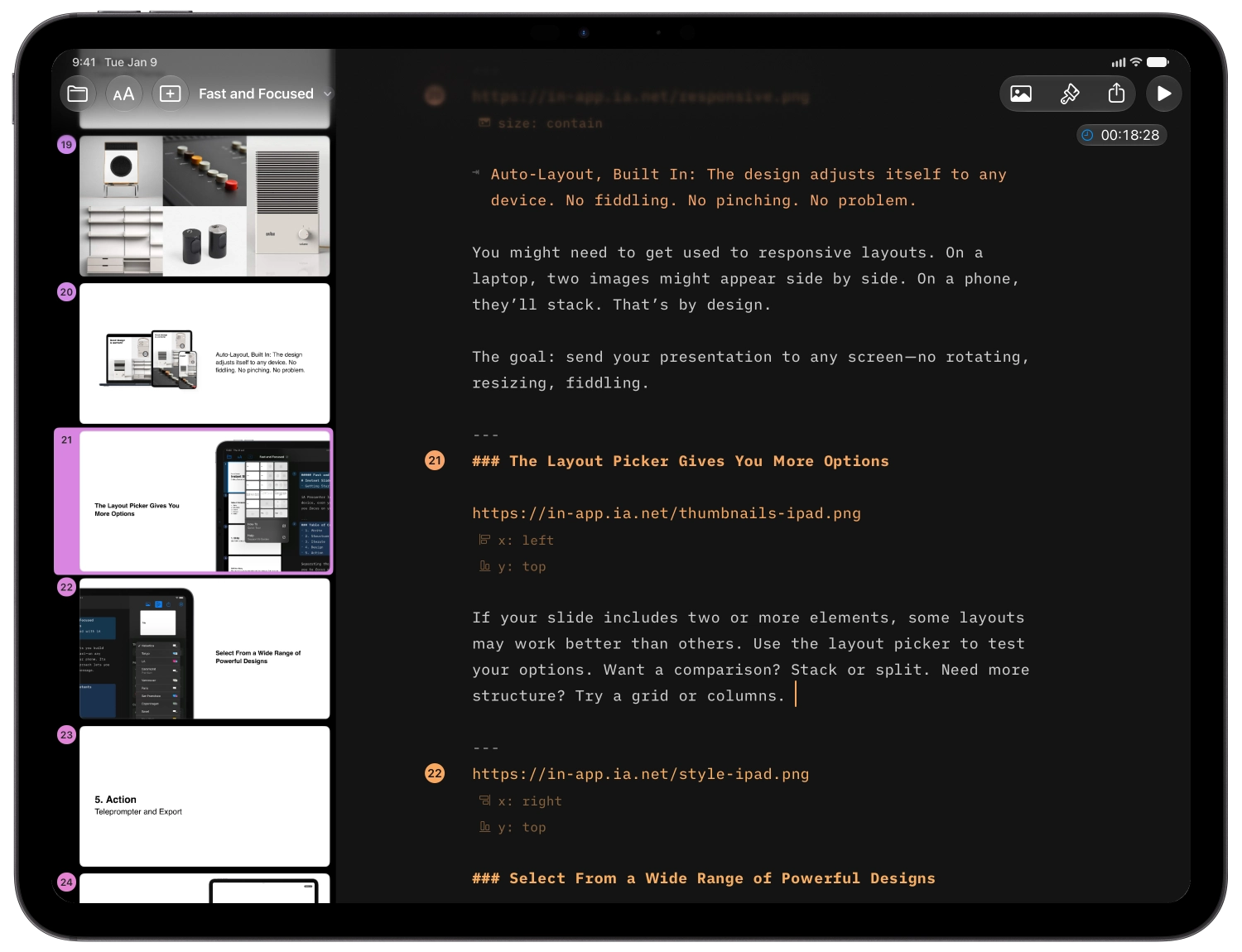
Multi-Color Code
You’ll notice that your cursor and slide titles gradually change color from blue to gold. Sure, it’s pretty—but it also shows you in which phase you are in a presentation:
Blue is a cold start.
Purple is warming up.
Red is when things get hot.
Orange prepares you for a sweet end.
Gold is the afterglow.
Tip
Keep in mind that the colors you see in the Editor don’t affect the theme you choose.
Changing Editor Settings
You can tweak how the Editor looks and works via:
- The Text Size button AA
- Settings ⚙️ → Editor
For example, you can switch between iA’s Mono, Duo and Quattro variable fonts, set up spelling, and more.
Editor
7-Day Free Trial
Download now.
No credit card required.
Mac
No credit card required