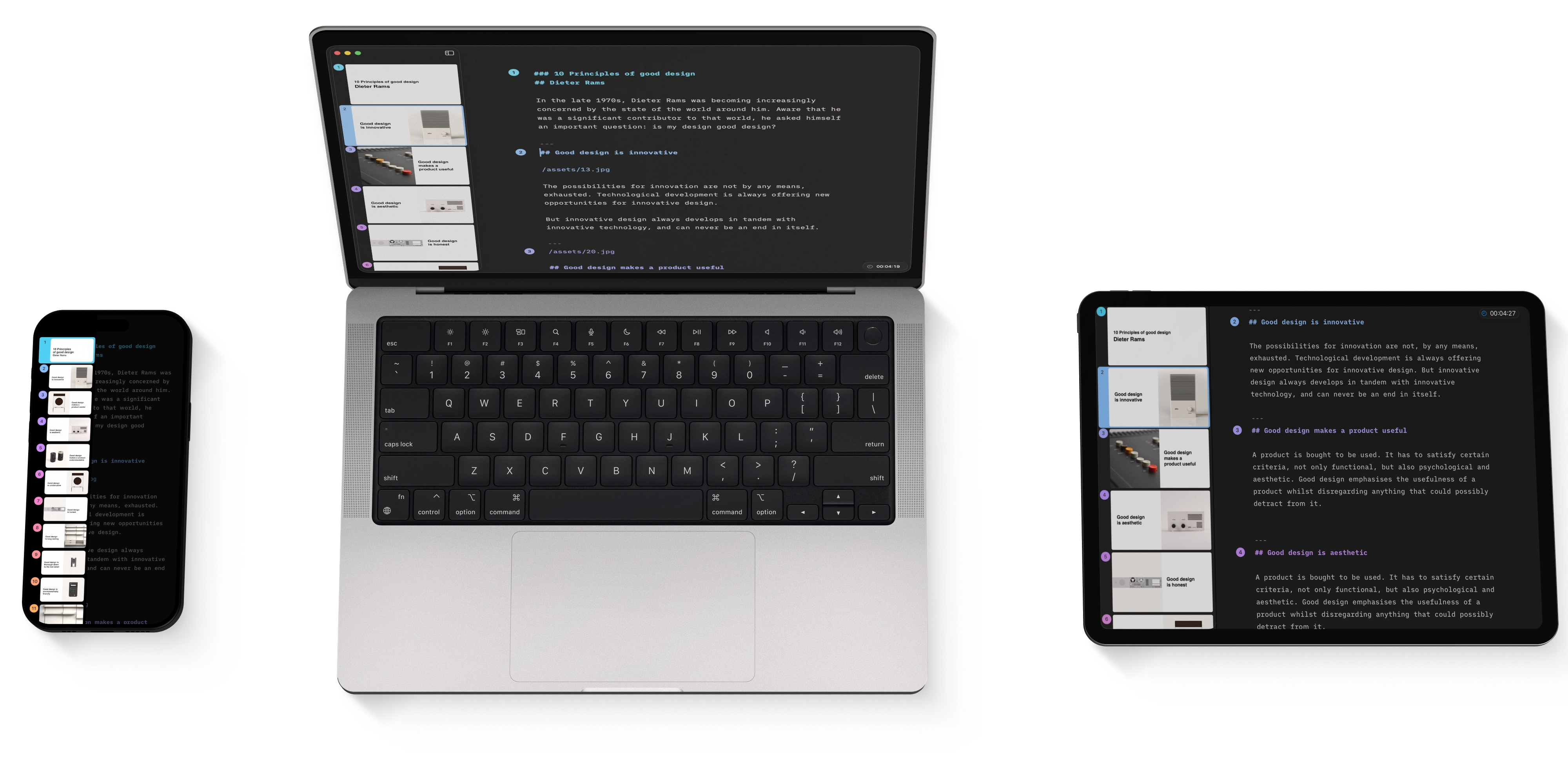
Presentation Mode iPhone
Use Presentation Mode to visualize, practice and deliver your presentation while checking your notes and seeing a preview of your slides.
Also known as the teleprompter, Presentation Mode is the second primary interface in iA Presenter, alongside the Editor. This is where you practice your speech and deliver it during the actual presentation. The teleprompter is like a safety net that shows your notes on top of your slides.
Finding Presentation Mode
To run Presentation Mode, tap the Play ▶️ button at the top right. To stop the presentation and go back to the Editor, tap the Stop ⏹ button at the top right.
Using Presentation Mode
To see how long you’ve been presenting, turn on Show Timer in the menu at the top left, or in Settings → Presentation. The timer appears at the top center. To reset it, tap the timer, then tap Reset.
Scroll up and down to navigate through the slides, or use the navigation arrows on the bottom toolbar.
To show or hide your Spoken Notes, open the menu at the top left and tap Show Subtitles or Hide Subtitles, or tap the slide. The same menu sets the text size (S, M or L). If there are multiple notes on one slide, they’re split into sections, and the dots below the notes show which one you’re on. Swipe from right to left to view the rest of your notes.
Tip
Enabling your speaker notes in Presentation Mode will not make them visible to your audience.
Presentation Settings
Go to Settings to customize your video controls or adjust the slide display ratio. From here, you can also show or hide the timer.
To change them, tap the folder icon at the top left of the Editor, then choose Settings → Presentation.
Presentation Mode
7-Day Free Trial
Download now.
No credit card required.